
Packard Bell Pulse 1 GB
Packard Bell Pulse Portable MP3 Player User Manual
Model: Pulse 1 GB
Introduction
This manual provides comprehensive instructions for the setup, operation, maintenance, and troubleshooting of your Packard Bell Pulse Portable MP3 Player. Please read this manual thoroughly before using the device to ensure proper functionality and longevity.
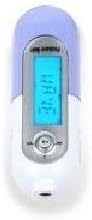
Image: The Packard Bell Pulse MP3 Player, featuring a compact, pill-shaped design with a digital display and control buttons. This specific image shows the player with a purple cap.
Product Overview
The Packard Bell Pulse is a portable MP3 player designed for on-the-go music playback and voice recording. It features a compact design, a 14-segment display with 7-color backlight, and support for MP3 and WMA audio formats.
Key Features:
- 1 GB internal storage capacity.
- Supports MP3 and WMA audio formats.
- 14-segment display with 7-color backlight.
- ID3 tag and lyric display support.
- Voice recording function.
- Up to 8 hours of playback time on a single AAA battery.
- USB full-speed connectivity.
- Menu languages: English, French, Spanish.
- Control options: by song, by folder.
- Equalizer presets: Normal, Rock, Jazz, Classic, Pop.
- Comes with 6 different colored USB caps.
Package Contents
Ensure all items are present in the package:
- Packard Bell Pulse MP3 Player
- Headphones
- 1 x AAA Battery
- 6 x Colored USB Caps (various colors)
- Software CD (includes manual and drivers)
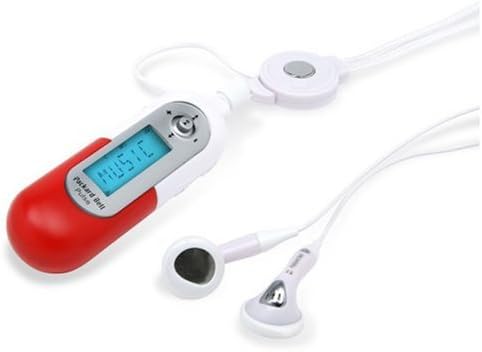
Image: The Packard Bell Pulse MP3 Player shown with a red cap, alongside its included white headphones. This illustrates the player's compact size and the accessories.

Image: The Packard Bell Pulse MP3 Player with a yellow cap, accompanied by its white headphones. This image highlights another color option for the USB cap.
Setup
1. Installing the Battery
- Locate the battery compartment on the player.
- Open the compartment cover.
- Insert one AAA battery, ensuring correct polarity (+/-).
- Close the battery compartment cover securely.
2. Connecting to a Computer
- Remove the colored USB cap from the player to reveal the USB connector.
- Plug the player directly into an available USB port on your computer.
- Your computer should detect the device as a removable disk.
- If prompted, install the drivers from the included Software CD. The CD also contains the full digital manual.
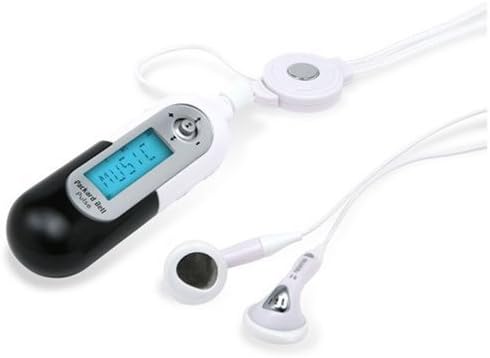
Image: The Packard Bell Pulse MP3 Player with a black cap, shown with its headphones. This image demonstrates the player's design with another cap color.
3. Transferring Music Files
- Once connected, open the player's drive on your computer.
- Drag and drop your MP3 or WMA audio files into the player's storage. You can create folders to organize your music.
- Safely eject the device from your computer before disconnecting it.
Operating Instructions
1. Basic Playback
- Connect the headphones to the player's headphone jack.
- Press the Play/Pause button to turn on the device and begin playback.
- Use the Next/Fast Forward and Previous/Rewind buttons to navigate between tracks.
- Press the Play/Pause button again to pause playback.
- To adjust volume, use the dedicated volume buttons (if present, otherwise refer to the full manual on the CD).
2. Menu Navigation
The player features a 14-segment display. Use the navigation buttons to browse through menu options such as:
- Music: Access your stored audio files.
- Voice Record: Initiate voice recordings.
- Settings: Adjust display backlight, equalizer, language, etc.
Refer to the full manual on the Software CD for detailed menu navigation and function descriptions.
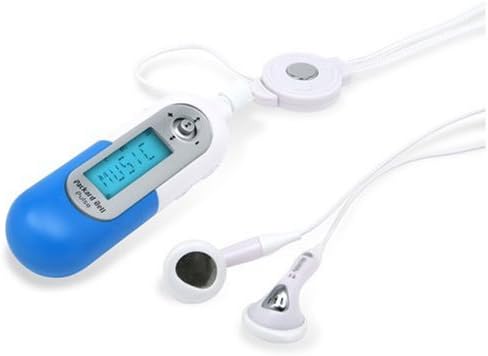
Image: The Packard Bell Pulse MP3 Player with a blue cap, shown with its headphones. This image provides another view of the player with a different colored cap.
Maintenance
- Cleaning: Use a soft, dry cloth to clean the player's exterior. Do not use liquid cleaners or solvents.
- Battery: Replace the AAA battery when the low battery indicator appears or when playback time significantly decreases. Remove the battery if the player will not be used for an extended period.
- Storage: Store the player in a cool, dry place away from direct sunlight and extreme temperatures.
- USB Cap: Always keep a USB cap attached when not connected to a computer to protect the USB connector from dust and damage.
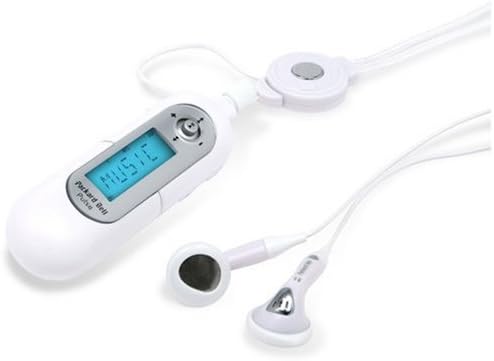
Image: The Packard Bell Pulse MP3 Player with a white cap, shown with its headphones. This image displays the player in its default white color scheme.
Troubleshooting
| Problem | Possible Cause | Solution |
|---|---|---|
| Player does not turn on. | Dead or incorrectly inserted battery. | Replace the AAA battery or ensure it is inserted with correct polarity. |
| No sound from headphones. | Headphones not properly connected; volume too low; corrupted audio file. | Ensure headphones are fully plugged in. Increase volume. Try playing a different audio file. |
| Computer does not recognize the player. | Missing or outdated drivers; faulty USB connection. | Install drivers from the Software CD. Try a different USB port or cable. Restart computer. |
| Cannot transfer files. | Player storage is full; file format not supported. | Delete some files to free up space. Ensure files are MP3 or WMA format. |
For more detailed troubleshooting, refer to the complete manual on the Software CD.

Image: The Packard Bell Pulse MP3 Player with a pink cap, shown with its headphones. This image completes the set of various colored caps available for the player.
Specifications
- Model: Packard Bell Pulse 1 GB
- Storage Capacity: 1 GB
- Supported Audio Formats: MP3, WMA
- Display: 14-segment with 7-color backlight
- Battery Type: 1 x AAA Alkaline battery
- Battery Life: Approximately 8 hours
- Connectivity: USB Full Speed
- Output Power: 4.39 mW
- Dimensions (L x W x H): 82.5 x 27 x 20.8 mm (3.25 x 1.06 x 0.82 inches)
- Weight: 24 grams (0.85 ounces)
- Microphone: Yes (for voice recording)
- Signal-to-Noise Ratio: 90 dB
Warranty and Support
For warranty information and technical support, please refer to the documentation provided on the Software CD included with your Packard Bell Pulse MP3 Player. You may also visit the official Packard Bell website for the latest support resources.
Manufacturer: Packard Bell
Model Number: Pulse 1 GB
First Available Date: January 15, 2020
Related Documents - Pulse 1 GB
 |
Packard Bell AudioKey USB MP3 Player & Voice Recorder - User Manual Comprehensive user guide for the Packard Bell AudioKey USB portable MP3 player, voice recorder, and mass storage device. Learn about features, installation, data transfer, playback, recording, and technical specifications. |
 |
Oakley Thump Felhasználói Kézikönyv Ez a felhasználói kézikönyv részletes útmutatást nyújt az Oakley Thump digitális zenelejátszó szemüveg beállításához, használatához, karbantartásához és hibaelhárításához. |
 |
GPX ML6X8B Digital Video Player Instruction Manual User manual for the GPX ML6X8B Digital Video Player, covering safety precautions, features, loading music, movies, and photos, playback controls, settings, troubleshooting, and software installation. |
 |
Oakley Thump: Guia do Usuário e Manual de Instruções Manual completo para o Oakley Thump, cobrindo configuração, uso, transferência de músicas, carregamento de bateria, solução de problemas, segurança e especificações técnicas. |
 |
Oakley Thump 使用手冊與指南 Oakley Thump 太陽眼鏡整合音樂播放器之完整使用手冊,涵蓋設定、操作、故障排除、規格與保固資訊。 |
 |
OAKLEY THUMP User Manual and Product Information Comprehensive user manual for the OAKLEY THUMP eyewear and music player, covering setup, music transfer, charging, accessories, troubleshooting, safety, specifications, and warranty information. |
Ask a question about this manual
Ask about setup, troubleshooting, compatibility, parts, safety, or missing instructions. Manuals+ will review the question and use this page’s manual context to help answer it.