
Daewoo Electronics DV-2500H
Daewoo DV 2500 H DVD Player User Manual
Model: DV-2500H
1. Introduction
This manual provides detailed instructions for the proper installation, operation, and maintenance of your Daewoo DV 2500 H DVD player. Please read this manual thoroughly before using the device to ensure safe and optimal performance. Keep this manual for future reference.
2. Important Safety Instructions
- Power Source: Connect the player only to the specified power supply voltage.
- Ventilation: Ensure adequate ventilation. Do not block ventilation openings.
- Water and Moisture: Do not expose the player to rain or moisture. Do not place objects filled with liquids on the player.
- Heat: Keep the player away from heat sources such as radiators, heat registers, stoves, or other apparatus that produce heat.
- Cleaning: Unplug the player from the wall outlet before cleaning. Use a dry cloth for cleaning.
- Servicing: Do not attempt to service this product yourself. Refer all servicing to qualified service personnel.
3. Package Contents
Please check that all items are present:
- Daewoo DV 2500 H DVD Player
- Remote Control (batteries not included)
- Power Cable
- Audio/Video Cables (e.g., RCA or Scart cable)
- User Manual
4. Product Overview
The Daewoo DV 2500 H is a versatile DVD player designed to play a wide range of media formats. It features multiple connectivity options for seamless integration into your home entertainment system.
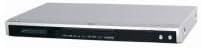
This image displays the Daewoo DV 2500 H DVD player from the front. The device features a sleek silver-black design with a central disc tray, a digital display, and essential control buttons on the right side of the front panel.
Key Features:
- HDMI output for high-quality digital video and audio.
- Two karaoke outputs with independent volume control.
- Separate AV outputs including Cinch, Scart with RGB, and S-VHS.
- USB port for connecting external storage devices (e.g., USB flash drives, card readers).
- Zoom function for DVD/S-VCD/VCD playback.
- Optical and Cinch audio outputs supporting DTS and Dolby Digital.
- Supports various media formats: DVD, DVD-R, DVD-RW, DVD+R, DVD+RW, DVD-ROM, MP3, DivX (3.11, 4.x, 5.x), JPEG, S-VCD, VCD, CD-ROM, AUDIO CD, CD-R, CD-RW.
5. Setup and Connections
5.1 Power Connection
- Ensure the DVD player is placed on a stable, level surface with adequate ventilation.
- Connect the power cable to the AC IN socket on the rear of the DVD player.
- Plug the other end of the power cable into a wall outlet.
5.2 Video Connections
Choose one of the following video connection methods:
- HDMI Connection (Recommended): Connect an HDMI cable from the HDMI OUT port on the DVD player to the HDMI IN port on your TV or display. This provides the best digital video and audio quality.
- SCART Connection: Connect a SCART cable from the SCART OUT port on the DVD player to the SCART IN port on your TV. This supports RGB video output.
- Component Video Connection (Cinch): Connect component video cables (Red, Green, Blue) from the Y, Pb, Pr OUT ports on the DVD player to the corresponding IN ports on your TV.
- S-Video Connection: Connect an S-Video cable from the S-VIDEO OUT port on the DVD player to the S-VIDEO IN port on your TV.
5.3 Audio Connections
Choose one of the following audio connection methods:
- HDMI Audio: If using an HDMI connection, audio will be transmitted digitally through the HDMI cable.
- Optical Digital Audio: Connect an optical cable from the OPTICAL OUT port on the DVD player to the optical digital audio IN port on your amplifier or home theater system for multi-channel audio (DTS, Dolby Digital).
- Coaxial Digital Audio (Cinch): Connect a coaxial digital audio cable from the COAXIAL OUT port on the DVD player to the coaxial digital audio IN port on your amplifier or home theater system for multi-channel audio (DTS, Dolby Digital).
- Analog Stereo Audio (Cinch): Connect RCA audio cables (Red for Right, White for Left) from the AUDIO OUT ports on the DVD player to the corresponding AUDIO IN ports on your TV or amplifier.
5.4 USB Device Connection
Insert a USB flash drive or a card reader into the USB port on the front panel of the DVD player to access compatible media files.
5.5 Karaoke Microphone Connection
Connect up to two microphones to the KARAOKE MIC IN ports on the front panel. Adjust microphone volume using the dedicated controls.
6. Basic Operation
6.1 Power On/Off
Press the POWER button on the front panel or the remote control to turn the player on or off.
6.2 Disc Playback
- Press the OPEN/CLOSE button to open the disc tray.
- Place a DVD or CD disc gently onto the tray with the label side facing up.
- Press the OPEN/CLOSE button again to close the tray.
- Playback will usually start automatically. If not, press the PLAY button.
- Use the remote control buttons (PLAY, PAUSE, STOP, FAST FORWARD, REWIND, NEXT, PREVIOUS) to control playback.
6.3 USB Media Playback
- Insert a USB device containing compatible media files (MP3, DivX, JPEG) into the USB port.
- The player should automatically detect the USB device and display a menu. If not, press the USB button on the remote control.
- Navigate through the folders and files using the arrow buttons on the remote control.
- Press the ENTER/PLAY button to select and play a file.
6.4 Karaoke Function
- Connect microphones to the KARAOKE MIC IN ports.
- Play a karaoke-compatible disc or media file.
- Adjust the microphone volume using the dedicated MIC VOL controls on the front panel or remote control.
6.5 Zoom Function
During DVD, S-VCD, or VCD playback, press the ZOOM button on the remote control to magnify a portion of the screen. Use the arrow buttons to navigate the zoomed area.
7. Maintenance and Care
7.1 Cleaning the Unit
Wipe the exterior of the DVD player with a soft, dry cloth. Do not use liquid cleaners or abrasive materials, as they may damage the finish.
7.2 Cleaning Discs
Wipe discs from the center outwards with a soft, lint-free cloth. Do not use solvents or abrasive cleaners. Avoid touching the playback surface of the disc.
8. Troubleshooting
If you experience problems with your DVD player, refer to the following table for possible solutions:
| Problem | Possible Cause | Solution |
|---|---|---|
| No power | Power cable not connected; Power outlet not working | Check power cable connection; Try a different outlet |
| No picture | Video cable not connected correctly; Incorrect input selected on TV | Check video cable connections; Select correct input source on TV |
| No sound | Audio cable not connected correctly; TV/amplifier volume too low; Incorrect audio output selected | Check audio cable connections; Increase volume; Select correct audio output on player/amplifier |
| Disc does not play | Disc is dirty or scratched; Disc format not supported; Disc inserted incorrectly | Clean or replace disc; Ensure disc format is supported; Insert disc label-side up |
| Remote control not working | Batteries are dead or inserted incorrectly; Obstruction between remote and player | Replace batteries, check polarity; Remove any obstructions; Point remote directly at player |
If the problem persists after trying these solutions, please contact customer support.
9. Technical Specifications
| Feature | Specification |
|---|---|
| Model | DV-2500H |
| Brand | Daewoo Electronics |
| Supported Media Types | DVD, DVD-R, DVD-RW, DVD+R, DVD+RW, DVD-ROM, MP3, DivX (3.11, 4.x, 5.x), JPEG, S-VCD, VCD, CD-ROM, AUDIO CD, CD-R, CD-RW |
| Connectivity | HDMI, USB, SCART, Component Video (Cinch), S-Video, Optical Digital Audio, Coaxial Digital Audio (Cinch), Analog Stereo Audio (Cinch), Karaoke Mic In (x2) |
| Dimensions (W x D x H) | 430 x 270 x 52 mm (approx.) |
| Weight | 2.3 kg |
| Power Supply | AC 230V, 50Hz (typical, check product label) |
10. Warranty and Support
For warranty information and customer support, please refer to the warranty card included with your product or contact your local Daewoo Electronics service center. Keep your proof of purchase for warranty claims.
Ask a question about this manual
Ask about setup, troubleshooting, compatibility, parts, safety, or missing instructions. Manuals+ will review the question and use this page’s manual context to help answer it.