
1. Introduction
This manual provides detailed instructions for the installation, operation, and maintenance of your Clarion NAX970HD HDD Navigation System. The NAX970HD is an advanced in-car navigation unit featuring a high-speed 30 GB Mobile Hard Disk Drive pre-loaded with maps of the US and Canada, including nearly 9 million points of interest. It integrates a high-sensitivity GPS receiver and an on-board gyroscope for precise positioning. The system is designed with Clarion's Human Machine Interface (H.M.I.) for intuitive touch screen operation and can be integrated with Clarion MAX675VD or VRX775VD units for a comprehensive audio, video, and navigation experience.
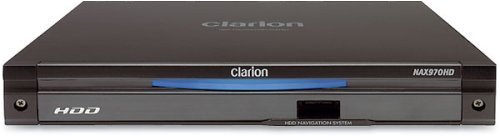
Figure 1: Front view of the Clarion NAX970HD HDD Navigation System.
2. Safety Information
- Driving Safety: Always prioritize safe driving. Do not operate the navigation system in a way that distracts you from the road. Adjust settings or input destinations only when the vehicle is stationary and safely parked.
- Installation: Ensure the unit is securely installed to prevent it from becoming a projectile during sudden stops or collisions. Professional installation is recommended.
- Power Supply: Connect the unit only to a 12V DC negative ground power supply. Incorrect wiring can cause damage or fire.
- Temperature: Avoid exposing the unit to extreme temperatures, direct sunlight for extended periods, or excessive moisture.
- Cleaning: Use a soft, dry cloth for cleaning. Do not use abrasive cleaners or solvents.
3. Package Contents
Verify that all items are present in the package before proceeding with installation:
- Clarion NAX970HD HDD Navigation System Unit
- GPS Antenna
- Power/Speaker Harness
- Mounting Hardware
- User Manual (this document)
- Warranty Card
4. Setup and Installation
4.1. Installation Guidelines
Due to the complexity of vehicle electrical systems, professional installation by a qualified technician is highly recommended. Incorrect installation can lead to vehicle damage or malfunction of the navigation system.
- Mounting: Securely mount the NAX970HD unit in the designated location within your vehicle's dashboard. Ensure adequate ventilation.
- GPS Antenna: Install the GPS antenna in a location with a clear view of the sky, free from obstructions like metal or tinted windows. Common locations include the dashboard or rear deck.
- Wiring: Connect the power harness, GPS antenna, and any other necessary cables (e.g., for integration with MAX675VD/VRX775VD) according to the wiring diagram provided with the unit. Ensure all connections are secure and insulated.
4.2. Initial Power On and Configuration
- After installation, turn on your vehicle's ignition. The NAX970HD should power on automatically.
- Follow the on-screen prompts to select your preferred language (English, French, etc.) and region settings.
- Allow the system to acquire a GPS signal. This may take a few minutes during the first use or after being moved to a new location.
- Calibrate the touch screen if prompted, by touching the indicated points accurately.
5. Operating Instructions
The NAX970HD features a user-friendly Human Machine Interface (H.M.I.) with touch screen operation.
5.1. Basic Navigation
- Entering a Destination:
- From the main menu, touch the "Destination" or "Navigate To" icon.
- Choose your preferred input method: Address, Point of Interest (POI), Previous Destinations, or Home.
- Enter the required information using the on-screen keyboard.
- Confirm your selection to initiate route calculation.
- Route Guidance: Once a route is calculated, the system will display the map and provide audible voice commands for turn-by-turn directions.
- Automatic Route Recalculation: If you deviate from the planned route, the system will automatically recalculate a new route to your destination.
5.2. Map Views and Display Options
- 2D View: Displays a flat, overhead view of the map. You can choose different scales.
- 3D View: Provides a perspective view, simulating a driver's view of the road ahead.
- Split Screen: The system supports split-screen configurations, allowing you to view two 2D maps at different scales or a combination of 2D and 3D views simultaneously. Access these options through the "Map View" settings.
5.3. Points of Interest (POI)
The NAX970HD includes a comprehensive database of nearly 9 million Points of Interest. To search for a POI:
- From the main menu, select "POI" or "Search POI".
- Browse by category (e.g., Restaurants, Gas Stations, Hotels) or search by name.
- Select the desired POI and choose to navigate to it.
5.4. USB Port Functionality
The front panel USB port allows for:
- Custom Wallpapers: Download new background images to customize your display. Refer to the system settings for supported image formats.
- User Data Backup: Back up your personalized settings, saved destinations, and other user data to a USB memory stick. This is useful before system updates or for transferring settings.
5.5. Integration with MAX675VD or VRX775VD
The NAX970HD is designed to seamlessly integrate with Clarion MAX675VD or VRX775VD units, creating a fully integrated audio, video, and navigation system. Refer to the manuals of the MAX675VD or VRX775VD for specific integration and control instructions.
6. Maintenance
- Cleaning the Display: Gently wipe the touch screen with a soft, lint-free cloth. For stubborn smudges, slightly dampen the cloth with water. Do not use chemical cleaners, alcohol, or abrasive materials.
- Software Updates: Periodically check the Clarion support website for available software or map updates. Follow the instructions provided with the update package carefully. It is recommended to back up your user data via the USB port before performing any updates.
- HDD Care: The internal Hard Disk Drive is a sensitive component. Avoid subjecting the unit to severe shocks or vibrations, especially when the vehicle is in motion.
7. Troubleshooting
| Problem | Possible Cause | Solution |
|---|---|---|
| Unit does not power on. | No power supply; Blown fuse; Incorrect wiring. | Check vehicle's ignition and battery connections. Inspect fuses. Verify wiring connections. Consult a professional installer. |
| No GPS signal or inaccurate positioning. | GPS antenna obstructed; Antenna faulty; Initial signal acquisition. | Ensure GPS antenna has a clear view of the sky. Wait a few minutes for signal acquisition. Check antenna connection. |
| Touch screen unresponsive or inaccurate. | Needs calibration; Software glitch. | Perform touch screen calibration (refer to system settings). Restart the unit. |
| No voice guidance. | Volume too low; Muted; Language settings incorrect. | Increase volume. Check if voice guidance is muted in settings. Verify language settings. |
| System freezes or crashes. | Software error; Overheating. | Perform a soft reset (refer to manual for specific button combination or power cycle). Ensure adequate ventilation. If persistent, check for software updates. |
8. Specifications
| Model Number | NAX970HD |
| Storage | 30 GB Mobile HDD (Hard Disk Drive) |
| Map Coverage | US and Canada |
| Points of Interest (POI) | Approximately 9 million |
| GPS Receiver | High sensitivity |
| Sensors | Built-in Gyro Sensor |
| Display Interface | Touch Screen Operation |
| Voice Guidance Languages | English, French (and others as specified by region) |
| Connectivity | Front Panel USB Port |
| Compatibility | Clarion MAX675VD, Clarion VRX775VD |
| Dimensions (L x W x H) | 31.75 x 25.65 x 12.7 cm (approx.) |
| Weight | 1.81 kg (approx.) |
9. Warranty and Support
For detailed warranty information, please refer to the warranty card included with your product package. Clarion provides limited warranty coverage for manufacturing defects. Keep your proof of purchase for warranty claims.
For technical support, service, or to inquire about replacement parts, please visit the official Clarion website or contact their customer service department. You may need to provide your product model number (NAX970HD) and serial number (located on the unit's chassis) when seeking support.
Clarion Official Website: www.clarion.com


