
Introduction
The MAVERICK BarBFork Digital Meat Thermometer Fork (Model ET-54) is designed to assist in achieving precise cooking temperatures for various meats. It features preset temperature settings, a backlit LCD screen, and durable stainless steel probes for accurate readings. This manual provides instructions for proper setup, operation, maintenance, and troubleshooting to ensure optimal performance and longevity of your device.
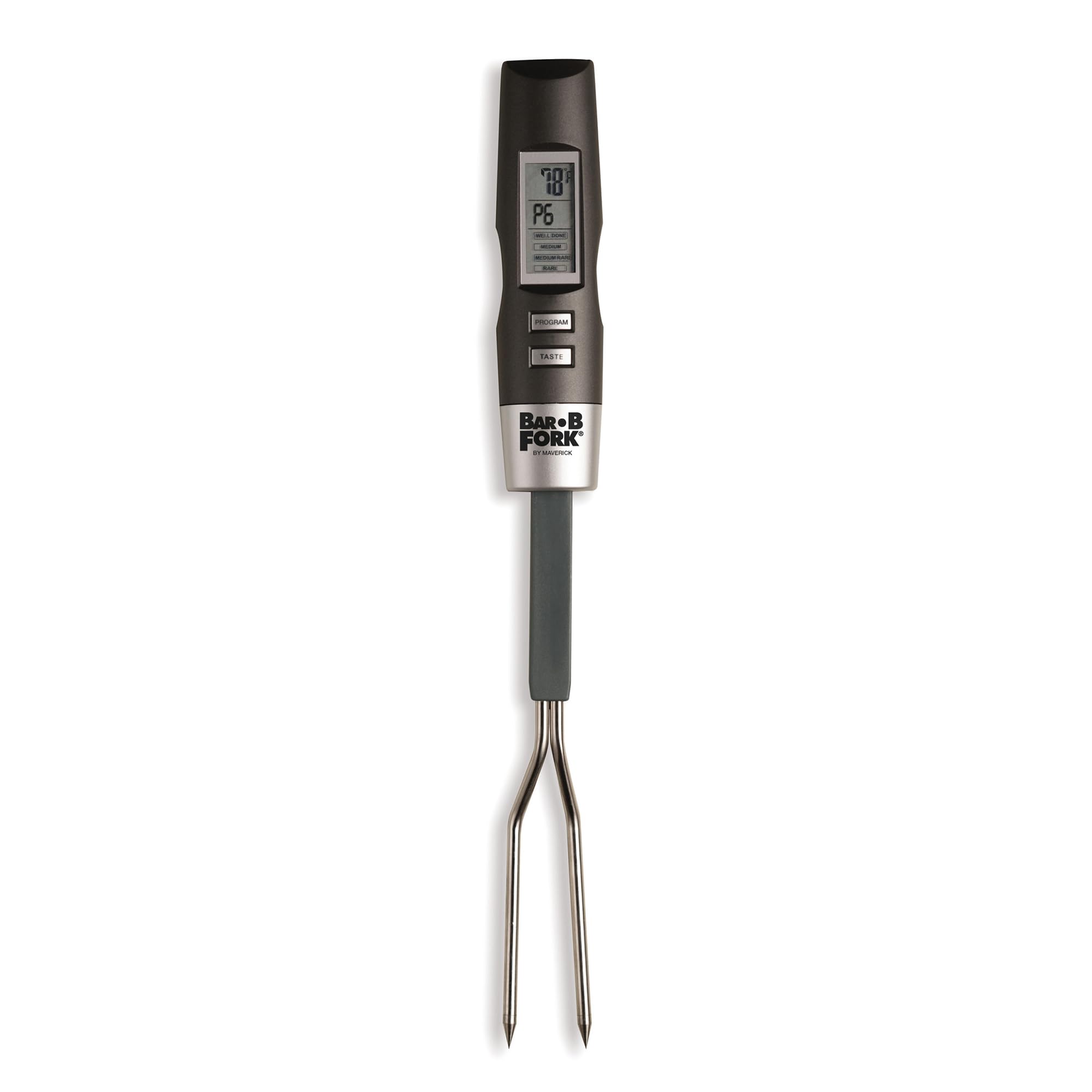
Image: The Maverick BarBFork Digital Meat Thermometer Fork, showing its overall design.
Product Components
The MAVERICK BarBFork includes the following components:
- 1 Digital Grilling Fork/Thermometer
- 2 AAA batteries (included)

Image: Diagram highlighting key features of the BarBFork, including the large backlit LCD screen, preset temperature settings, stainless steel probes, and audible beep alert. The temperature range is also indicated.
Setup Instructions
- Battery Installation: Locate the battery compartment, typically on the handle. Insert the two AAA batteries, ensuring correct polarity (+/-). Close the compartment securely.
- Initial Power On: Press the power button to turn on the device. The backlit LCD screen should illuminate.
- Unit Selection (if applicable): If your model allows, select your preferred temperature unit (Fahrenheit or Celsius) by pressing the designated button (refer to on-device labels if present).
Operating Instructions
Measuring Meat Temperature
- Insert Probes: Carefully insert the stainless steel probes into the thickest part of the meat, avoiding bone or gristle. Ensure the probes are fully inserted for an accurate reading.
- Select Meat Type: Use the "MEAT" button to cycle through the preset meat types: Beef, Veal, Lamb, Pork, Chicken, Turkey.
- Select Doneness Level: Use the "TASTE" button to select the desired doneness level (e.g., Rare, Medium-Rare, Medium, Well-Done) for the chosen meat type. The target temperature will display on the screen.
- Monitor Temperature: The current internal temperature of the meat will be displayed on the backlit LCD screen.
- Audible Alert: An audible beep will sound when the meat reaches the selected doneness temperature.
- Power Off: The device features an auto-off function to preserve battery life. Alternatively, press and hold the power button to manually turn it off.

Image: The Maverick BarBFork being used to check the temperature of meat on a grill, demonstrating proper probe insertion.
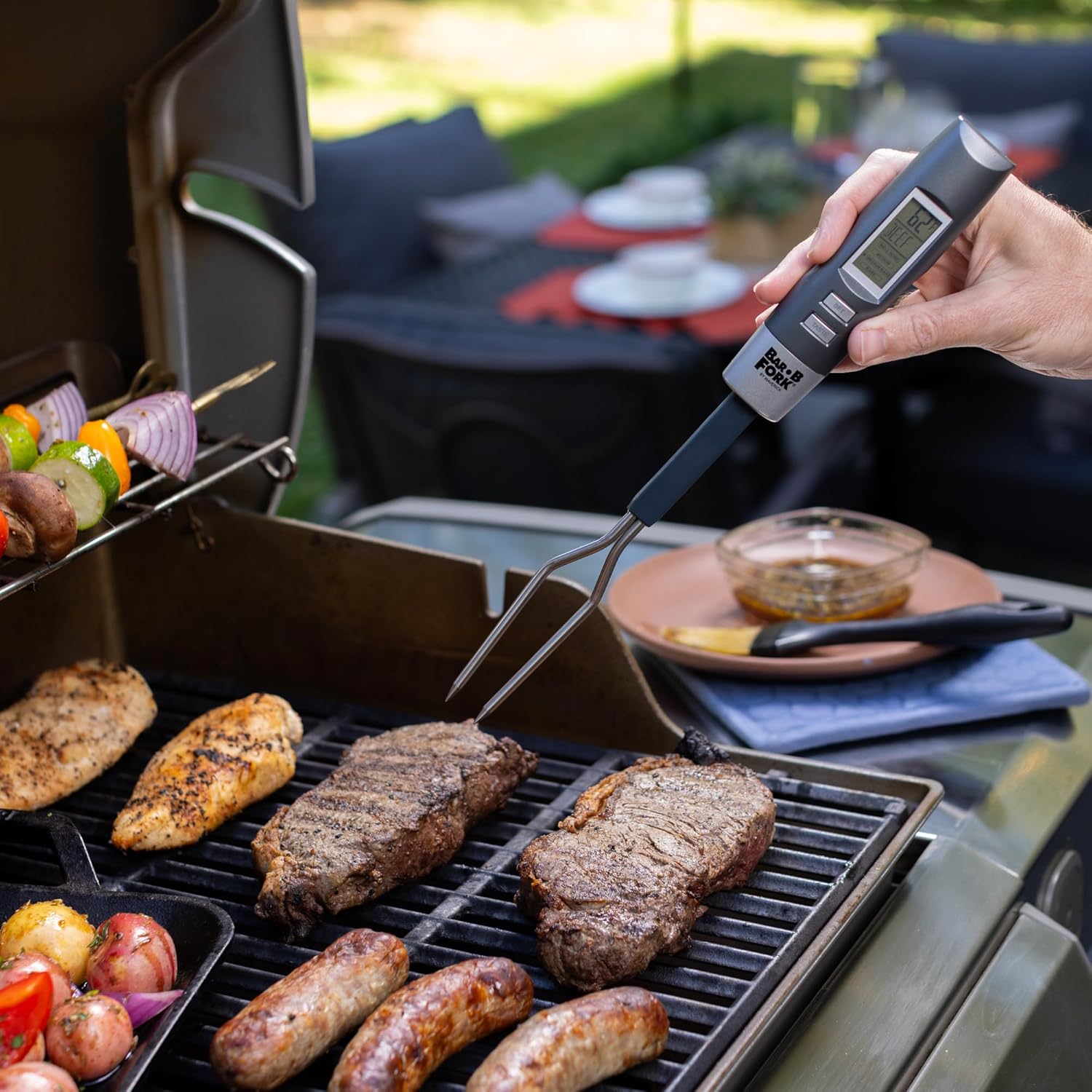
Image: A close-up of the Maverick BarBFork's display while measuring meat temperature on a grill, showing the digital readout.
Meat Doneness Chart
For quick reference, a doneness chart is provided on the back of the thermometer. Below is a general guide for safe internal temperatures:
| Meat Type | Doneness | Temperature (°F) |
|---|---|---|
| Beef | Rare | 125-130 |
| Beef | Medium-Rare | 130-135 |
| Beef | Medium | 135-140 |
| Beef | Well-Done | 150+ |
| Pork | Medium | 145 |
| Pork | Well-Done | 160+ |
| Poultry (Chicken, Turkey) | All | 165 |
| Lamb | Medium-Rare | 130-135 |
| Lamb | Medium | 135-140 |
| Veal | Medium | 140 |
Note: These are general guidelines. Always refer to specific recipe requirements or food safety recommendations.
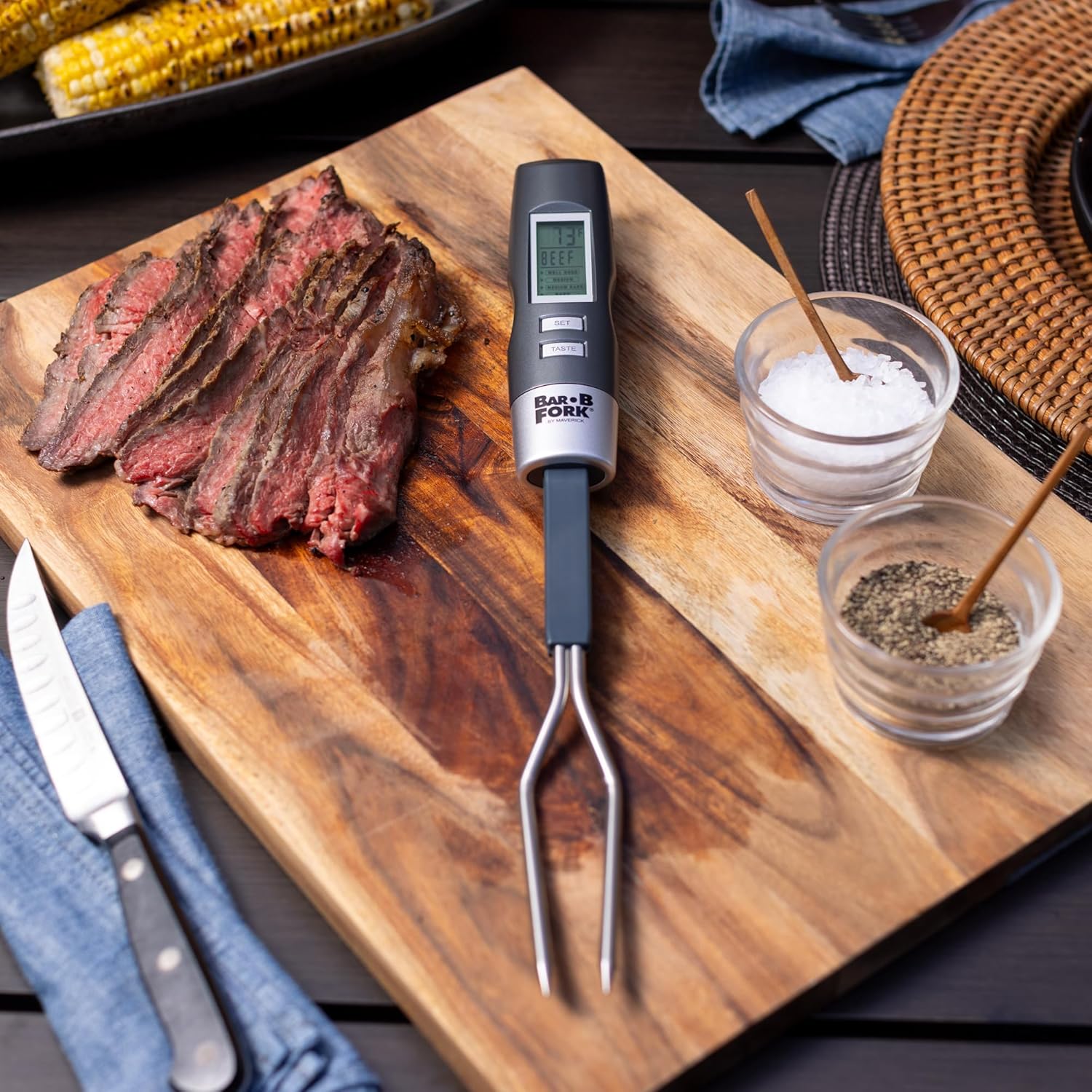
Image: Sliced cooked beef on a wooden cutting board, with the Maverick BarBFork resting beside it, indicating successful temperature monitoring.
Maintenance and Care
- Cleaning: After each use, wipe the stainless steel probes with a damp cloth and mild soap. Avoid submerging the entire unit in water. The main body can be wiped clean with a damp cloth.
- Storage: Store the thermometer in a dry place at room temperature. Utilize the convenient hang hook for storage.
- Battery Replacement: If the display becomes dim or the device does not power on, replace the AAA batteries.
- Avoid Extreme Temperatures: Do not expose the thermometer to extreme heat (e.g., inside a closed grill lid for extended periods) or cold, as this may damage electronic components.
Troubleshooting
- No Display/Dim Display:
- Check battery installation. Ensure batteries are inserted with correct polarity.
- Replace batteries with new AAA batteries.
- Inaccurate Readings:
- Ensure probes are inserted into the thickest part of the meat, away from bone or gristle.
- Verify that the probes are clean and free of debris.
- Allow sufficient time for the temperature to stabilize (typically a few seconds).
- Audible Alert Not Working:
- Check if the alert function is enabled (if applicable to your model).
- Ensure batteries have sufficient power.
Specifications
- Model: ET-54
- Temperature Range: 32°F to 212°F (0°C to 100°C)
- Power Source: 2 x AAA batteries
- Display Type: Backlit LCD Digital
- Probe Material: Stainless Steel
- Special Features: Preset temperatures for 6 meats, multiple doneness levels, audible alert, auto-off function, hang hook.
- Product Care: Wipe Clean
- Indoor/Outdoor Usage: Outdoor
Product Overview Video
Video: An overview of Maverick brand products, demonstrating various thermometers in use for grilling and cooking. This video showcases the utility and features of Maverick's temperature measurement devices.
Warranty Information
MAVERICK products are designed for quality and durability. For specific warranty details regarding your BarBFork Digital Meat Thermometer Fork (Model ET-54), please refer to the warranty card included in your product packaging or visit the official MAVERICK website. Keep your purchase receipt as proof of purchase for any warranty claims.
Customer Support
If you have any questions, require assistance, or need to troubleshoot issues not covered in this manual, please contact MAVERICK customer support. Contact information can typically be found on the product packaging or the official MAVERICK website.
Online Resources: Visit the MAVERICK Store on Amazon


