
Introduction
This manual provides detailed instructions for the setup, operation, maintenance, and troubleshooting of your Adesso WKB-3000UB Wireless Mini Keyboard. Please read this manual thoroughly before using the product to ensure proper functionality and to maximize your user experience.
Package Contents
Verify that all items are present in your package:
- Adesso WKB-3000UB Wireless Mini Keyboard with integrated trackball
- USB Wireless Receiver
- User Manual (this document)
System Requirements
Before proceeding with the setup, ensure your system meets the following requirements:
- Available USB 2.0 port
- Operating System: Windows 7/8/10/11, macOS, or Linux (basic functionality)
Setup
1. Battery Installation
- Locate the battery compartment cover on the underside of the keyboard.
- Slide or lift the cover to open the compartment.
- Insert the required batteries (typically 2x AAA, not included) according to the polarity indicators (+/-) inside the compartment.
- Replace the battery compartment cover securely.
2. Connect the USB Receiver
- Plug the USB wireless receiver into an available USB port on your computer.
- Your operating system should automatically detect and install the necessary drivers. This may take a few moments.
3. Establish Connection
The keyboard and receiver are typically pre-paired. Once the batteries are installed and the receiver is plugged in, the keyboard should be ready for use. If the connection is not established automatically, ensure the keyboard is powered on (if it has a power switch) and try moving the keyboard closer to the receiver.
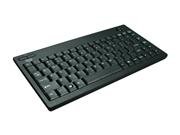
Image: The Adesso WKB-3000UB Wireless Mini Keyboard, featuring a compact design with an integrated trackball on the right side and media hotkeys above the function row.
Operating Instructions
Keyboard Functions
- Typing: Use the QWERTY layout for standard text input. The compact design may require a brief adjustment period.
- Hotkeys: The keyboard features dedicated hotkeys for quick access to common functions such as email, web browser, volume control, and media playback. Refer to the key legends for specific functions.
Trackball Operation
- Cursor Movement: Roll the trackball with your thumb or finger to move the cursor on the screen.
- Left Click: Press the left mouse button, typically located to the left of the trackball or duplicated on both sides of the keyboard.
- Right Click: Press the right mouse button, typically located to the right of the trackball.
- Scroll Wheel: Use the scroll wheel (if present, often on the left side) to scroll through documents and web pages.
Wireless Range and Power Saving
- The keyboard operates on a 2.4 GHz radio frequency, providing an effective working range of up to 100 feet (approximately 30 meters) from the USB receiver.
- To conserve battery life, the keyboard will enter a sleep mode after a period of inactivity. To wake it up, simply press any key or move the trackball.
Maintenance
Cleaning the Keyboard and Trackball
- Disconnect the USB receiver from your computer before cleaning.
- Use a soft, lint-free cloth slightly dampened with water or a mild cleaning solution to wipe the surface of the keyboard. Avoid excessive moisture.
- For the trackball, periodically clean around its housing to remove dust and debris that may affect its smooth operation. If possible, gently remove the trackball (refer to product diagrams if available) and clean the internal rollers with a cotton swab.
- Do not use abrasive cleaners, solvents, or aerosol sprays.
Battery Replacement
When the keyboard's performance degrades or it stops responding, it is likely time to replace the batteries. Follow the battery installation steps outlined in the Setup section.
Troubleshooting
- Keyboard Not Responding:
- Ensure batteries are correctly installed and not depleted. Replace if necessary.
- Verify the USB receiver is securely plugged into a working USB port. Try a different USB port.
- Move the keyboard closer to the USB receiver to rule out range issues.
- Restart your computer.
- Trackball Movement is Jerky or Inaccurate:
- Clean the trackball and its housing as described in the Maintenance section. Dust and debris can interfere with smooth operation.
- Adjust the pointer speed settings in your operating system's mouse/trackball settings.
- Poor Wireless Range or Intermittent Connection:
- Ensure there are no large metal objects or other electronic devices (like Wi-Fi routers, cordless phones) operating on the 2.4 GHz frequency between the keyboard and the receiver, as these can cause interference.
- If the receiver is plugged into the back of a computer, consider using a USB extension cable to position the receiver in a more open area.
Specifications
| Model Number | WKB-3000UB |
| Connectivity Technology | RF (2.4 GHz) |
| Effective Working Range | Up to 100 feet (30 meters) |
| Keyboard Description | QWERTY |
| Special Features | Optical Trackball, Hotkeys |
| Trackball Resolution | 800 dpi |
| Product Dimensions | 15.1 x 7 x 1.9 inches (38.4 x 17.8 x 4.8 cm) |
| Item Weight | 2.55 pounds (1.16 kg) |
| Material | Plastic |
| Color | Black |
Warranty and Support
Adesso products are designed for reliability and performance. For information regarding warranty coverage, technical support, or to register your product, please visit the official Adesso website or contact their customer service department. Keep your purchase receipt for warranty claims.
Adesso Official Website: www.adesso.com


