
Introduction
This manual provides comprehensive instructions for the setup, operation, maintenance, and troubleshooting of your Packard Bell Pulse-Player Digital Portable audio device. Please read this manual carefully before using the device to ensure proper functionality and to maximize its lifespan. Keep this manual for future reference.
Package Contents
Verify that all items are present in the package:
- Packard Bell Pulse-Player Digital Portable device
- USB Cable (for charging and data transfer)
- Earphones
- Quick Start Guide
Product Overview
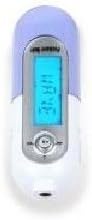
Figure 1: Packard Bell Pulse-Player Digital Portable. This image displays the Packard Bell Pulse-Player. The device is predominantly white with a light purple top section. It features a central silver panel housing a blue backlit LCD screen. Below the screen, there is a circular navigation pad with a central 'M' button, flanked by '<<' and '>>' buttons. A small black indicator light is visible at the bottom of the device.
The Packard Bell Pulse-Player is a compact and lightweight digital audio player designed for portability. It features a clear LCD screen for easy navigation and intuitive controls for managing your music library.
Setup
1. Charging the Battery
Before first use, fully charge the device's internal battery. Connect the small end of the supplied USB cable to the player's USB port and the other end to a powered USB port on your computer or a compatible USB wall adapter. The charging indicator will illuminate during charging and turn off when fully charged. A full charge typically takes approximately 2-3 hours.
2. Connecting to a Computer
To transfer music files, connect the Pulse-Player to your computer using the supplied USB cable. The device will appear as a removable disk drive in 'My Computer' (Windows) or on the desktop (macOS). No special drivers are typically required for basic file transfer.
Operating
1. Basic Controls
- Power On/Off: Press and hold the 'Play/Pause' button (central button on the navigation pad) for a few seconds.
- Volume Control: Use the '+' and '-' buttons on the navigation pad to adjust volume.
- Navigation: Use the directional arrows on the navigation pad to move through menus and lists.
- Select/Enter: Press the 'M' button (Menu/Select) to confirm selections or enter sub-menus.
- Back/Exit: Press the 'Back' button (usually indicated by an arrow or 'ESC') to return to the previous screen or exit a menu.
2. Playing Music
- Ensure music files are transferred to the device's internal storage.
- Navigate to the 'Music' or 'Audio' section from the main menu.
- Browse by artist, album, genre, or all songs.
- Select a song and press the 'Play/Pause' button to begin playback.
- Use the '<<' and '>>' buttons to skip tracks.
3. Transferring Files
Connect the device to your computer. Open the device's drive. Drag and drop your desired audio files (e.g., MP3, WMA) into the appropriate folder on the device (e.g., 'Music' folder). Once files are transferred, safely eject the device from your computer before disconnecting the USB cable.
Maintenance
1. Cleaning
Wipe the device with a soft, dry, lint-free cloth. Do not use abrasive cleaners, alcohol, or solvents, as these can damage the surface and internal components. Avoid getting moisture into any openings.
2. Battery Care
To prolong battery life, avoid fully discharging the battery frequently. If the device will not be used for an extended period, charge it to about 50% before storing and recharge it every few months.
3. Storage
Store the Pulse-Player in a cool, dry place away from direct sunlight, extreme temperatures, and high humidity. Protect it from dust and physical impact.
Troubleshooting
If you encounter issues with your Pulse-Player, refer to the table below for common problems and their solutions:
| Problem | Possible Cause | Solution |
|---|---|---|
| Device does not turn on. | Battery is depleted. | Charge the device for at least 30 minutes. |
| Cannot transfer files. | Incorrect USB connection; device not recognized by computer. | Ensure USB cable is securely connected. Try a different USB port or cable. Restart computer and device. |
| No sound from earphones. | Earphones not properly connected; volume too low; faulty earphones. | Check earphone connection. Increase volume. Test with another pair of earphones. |
| Device freezes or is unresponsive. | Software glitch. | Press and hold the power button for 10-15 seconds to force a restart. If available, use the reset pinhole. |
Specifications
| Feature | Detail |
|---|---|
| Model Number | C045180000 |
| Dimensions (W x H x D) | 2.7 x 8.25 x 2.08 cm |
| Weight | 22.68 grams |
| Manufacturer | Packard Bell |
| ASIN | B000I0S5ZO |
| First Available Date | June 6, 2013 |
| Guaranteed Software Updates Until | Unknown |
Warranty and Support
For warranty information and technical support, please refer to the warranty card included with your product or visit the official Packard Bell support website. Keep your proof of purchase for warranty claims.