1. Introduction
This manual provides essential information for the safe and effective operation of your Sony Cybershot DSC-T10 digital camera. The DSC-T10 is a compact 7.2-megapixel camera featuring a Carl Zeiss Vario-Tessar 3x Optical Zoom lens and Super SteadyShot Optical Image Stabilization. It is designed for capturing high-quality still images and offers various features for an enhanced photography experience.
2. Product Overview
Familiarize yourself with the camera's components and layout.

Figure 2.1: Front view of the Sony Cybershot DSC-T10 camera. This image displays the lens, flash, and the 'Cyber-shot' branding.
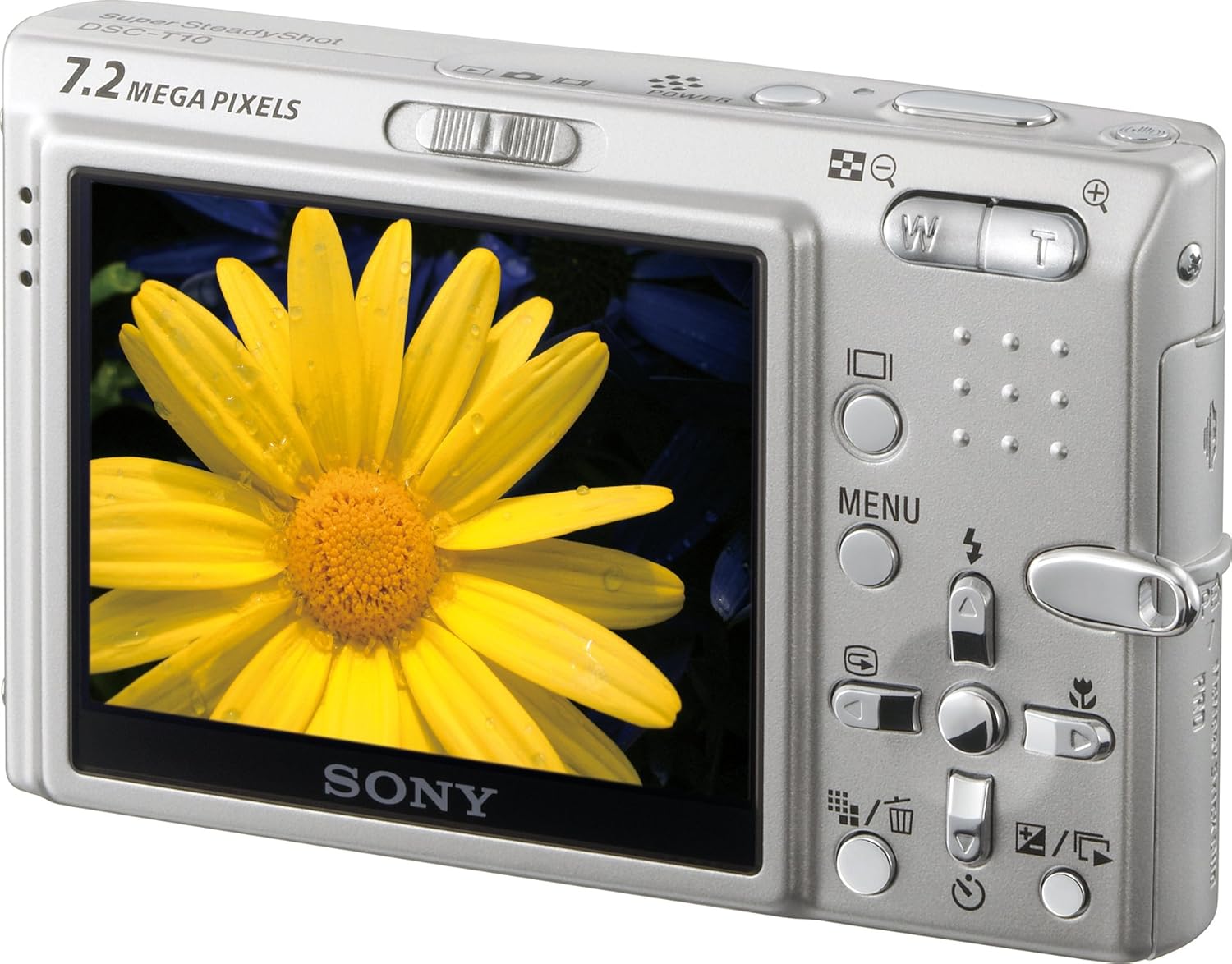
Figure 2.2: Rear view of the Sony Cybershot DSC-T10 camera, showing the 2.5-inch Clear Photo LCD Plus screen and control buttons.

Figure 2.3: Top view of the Sony Cybershot DSC-T10 camera, highlighting the power button and shutter release.
3. Setup
3.1. Battery Installation and Charging
The camera uses an NP-FT1 InfoLithium rechargeable battery. Ensure the battery is fully charged before first use.
- Open the battery compartment cover located on the bottom of the camera.
- Insert the NP-FT1 battery with the correct orientation, matching the polarity indicators.
- Close the battery compartment cover securely.
- Connect the supplied battery charger (BC-CS3) to a power outlet and insert the battery for charging. The charging indicator will illuminate.
- Charging typically takes a few hours. The indicator will turn off when charging is complete.
3.2. Memory Card Insertion
The camera supports Memory Stick Duo media. It also has 56MB of internal memory for immediate use.
- Open the memory card slot cover, usually located near the battery compartment.
- Insert the Memory Stick Duo media into the slot with the label facing up, until it clicks into place.
- Close the memory card slot cover securely.
- To remove the card, press it gently inward until it ejects slightly, then pull it out.
4. Operating the Camera
4.1. Powering On/Off
Slide down the front cover to power on the camera. Slide it back up to power off.
4.2. Taking Photos
- Power on the camera.
- Frame your shot using the 2.5-inch LCD screen.
- Press the shutter button halfway down to focus. The focus indicator will turn green when focus is achieved.
- Press the shutter button fully down to capture the image.
4.3. Using the Zoom
The camera features a 3x optical zoom and a 14x Smart Zoom (at VGA resolution).
- Use the zoom lever (W/T) to adjust the focal length.
- Move the lever towards 'T' (Telephoto) to zoom in on distant subjects.
- Move the lever towards 'W' (Wide-angle) to zoom out and capture a broader scene.
4.4. Recording Videos
The DSC-T10 can record video clips. Refer to the on-screen menu for specific video settings and quality options.
- Switch the camera to video recording mode (usually indicated by a movie camera icon).
- Press the shutter button to start recording.
- Press the shutter button again to stop recording.
5. Advanced Features
5.1. Color Modes
Customize the look of your photos with various color modes:
- Standard: Default color setting.
- Natural: For subtle and realistic colors.
- Vivid: For more intense and saturated colors.
- Monochrome: For black and white images.
- Sepia: For a vintage, brownish tone.
5.2. Slide Show with Music Playback
View your captured images in an in-camera slide show with selectable transition effects and background music.
- Access the playback mode.
- Select the slide show option from the menu.
- Choose your desired settings for transitions and background music.
6. Maintenance
- Cleaning the Lens: Use a soft, lint-free cloth specifically designed for camera lenses. Avoid touching the lens directly with your fingers.
- Cleaning the LCD Screen: Gently wipe the screen with a soft, dry cloth. For stubborn smudges, use a screen cleaner designed for electronics.
- Body Cleaning: Wipe the camera body with a soft, slightly damp cloth. Do not use strong cleaning agents or solvents.
- Storage: Store the camera in a cool, dry place away from direct sunlight and extreme temperatures. Remove the battery if the camera will not be used for an extended period.
7. Troubleshooting
- Camera does not power on: Ensure the battery is fully charged and correctly inserted. Check if the front cover is fully slid down.
- LCD display is dark or blank: Check battery level. If the issue persists, try resetting the camera (refer to the full user manual for reset procedures).
- Blurred images: Ensure Super SteadyShot is enabled. Hold the camera steady when shooting. Check lighting conditions and adjust ISO if necessary.
- White spots in flash photos: This can occur if there is dust on the lens or flash. Clean the lens and flash area carefully.
- Memory card error: Ensure the memory card is inserted correctly and is not locked. Try formatting the card (this will erase all data). If the problem persists, the card may be faulty.
8. Specifications
| Product Dimensions | 3.54 x 0.83 x 2.17 inches |
| Item Weight | 5.9 ounces |
| Item Model Number | DSCT10 |
| Batteries | 1 Lithium Ion battery required |
| Photo Sensor Technology | CCD |
| Image Stabilization | Optical |
| Optical Zoom | 3x |
| Expanded ISO Minimum | 80 |
| Manufacturer | Sony |
9. What's in the Box
The Sony Cybershot DSC-T10 digital camera package includes:
- Sony Cybershot DSC-T10 Digital Camera
- Rechargeable InfoLithium Battery (NP-FT1)
- Battery Charger (BC-CS3)
- Wrist Strap
- Software CD-ROM
- AV, USB, and DC-in Multi-connector Cables
Note: Memory Stick media or adapters are not included and must be purchased separately.
10. Warranty and Support
For warranty information and customer support, please refer to the documentation included with your product or visit the official Sony support website. This product is subject to a legal disclaimer: Must be at least 18 years old to purchase.


