
1. Introduction
The HP Photosmart C3180 All-in-One Printer, Scanner, and Copier is a versatile device designed to meet your photo and document needs. It features high-quality scans of photos and documents with 1200 x 2400 dpi optical resolution and 48-bit color depth. This all-in-one device allows for borderless printing on various paper types and includes memory card slots for direct printing without a PC.
This manual provides detailed instructions for setting up, operating, maintaining, and troubleshooting your HP Photosmart C3180.
2. Setup Guide
2.1. What's in the Box
- HP Photosmart C3180 All-in-One
- HP 92 Black Inkjet Print Cartridge (5 ml)
- HP 93 Tri-color Inkjet Print Cartridge (5 ml)
- HP Photosmart Essential Software on CD-ROM
- Setup and Basics Guides
- Power supply
- Power cord
Note: USB cable not included.
2.2. Initial Setup
1. Unpack the Printer: Carefully remove the printer and all components from the packaging. Remove any protective tapes or packing materials from the exterior and interior of the printer.

Image: Top-down view of the HP Photosmart C3180 All-in-One, showcasing its compact design.
2. Connect Power: Connect the power supply to the printer and then to a wall outlet. Press the power button to turn on the printer.
3. Load Paper: Open the paper tray and load plain white paper. Adjust the paper guides to fit the paper size.
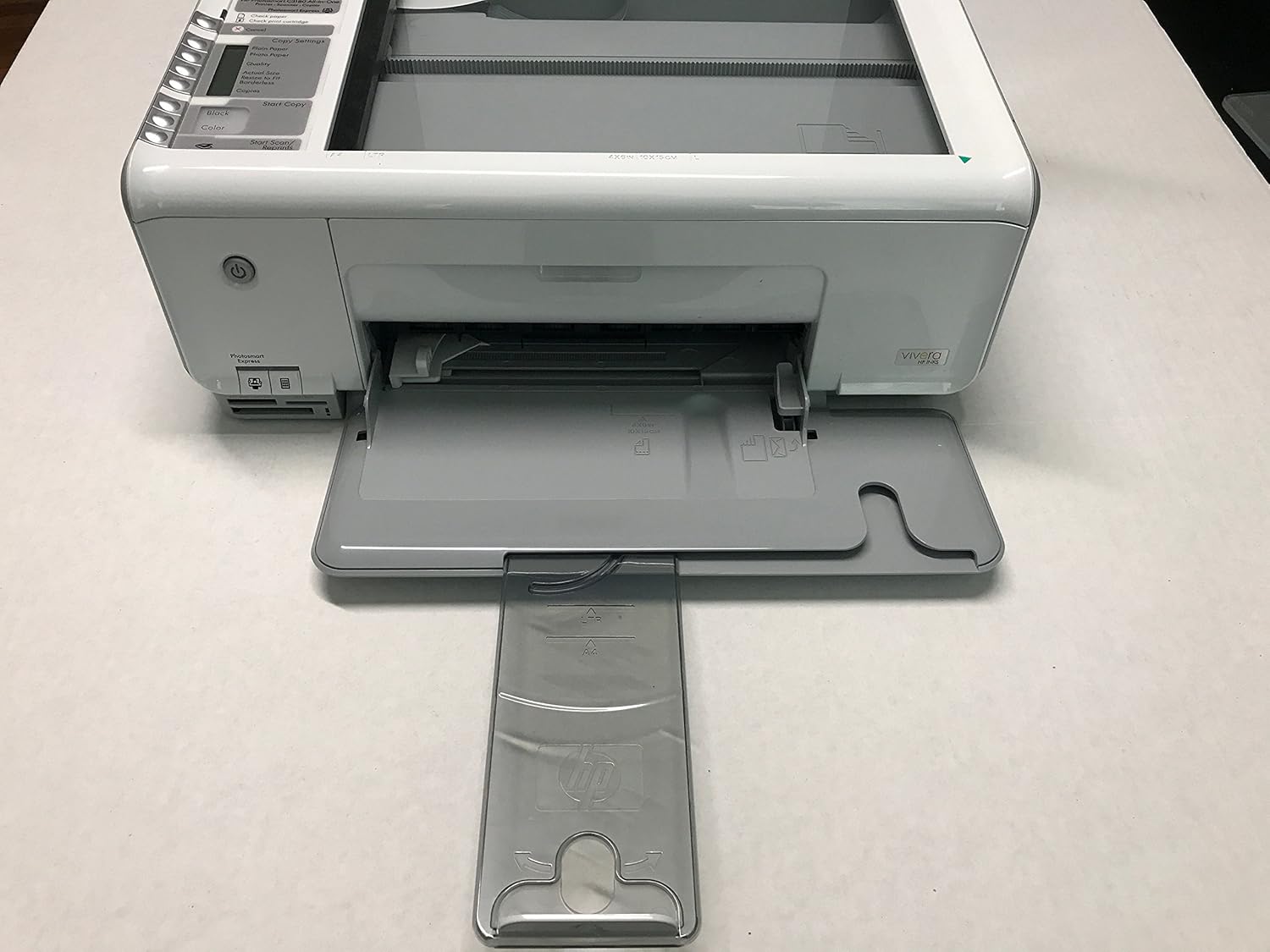
Image: Front view of the HP Photosmart C3180 with the paper output tray extended, ready for paper loading.
4. Install Ink Cartridges: Open the cartridge access door. Wait for the print carriage to move to the center. Gently insert the HP 92 Black and HP 93 Tri-color ink cartridges into their respective slots until they click into place. Close the cartridge access door.
5. Install Software: Insert the HP Photosmart Essential Software CD-ROM into your computer's CD/DVD drive and follow the on-screen instructions to install the necessary drivers and software.
3. Operating Instructions
3.1. Printing
- Print borderless photos in sizes up to 8.5 x 24" panorama with the included HP Photosmart Essential software.
- Print and copy photos in beautiful six-ink color (optional) and laser-quality text with HP's Vivera inks.
- Optimize your print and copy quality for various kinds of paper with the automatic paper type sensor.

Image: The HP Photosmart C3180 actively printing a document, with paper emerging from the output slot.
3.2. Scanning and Copying
- Perform high-quality scans of photos and documents with 1200 x 2400 dpi optical resolution and 48-bit color depth.
- Make pro-quality reprints in any size up to 8.5 x 11" with the touch of a button.
- Use your all-in-one's scanner to repair older, damaged photos with HP Real Life technologies, which automatically remove red eye and enhance details in dark areas of your photos.
3.3. Using Memory Card Slots
The HP Photosmart C3180 features memory card slots that support Secure Digital/MultiMediaCard, CompactFlash, Memory Stick, Memory Stick Duo, and xD-Picture Card. This allows you to print directly from your camera or camera phone without needing a computer.

Image: A close-up view of the memory card slots on the front of the HP Photosmart C3180, indicating compatibility with various card types.
4. Maintenance
4.1. Ink Cartridge Replacement
To replace an ink cartridge, open the front access door. The print carriage will move to the center. Gently press down on the cartridge to release it, then pull it out. Insert the new cartridge into the correct slot (black or color) and push it firmly until it clicks securely into place. Ensure the cartridge is fully seated and does not feel loose. If a cartridge does not snap into place, gently re-align it and apply firm, even pressure until it locks. A loose cartridge will prevent the printer from operating correctly.
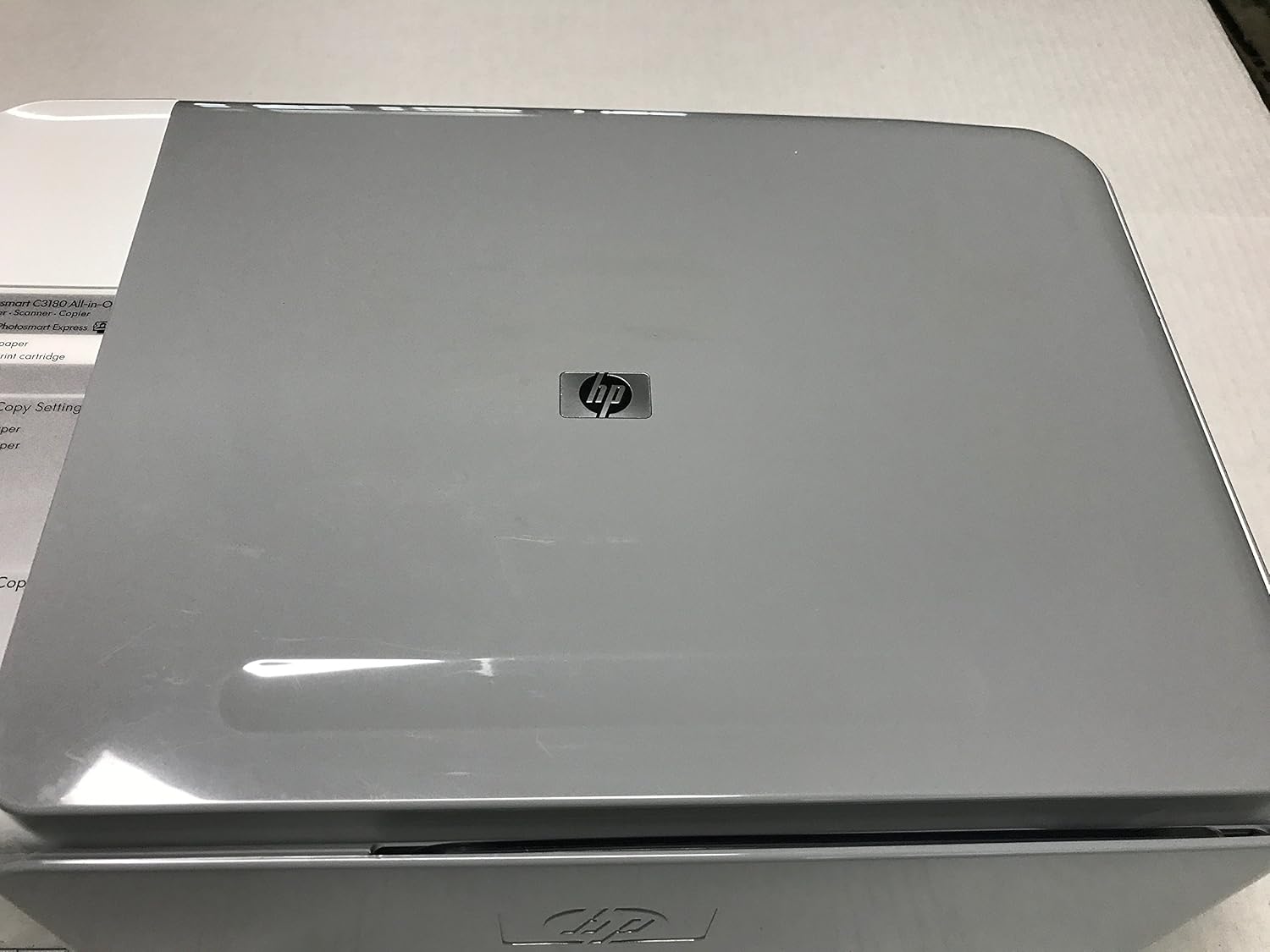
Image: A detailed view of the control panel on the HP Photosmart C3180, showing buttons and indicator lights.
4.2. Cleaning
Regularly clean the exterior of the printer with a soft, damp cloth. For internal cleaning or printhead maintenance, refer to the HP Photosmart Essential Software for automated cleaning cycles.
5. Troubleshooting
5.1. Common Issues
- "Check print cartridge" error: Ensure both the black and color ink cartridges are correctly installed and securely snapped into place. If a cartridge is loose, the printer will not function.
- "Check paper" error: Verify that paper is loaded correctly in the input tray and that the paper guides are adjusted to the paper size.
- Faded or streaky prints: Run a printhead cleaning cycle through the HP Photosmart Essential Software. If the issue persists, consider replacing the ink cartridges.
For photo repair, utilize HP Real Life technologies available through the scanner function to fix older or damaged images.
5.2. Advanced Troubleshooting: Wireless Print Server Setup
If you are attempting to use your HP Photosmart C3180 with a wireless print server, and it is not designed for network use, you may need to install alternate drivers. Follow these steps:
- Install Alternate Drivers:
- Go to Start, Control Panel, then select Printer and Faxes.
- Double-click the Add Printer icon. Click Next.
- When prompted, choose Local, and then click Next.
- In the Manufacturers list, choose HP.
- In the Printer list, choose the HP Deskjet 990C printer, and then click Next.
- Choose LPT1 as the port, and then click Next.
- The printer name should be listed as HP Deskjet 990C Printer.
- Click No when the "Do you want your Windows based programs to use this printer as your default printer?" message appears. Then click Next.
- Click No when the "Would you like to print a test page (recommended)" message appears. Then, click Finish.
- Create a TCP/IP Port:
- Start, Control Panel, and then select Printer and Faxes.
- Click File and then click Server Properties.
- Select the Ports tab, and then click Add Port.
- Select TCP/IP Port and create a new port.
- Type the IP address of the Print server and proceed with the on-screen instructions.
- Configure the Alternate Printer Driver:
- In the Printers Window, right-click the icon for HP Deskjet 990C printer.
- Click Properties.
- Click the Details Tab. In Windows XP, click the Ports tab.
- Click the down-arrow where it says "Print to the Following Port." Select TCP/IP port that was created in step 1. The all-in-one's model number should appear as part of the port destination.
- Leave the HP Deskjet 990C printer identified as using the following driver, and click Apply.
- Close the Printer Properties window.
You should now be able to print using the alternate drivers.
6. Product Specifications
| Feature | Specification |
|---|---|
| Model Name | C3180 |
| Printer Type | Thermal Inkjet Printer/Scanner/Copier |
| Memory Storage Capacity | 32 MB |
| Maximum Color Print Resolution | 4800 x 1200 dpi |
| Maximum Black and White Print Resolution | 2400 dpi |
| Max Print Speed (Monochrome) | 22 ppm |
| Max Print Speed (Color) | 20 ppm |
| Max Copy Speed (Black & White) | 22 ppm |
| Scanner Type | Photo |
| Color Depth | 48 bpp |
| Max Input Sheet Capacity | 100 |
| Maximum Media Size | A4 |
| Sheet Size | 8.5 x 24 inches (panorama) |
| Connectivity Technology | USB |
| Product Dimensions | 17.1 x 15 x 6.4 inches |
| Item Weight | 13.45 pounds |
7. Warranty and Support
7.1. Warranty Information
The HP Photosmart C3180 All-in-One comes with a one-year limited warranty. Please refer to the warranty documentation included with your product for full terms and conditions.
7.2. Customer Support
HP offers renowned Total Care service and support. You can get answers to your product questions toll-free, 24 x 7, or via e-mail in as little time as an hour. For more information and support resources, visit the HP Store on Amazon.


