
Introduction
This manual provides essential information for the installation, operation, and maintenance of the HP Procurve 3500yl-48G-PWR Managed Ethernet Switch. This device is designed to offer advanced intelligent edge switching capabilities, supporting demanding networking features such as Quality of Service (QoS) and security. It features a variety of Gigabit interfaces, integrated Power over Ethernet (PoE) on all 10/100/1000Base-T ports, and 10-Gigabit Ethernet (10-GbE) capability.
Product Overview
The HP Procurve 3500yl-48G-PWR is a robust managed Ethernet switch. It is equipped with 44 x 10/100/1000Base-T ports and 4 x 10/100/1000Base-T ports, providing extensive connectivity options for various network environments. The integrated PoE functionality simplifies deployment of IP phones, wireless access points, and other PoE-powered devices.
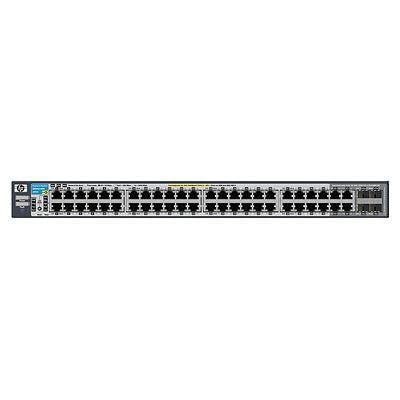
Figure 1: Front view of the HP Procurve 3500yl-48G-PWR Managed Ethernet Switch, showing the 48 Ethernet ports and status indicators.
Setup
1. Unpacking and Inspection
Carefully remove the switch from its packaging. Inspect the device for any signs of physical damage. Report any damage to your supplier immediately.
2. Rack Mounting (Optional)
The switch is designed for standard 19-inch rack mounting. Use the provided rack-mount kit and screws to secure the switch in the rack. Ensure adequate ventilation around the unit.
3. Power Connection
- Connect the power cord to the AC power inlet on the rear of the switch.
- Plug the other end of the power cord into a grounded electrical outlet.
- Verify that the power LED on the front panel illuminates, indicating the switch is receiving power.
4. Network Connections
Connect Ethernet cables from your network devices (computers, servers, other switches, access points) to the RJ45 ports on the front panel of the switch. The switch supports 10/100/1000Base-T connections. For PoE devices, simply connect them to any of the 48 ports; the switch will automatically detect and provide power if the device is PoE-compatible.
5. Initial Configuration Access
For initial configuration, connect a console cable (typically RJ45 to DB9) from your management workstation to the console port on the switch. Use a terminal emulation program (e.g., PuTTY, Tera Term) with the following settings: 9600 baud, 8 data bits, no parity, 1 stop bit, no flow control. Alternatively, if the switch has a default IP address, you can connect via a web browser or SSH/Telnet after assigning your workstation an IP address in the same subnet.
Operating Instructions
1. Power On
Once connected to power, the switch will automatically power on. Observe the front panel LEDs for status indications.
2. LED Indicators
- Power LED: Indicates power status. Solid green for normal operation.
- Port Status LEDs: Each port has an LED indicating link status and activity. Typically, solid green indicates a link, and blinking green indicates activity. Amber may indicate a 10/100 Mbps link, while green indicates a 1000 Mbps link, depending on the specific model's LED scheme. Refer to the detailed LED guide in the full product documentation for precise interpretations.
- PoE Status LEDs: Indicate Power over Ethernet status for each port.
3. Basic Network Operation
The switch operates as a Layer 2 device, forwarding Ethernet frames between connected devices. With its managed capabilities, you can configure VLANs, Spanning Tree Protocol (STP), Link Aggregation (LAG), and other advanced features via the command-line interface (CLI) or web-based management interface.
4. Advanced Features
The Procurve 3500yl-48G-PWR supports advanced features such as Quality of Service (QoS) for prioritizing network traffic, robust security features to protect your network, and 10-GbE uplink capabilities (if equipped with optional modules) for high-bandwidth connections.
Maintenance
1. Cleaning
Periodically clean the exterior of the switch with a soft, dry cloth. Do not use liquid or aerosol cleaners. Ensure ventilation openings are free from dust and obstructions to maintain proper airflow.
2. Firmware Updates
Regularly check the manufacturer's website for firmware updates. Keeping the firmware up-to-date ensures optimal performance, security, and access to new features. Follow the instructions provided with the firmware update package carefully.
3. Environmental Considerations
Operate the switch within its specified temperature range (up to 40 degrees Celsius). Avoid exposing the device to excessive heat, humidity, or direct sunlight. Ensure proper airflow around the unit to prevent overheating.
Troubleshooting
1. No Power
- Verify the power cord is securely connected to both the switch and the electrical outlet.
- Check the power outlet with another device to ensure it is functional.
- Ensure the power supply unit (if external) is properly connected and functional.
2. No Link on a Port
- Check the Ethernet cable for damage and ensure it is securely plugged into both the switch port and the connected device.
- Verify the connected device is powered on and functioning correctly.
- Try a different port on the switch or a different Ethernet cable.
- Check the port configuration in the switch's management interface to ensure it is enabled and correctly configured.
3. Network Connectivity Issues
- Confirm IP address settings on connected devices and the switch.
- Check for conflicting IP addresses on the network.
- Review switch configuration for VLANs, routing, or security policies that might be blocking traffic.
- Restart the switch and connected devices.
If issues persist, consult the comprehensive troubleshooting guide available on the manufacturer's support website or contact technical support.
Specifications
| Feature | Specification |
|---|---|
| Brand | HEWLETT PACKARD |
| Model Number | J8693A |
| Number of Ports | 48 (44 x 10/100/1000Base-T, 4 x 10/100/1000Base-T) |
| Data Transfer Rate | 1000 Megabits Per Second |
| Interface | PoE, RJ45 |
| Switch Type | Managed |
| Voltage | 48 Volts (DC) |
| Item Weight | 16.1 Pounds |
| Upper Temperature Rating | 40 Degrees Celsius |
| Case Material Type | Metal |
| Compatible Devices | Desktop |
Warranty and Support
This product is subject to the manufacturer's warranty policy. For specific details regarding warranty length and coverage, please contact the manufacturer directly. Please note that returns for non-defective items may be subject to a restocking fee. Any merchandise returned for repair and found not to be defective by technicians will incur a 25% restocking fee. By purchasing this product, you acknowledge and accept these procedures.
For technical support, documentation, and additional resources, please visit the official HP Procurve support website or contact their customer service department.


