
1. Introduction
This manual provides instructions for the safe and efficient operation of your Samsung Digimax L60 digital camera. The Digimax L60 is a 6.0-megapixel camera featuring a 3x optical zoom lens, a 2.4-inch LCD display, and advanced video recording capabilities. Please read this manual thoroughly before using your camera to ensure proper handling and to maximize its performance.
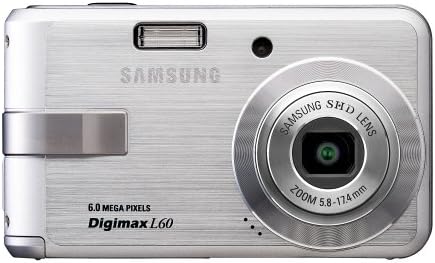
Figure 1: Front view of the Samsung Digimax L60 camera.
2. Setup
2.1. Battery Installation and Charging
The Digimax L60 uses a rechargeable Lithium-Ion battery. Ensure the battery is fully charged before first use.
- Open the battery compartment cover located on the bottom of the camera.
- Insert the Lithium-Ion battery with the contacts facing the correct direction, as indicated inside the compartment.
- Close the battery compartment cover securely.
- Connect the camera to the charger using the provided cable. The charging indicator light will illuminate.
- Once charging is complete, the indicator light will change or turn off. Disconnect the charger.
2.2. Memory Card Installation
The camera supports SD memory cards. A memory card is required to store photos and videos.
- Locate the memory card slot, usually near the battery compartment.
- Insert the SD card into the slot with the label facing the correct direction until it clicks into place.
- To remove, press the card gently inward until it springs out.
2.3. Initial Power On and Basic Settings
After installing the battery and memory card, power on the camera for the first time.

Figure 2: Top view showing the Power button.
- Press the POWER button to turn on the camera.
- The LCD screen will display initial setup options, such as date, time, and language. Use the navigation buttons to select and confirm your settings.
3. Operating the Camera
3.1. Basic Photography
To capture still images:
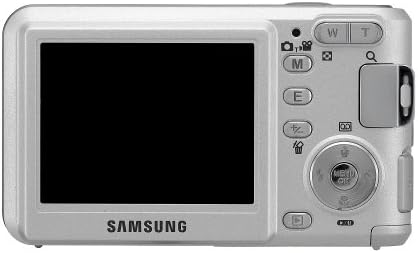
Figure 3: Rear view with LCD and control buttons.
- Turning On/Off: Press the POWER button.
- Shooting Modes: Use the mode dial or menu to select from various scene modes including Auto, Night, Portrait, Children, Landscape, Close-up, Sunset, Backlight, Fireworks, Beach and Snow, and Text Recognition.
- Zoom: Use the zoom lever (W/T) to adjust the 3x optical zoom and 5x digital zoom.
- Flash Modes: Press the flash button to cycle through Auto, Fill-in (On), Slow Sync, and Off modes.
- Focus: The camera features autofocus. For close-up subjects, select the Macro shooting mode.
- Taking a Picture: Press the shutter button halfway to focus, then press fully to capture the image.
3.2. Video Recording
The Digimax L60 can record high-quality MPEG-4 video at 640x480 resolution and 30 frames per second.
- Starting Recording: Switch to video mode and press the shutter button to start recording.
- Movie Stabilizer: The built-in movie stabilization automatically detects and corrects camera movement.
- Continuous Video Recording: Pause and resume recording at any time to merge multiple video files.
- Optical Zoom: The 3x optical zoom can be used during video recording.
3.3. Playback and Editing
View and manage your captured images and videos.
- One-touch Playback: Press the playback button to instantly view the last captured image, even when the camera is off.
- In-camera Editing: Access the menu during playback to use functions like Trimming (to cut undesired parts), Resizing (to save smaller versions), and Rotating (to adjust orientation).
- Voice Memo/Recording: Add voice memos to still images or record standalone voice clips for up to one hour.
3.4. Special Features
- Color Effects: Apply effects such as Black and White, Sepia, Blue, Green, and Red to your photos.
- Highlight, Photo Frame, Negative, Composite Shot: Explore these creative controls for unique image results.
- Continuous Shooting: Capture a rapid sequence of images for fast-moving subjects.
- Auto Exposure Bracketing (AEB): Takes a series of images with slightly varying exposures to ensure optimal lighting.
- Text Recognition: Use this feature to photograph documents and extract text using the bundled Digimax Reader software on a PC.
4. Maintenance
- Cleaning the Camera: Use a soft, dry cloth to clean the camera body. For the lens and LCD screen, use a specialized lens cleaning cloth and solution. Avoid harsh chemicals.
- Battery Care: Store the battery in a cool, dry place when not in use. Avoid extreme temperatures.
- Storage: When storing the camera for extended periods, remove the battery and memory card. Store the camera in a dry, dust-free environment.
5. Troubleshooting
| Problem | Possible Cause | Solution |
|---|---|---|
| Camera does not turn on. | Battery is depleted or incorrectly inserted. | Charge the battery fully. Reinsert the battery correctly. |
| Images are blurry. | Camera shake, incorrect focus, or dirty lens. | Hold the camera steady. Ensure the subject is within the focus range. Clean the lens. |
| Memory card error. | Card is full, corrupted, or incorrectly inserted. | Delete unnecessary files or use a new card. Reinsert the card. Format the card (this will erase all data). |
| Slow shutter response. | Low light conditions requiring longer exposure, or flash settings. | Ensure adequate lighting. Adjust flash settings if applicable. |
6. Specifications
| Model Name | Digimax L60 |
| Effective Still Resolution | 6.0 Megapixels |
| Optical Zoom | 3x |
| Digital Zoom | 5x |
| Screen Size | 2.4 Inches |
| Video Resolution | 640 x 480 (VGA) at 30 fps |
| Video Capture Format | MPEG-4 |
| Image Stabilization | Digital, Optical |
| Photo Sensor Technology | CCD |
| Battery Type | Lithium Ion |
| Storage Media | SD Card (32 MB internal memory also available) |
| Dimensions (Approx.) | Compact Form Factor |
| Item Weight | 1.85 Pounds (approx.) |
7. Warranty and Support
For information regarding your product's warranty, please refer to the warranty card included in the original packaging or visit the official Samsung website. For technical support, service, or to download the latest software and drivers, please visit the Samsung support portal.
Online Support: www.samsung.com/us/support/


