1. Introduction
This manual provides essential information for the safe and effective use of your Canon PowerShot SD600 Digital Elph camera. Please read it thoroughly before using the camera and keep it in a safe place for future reference.
The Canon PowerShot SD600 is a 6.0-megapixel digital camera equipped with a 3x optical zoom lens, designed for ease of use and high-quality imaging. It features a large 2.5-inch LCD screen for convenient shooting and playback, along with advanced imaging technologies like DIGIC II Image Processor and iSAPS Technology for enhanced performance.
Key Features:
- 6.0-megapixel CCD sensor for detailed images.
- 3x optical zoom lens.
- 2.5-inch high-resolution LCD display.
- DIGIC II Image Processor for fast performance and vibrant colors.
- ISO 800 and High ISO Auto settings for low-light shooting.
- Widescreen (16:9) stills recording option.
- Fast Frame Rate Movie Mode (QVGA at 60 fps).
- Direct printing via Print/Share button with PictBridge-compatible printers.
2. Setup
2.1. Charging the Battery
Before first use, fully charge the included Lithium-ion battery pack (NB-4L) using the battery charger (CB-2LV). Insert the battery into the charger, ensuring proper orientation. The charging indicator light will show the charging status.
2.2. Inserting the Battery and Memory Card
Open the battery/card compartment cover located at the bottom of the camera. Insert the charged battery pack, ensuring it clicks into place. Then, insert the SD memory card (16 MB card included) into its slot until it locks. Close the compartment cover securely.

Figure 2.2.1: Bottom view of the camera, illustrating the battery and SD card compartment. Ensure both are inserted correctly before closing the cover.
2.3. Attaching the Wrist Strap
Attach the included wrist strap (WS-600) to the camera's strap lug to prevent accidental drops.
3. Operating the Camera
3.1. Powering On/Off
Press the ON/OFF button located on the top of the camera to power it on or off. The lens will extend when powered on.

Figure 3.1.1: Top view of the camera, highlighting the ON/OFF button and the shutter button with zoom control.
3.2. Basic Shooting
To take a picture, ensure the camera is in shooting mode (indicated by the mode switch on the back). Frame your shot using the LCD screen or optical viewfinder. Press the shutter button halfway to focus, then press it fully to capture the image.

Figure 3.2.1: Front view of the Canon PowerShot SD600, showing the lens, flash, and viewfinder.
3.3. Using the LCD Screen and Controls
The 2.5-inch LCD screen displays your composition, captured images, and menu options. Navigate menus and settings using the directional pad and FUNC./SET button on the back of the camera. The mode switch allows you to toggle between shooting, playback, and movie modes.

Figure 3.3.1: Rear view of the camera, showing the LCD screen displaying a sample image and the surrounding control buttons for navigation and settings.
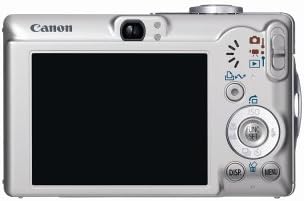
Figure 3.3.2: A diagram illustrating the layout and function of the control buttons on the back of the Canon PowerShot SD600.
3.4. Shooting Modes
The PowerShot SD600 offers various shooting modes to optimize your photos for different scenes:
- Auto: Camera automatically selects all settings.
- Manual: Allows control over ISO speed, exposure compensation, and white balance.
- Portrait: Blurs background to emphasize the subject.
- Foliage: Enhances greens and other natural colors.
- Snow: Prevents underexposure in bright snow scenes.
- Beach: Optimizes for bright, sunny beach environments.
- Fireworks: Captures brilliant fireworks displays.
- Underwater: For use with optional waterproof case (WP-DC2).
- Indoor: Reduces blur and improves color accuracy indoors.
- Kids and Pets: Reduces focusing time for fast-moving subjects.
- Night Snapshot: Balances flash with ambient light for natural night photos.
- Color Accent: Retains one color while others turn monochrome.
- Color Swap: Replaces a selected color with another.
- Digital Macro: For extreme close-up photography.
- Stitch Assist: Aids in creating panoramic images.
- My Colors: Includes Vivid Blue, Vivid Green, Vivid Red, Neutral, Sepia, Black and White, Positive Film, Lighter Skin Tone, Darker Skin Tone, Custom Color.
3.5. Movie Recording
The camera supports various movie recording modes, including Fast Frame Rate Movie Mode (QVGA at 60 fps) for smooth video. Select the movie mode using the mode switch and press the shutter button to start/stop recording.
3.6. Connecting to a Computer/Printer
Use the included USB interface cable (IFC-400PCU) to connect the camera to a computer for image transfer. The Print/Share button simplifies direct printing to PictBridge-compatible printers (e.g., Canon CP, SELPHY, PIXMA Photo Printers) or transferring images to a computer.
4. Maintenance
4.1. Cleaning the Camera
- Camera Body: Wipe with a soft, dry cloth. For stubborn dirt, use a cloth lightly dampened with water, then wipe dry.
- Lens: Use a lens brush or blower to remove dust. For smudges, use a lens cleaning cloth with a small amount of lens cleaning fluid. Avoid touching the lens surface directly.
- LCD Screen: Gently wipe with a soft, dry cloth. Avoid pressing hard on the screen.
4.2. Battery Care
- Store batteries in a cool, dry place when not in use.
- Avoid exposing batteries to extreme temperatures.
- If the camera will not be used for an extended period, remove the battery.
4.3. Storage
When storing the camera for long periods, remove the battery and memory card. Store the camera in a dry, well-ventilated area, away from direct sunlight and extreme temperatures.
5. Troubleshooting
If you encounter issues with your Canon PowerShot SD600, refer to the following common problems and solutions:
| Problem | Possible Cause / Solution |
|---|---|
| Camera does not power on. | Battery may be depleted or incorrectly inserted. Ensure battery is charged and inserted correctly. |
| Images are blurry. | Camera shake, subject movement, or incorrect focus. Hold the camera steady, use a faster shutter speed, or ensure proper focus. |
| SD card error / Cannot save images. | SD card may be full, corrupted, or incorrectly inserted. Try reinserting the card, using a different card, or formatting the card (this will erase all data). Ensure the card is not write-protected. |
| LCD screen is blank or damaged. | Check if the display is turned off. If physically damaged (as seen in some product images), repair may be required. |
| Camera feels fragile or parts are loose. | This model has been noted for potential build quality concerns over time. Handle with care. If parts are detached, professional repair may be necessary. |
| SD card difficult to eject. | Ensure the card is pushed in fully to engage the spring mechanism for ejection. Avoid forcing the card. |
If the problem persists after trying these solutions, please contact Canon customer support or a qualified service center.
6. Specifications
| Feature | Detail |
|---|---|
| Model Name | SD600 |
| Model Number | 1079B001 |
| Effective Still Resolution | 6 Megapixels |
| Optical Zoom | 3x |
| Digital Zoom | 4x |
| Photo Sensor Technology | CCD |
| Screen Size | 2.5 Inches |
| Display Type | LCD |
| Supported File Format | RAW, JPEG |
| Flash Memory Type | SD/MMC card |
| Connectivity Technology | USB |
| Battery Type | Lithium Ion (NB-4L) |
| Item Weight | 5.92 ounces (167.8 grams) |
| Dimensions (approx.) | 2.13 inches (Height) |
| Video Resolution | 480p (QVGA at 60 FPS) |
| Viewfinder | Optical |
| UPC | 013803062755 |
7. Warranty and Support
The Canon PowerShot SD600 typically comes with a manufacturer's warranty covering defects in materials and workmanship for a specified period (e.g., one year from purchase). Please refer to the warranty card included with your product for specific terms and conditions.
Important Note: This product may be subject to specific sales conditions, such as "No Returns" and "Product is 'as-is'" as per some retailers. Please verify the return policy and condition of sale with your vendor at the time of purchase.
For technical support, service, or to inquire about replacement parts, please visit the official Canon support website or contact their customer service. Keep your purchase receipt and camera's serial number handy when seeking support.
You can find more information and support resources on the official Canon website: www.usa.canon.com/support


