1. Introduction
This manual provides essential instructions for the safe and effective use of your Canon PowerShot A540 digital camera. The PowerShot A540 is a 6.0-megapixel digital camera featuring a 4x optical zoom lens, designed for capturing high-quality still images and video clips. Please read this manual thoroughly before using the camera and keep it for future reference.
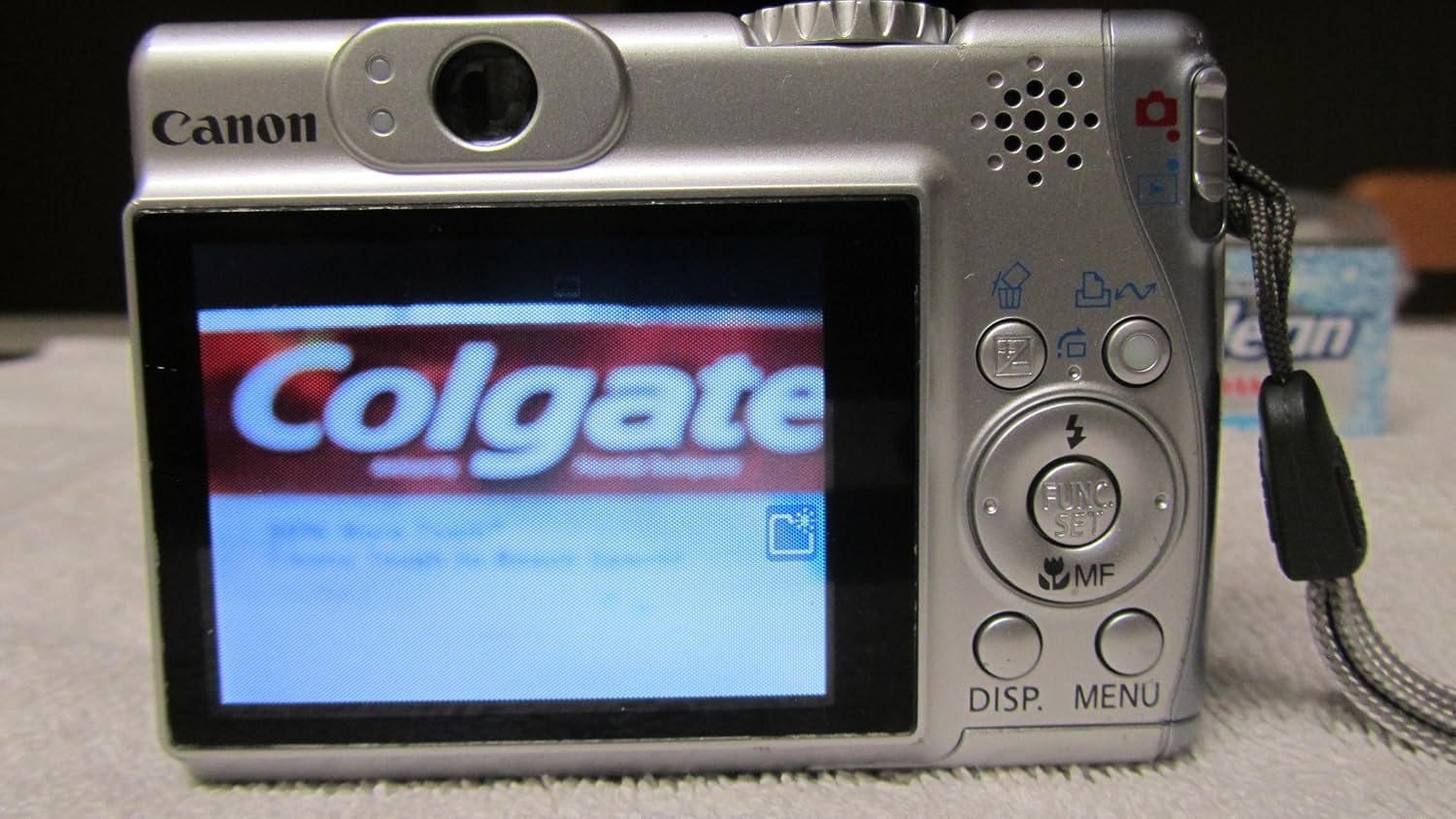
Figure 1.1: Front view of the Canon PowerShot A540 digital camera, showcasing its compact design and lens.
2. Setup
2.1. Installing Batteries
The Canon PowerShot A540 operates on two AA-size batteries. For optimal performance, use alkaline or NiMH rechargeable batteries.
- Open the battery compartment cover located on the bottom of the camera.
- Insert two AA batteries, ensuring correct polarity (+/-) as indicated inside the compartment.
- Close the battery compartment cover securely until it clicks into place.
2.2. Inserting a Memory Card
The camera uses SD/MMC memory cards to store images and videos. A 16MB MultiMediaCard (MMC) is typically included.
- Open the battery/card compartment cover on the bottom of the camera.
- Insert the memory card into the card slot with the label facing the front of the camera until it clicks.
- Close the compartment cover securely.

Figure 2.1: Bottom view of the camera, illustrating the battery and memory card compartment. Ensure correct battery orientation and secure card insertion.
2.3. Initial Power On and Basic Settings
After installing batteries and a memory card:
- Press the ON/OFF button to power on the camera.
- The LCD screen will display initial setup options, such as date, time, and language. Use the directional buttons and FUNC./SET button to navigate and confirm your selections.
3. Operating the Camera
3.1. Camera Controls Overview

Figure 3.1: Rear view of the camera, highlighting the LCD screen and various control buttons for navigation and settings.

Figure 3.2: Top view of the camera, illustrating the mode dial set to AUTO, and the power button.
3.2. Taking Photos (Auto Mode)
- Turn the mode dial to AUTO.
- Frame your shot using the LCD monitor or the optical viewfinder.
- Press the shutter button halfway down to focus. The camera will beep, and the focus frame will turn green when focus is achieved.
- Press the shutter button fully down to take the picture.
3.3. Using Optical Zoom
The PowerShot A540 features a 4x optical zoom lens.
- Push the zoom lever (located around the shutter button) towards T (Telephoto) to zoom in.
- Push the zoom lever towards W (Wide-angle) to zoom out.
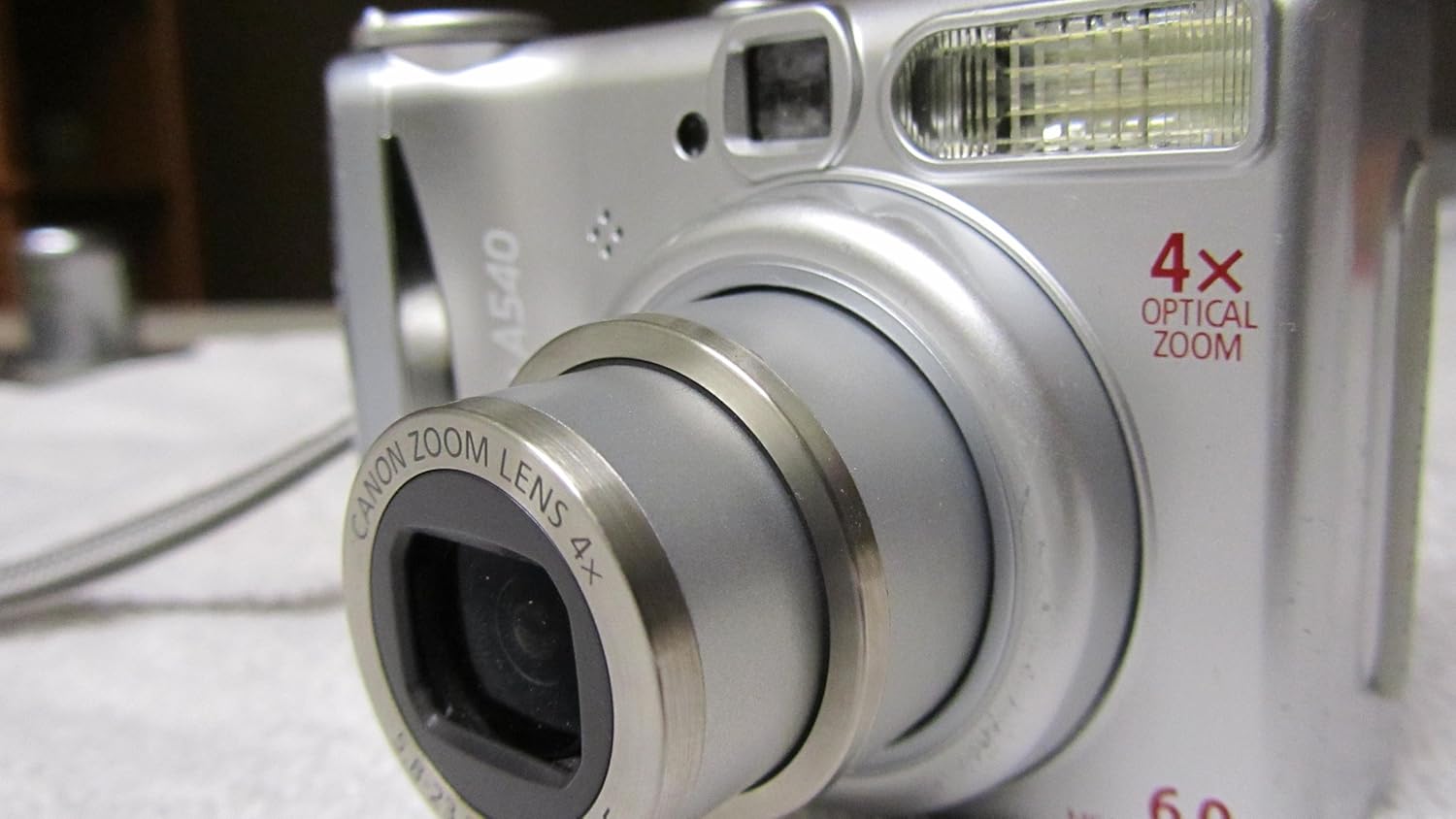
Figure 3.3: Front view of the camera with the lens extended, indicating the optical zoom in action.
3.4. Flash Settings
Press the flash button (lightning bolt icon) on the directional pad to cycle through flash modes:
- Auto Flash: Flash fires automatically when needed.
- Flash On: Flash fires for every shot.
- Flash Off: Flash does not fire.
- Red-Eye Reduction: Fires a pre-flash to reduce red-eye effect.
3.5. Shooting Modes
The mode dial allows selection of various shooting modes:
- AUTO: Fully automatic shooting.
- Program (P): Camera sets aperture and shutter speed, but allows user control over other settings.
- Shutter-Priority (Tv): User sets shutter speed, camera sets aperture.
- Aperture-Priority (Av): User sets aperture, camera sets shutter speed.
- Manual (M): User sets both aperture and shutter speed.
- Special Scene Modes (SCN): Includes Night Snapshot, Snow, Beach, Foliage, Fireworks, Aquarium, Underwater, Indoor, Kids & Pets, Night Scene.
- Movie Mode: Records video clips.
3.6. Viewing Images and Videos
To review your captured content:
- Press the Playback button (usually indicated by a play icon).
- Use the directional buttons to scroll through images and videos.
- Press the FUNC./SET button to play videos.
3.7. Connecting to a Computer or Printer
The camera can be connected to a computer or PictBridge-compatible printer using the supplied USB interface cable (IFC-400PCU).
- For Computers: Connect the camera to your computer. The camera will appear as a removable drive, allowing you to transfer files. Install the Digital Camera Solution CD-ROM software for additional functionality.
- For Printers: Connect the camera directly to a PictBridge-compatible printer. Use the camera's menu to select images and print settings. The Print/Share button can initiate one-touch printing.
4. Maintenance
4.1. Cleaning the Camera
- Camera Body: Use a soft, dry cloth to wipe the camera body. For stubborn dirt, lightly dampen the cloth with water.
- Lens: Use a lens blower to remove dust, then gently wipe with a lens cleaning cloth. Avoid touching the lens surface with your fingers.
- LCD Screen: Use a soft, dry cloth specifically designed for LCD screens.
4.2. Battery Care
- Remove batteries when the camera will not be used for an extended period.
- Store batteries in a cool, dry place.
- Dispose of used batteries according to local regulations.
4.3. Storage
Store the camera in a dry, well-ventilated area, away from direct sunlight, high temperatures, and humidity. Use a camera case to protect it from dust and scratches.
5. Troubleshooting
- Camera does not power on:
- Check if batteries are inserted correctly with proper polarity.
- Replace with fresh batteries or fully charged rechargeable batteries.
- Ensure the battery compartment cover is securely closed.
- "Memory Card Error" displayed:
- Ensure the memory card is inserted correctly.
- Try reinserting the card.
- Test with a different, compatible memory card.
- The card may be full or corrupted; try formatting it (this will erase all data).
- Images are blurry:
- Ensure the lens is clean.
- Hold the camera steady when shooting.
- Check focus settings; ensure the camera has focused before taking the shot.
- In low light, use flash or a tripod.
- Flash does not fire:
- Check flash settings; ensure it is not set to "Flash Off".
- Allow time for the flash to recharge between shots.
6. Specifications
| Model Name | Canon PowerShot A540 |
| Image Sensor | 6.0 Megapixel CCD |
| Optical Zoom | 4x |
| Digital Zoom | 4x |
| Focal Length (35mm equiv.) | 35 - 140 mm |
| Maximum Aperture | f/2.8 - f/5.5 |
| LCD Screen | 2.5-inch TFT color LCD (approx. 85,000 pixels) |
| Storage Media | SD Memory Card, MultiMediaCard (MMC) |
| ISO Sensitivity | Auto, ISO 80, 100, 200, 400, 800 |
| Shutter Speed | 15 - 1/2000 sec. |
| Power Source | 2x AA-size Alkaline or NiMH batteries |
| Dimensions (W x H x D) | Approx. 90.3 x 64.0 x 43.2 mm (3.56 x 2.52 x 1.70 in.) |
| Weight | Approx. 180 g (0.51 lbs) (camera body only) |
7. What's in the Box
The Canon PowerShot A540 package typically includes the following items:
- Canon PowerShot A540 Camera Body
- AA-size Alkaline Batteries (x2)
- MultiMediaCard MMC-16M (16MB)
- Wrist Strap WS-800
- Digital Camera Solution CD-ROM
- USB Interface Cable IFC-400PCU
- AV Cable AVC-DC300
8. Warranty and Support
For warranty information and technical support, please refer to the documentation included with your purchase or visit the official Canon website. Keep your proof of purchase for warranty claims.
Official Canon Support: www.usa.canon.com/support


