
1. Introduction
Thank you for purchasing the Samsung YP-X5X NeXus 25 Digital Audio Player. This device combines the functionality of an MP3 player with XM radio readiness, offering a versatile audio experience. This manual provides essential information for the safe and efficient use of your device, including setup, operation, maintenance, and troubleshooting.
Please read this manual thoroughly before using the product and retain it for future reference.
2. Safety Information
- Do not expose the device to extreme temperatures, direct sunlight, or high humidity.
- Avoid dropping or subjecting the device to strong impacts.
- Keep the device away from water and other liquids. If it gets wet, power it off immediately and allow it to dry completely.
- Use only Samsung-approved accessories and chargers.
- Do not attempt to disassemble, repair, or modify the device yourself. Refer all servicing to qualified personnel.
- Listen at moderate volume levels to prevent hearing damage.
3. Package Contents
Verify that all items are present in your product package:
- Samsung YP-X5X NeXus 25 Digital Audio Player
- USB Cable
- Earphones
- Quick Start Guide (this manual)
- Installation Disk (for optional software, not required for basic file transfer)
4. Product Overview
The Samsung YP-X5X features a compact design with a 1.8-inch screen. It includes controls for navigation, volume, and playback. The device is equipped with a USB port for connectivity and charging, and a headphone jack for audio output. It also has a slot for the XM Passport module, which is required for XM radio functionality.
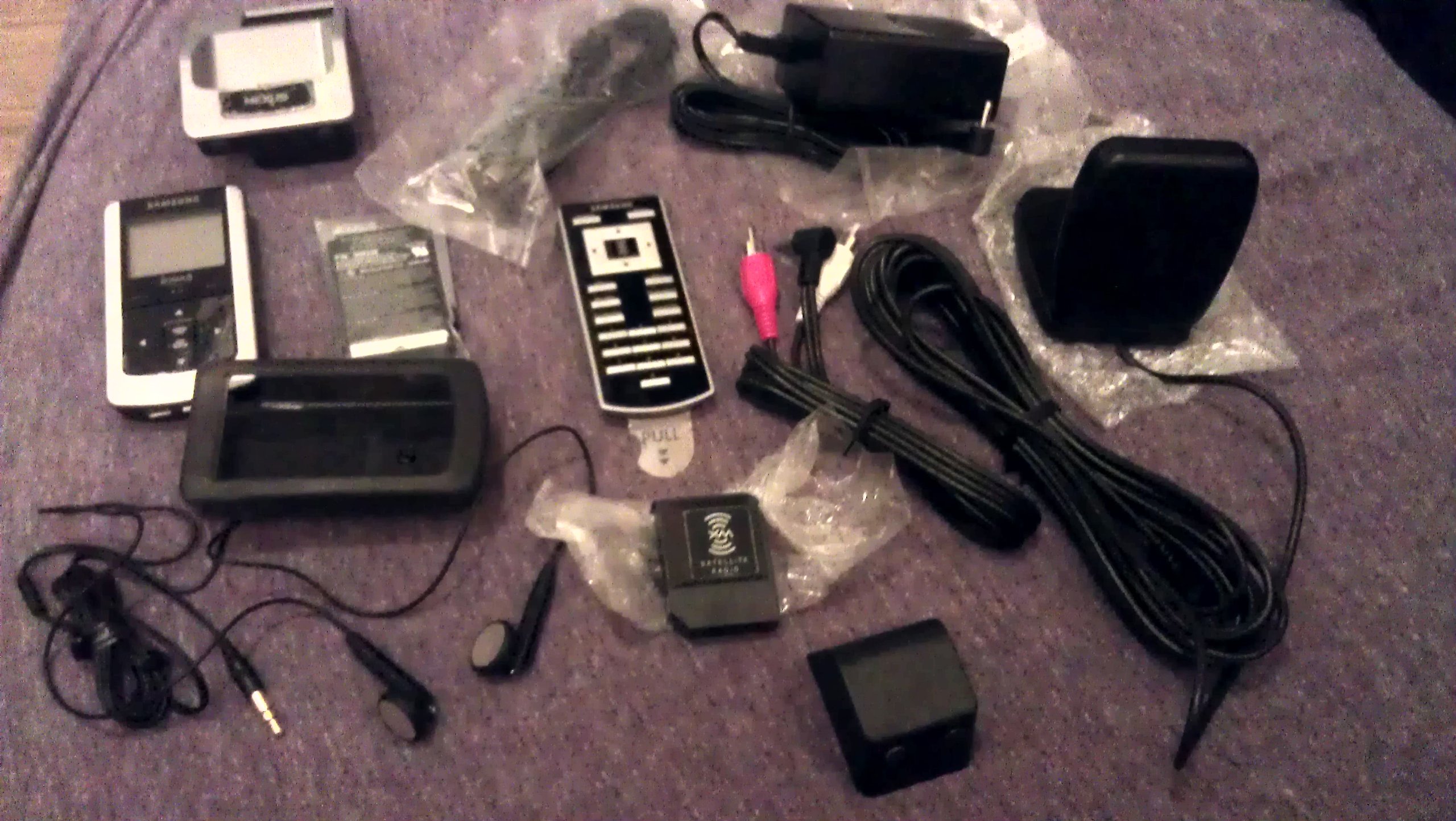
Figure 1: Front view of the Samsung YP-X5X NeXus 25 Digital Audio Player, highlighting its display and control interface.
5. Setup
5.1 Charging the Battery
- Connect the small end of the USB cable to the USB port on your YP-X5X player.
- Connect the large end of the USB cable to a powered USB port on your computer or a compatible USB wall adapter (sold separately).
- The device will begin charging. A full charge provides approximately 25 hours of playback.
5.2 Installing the XM Passport Module (for XM Radio)
If you intend to use the XM radio features, you will need an XM Passport module and an active XM subscription. The Passport module is typically inserted into a dedicated slot on the device or its docking station.
- Locate the XM Passport slot on your YP-X5X or its compatible car kit/docking station.
- Carefully insert the XM Passport module into the slot until it is securely seated.
- Ensure the Passport module is properly connected to avoid signal issues.
6. Operating Instructions
6.1 Powering On/Off
- To power on, press and hold the Power button until the screen illuminates.
- To power off, press and hold the Power button until the power-off prompt appears, then confirm.
6.2 Transferring MP3 Files
The YP-X5X functions as a portable storage device when connected to a computer, allowing for easy drag-and-drop file transfer.
- Connect the YP-X5X to your computer using the USB cable.
- Your computer will recognize the device as a removable disk drive.
- Open the device's folder and drag and drop your MP3 or WMA audio files into it.
- Once files are transferred, safely eject the device from your computer before disconnecting the USB cable.
6.3 Playing Music
- Navigate to the 'Music' or 'MP3' menu option using the device's controls.
- Select a song or playlist to begin playback.
- Use the volume buttons to adjust the audio level.
- Use the navigation buttons to skip tracks or fast forward/rewind.
6.4 Using XM Radio (with Passport Module)
With the XM Passport module installed and an active subscription, you can access XM satellite radio services.
- Ensure the device has a clear line of sight to the sky or is connected to an external XM antenna (e.g., in a car kit).
- Select the 'XM Radio' option from the main menu.
- Tune to desired channels using the navigation controls.
- The device may offer recording capabilities for XM content. Refer to the on-screen menu for specific recording functions.
7. Maintenance
7.1 Cleaning the Device
- Wipe the device with a soft, dry, lint-free cloth.
- Do not use liquid cleaners, aerosols, or solvents.
7.2 Battery Care
- To prolong battery life, avoid fully discharging the battery frequently.
- Store the device in a cool, dry place when not in use for extended periods.
8. Troubleshooting
8.1 Device Does Not Power On
- Ensure the battery is charged. Connect the device to a power source and allow it to charge for at least 30 minutes before attempting to power on again.
- Perform a soft reset by pressing and holding the Power button for 10-15 seconds.
8.2 Cannot Transfer Files to Device
- Ensure the USB cable is securely connected to both the device and the computer.
- Try a different USB port on your computer.
- Verify that the device is recognized as a removable drive in your computer's file explorer.
8.3 XM Radio Signal Issues or Loading Delays
- Ensure the XM Passport module is correctly and firmly inserted into its slot.
- Verify that the device has a clear view of the sky or that the external antenna (if used) is properly positioned and connected.
- Check your XM subscription status.
- If experiencing long loading screens, try disconnecting and reconnecting the Passport module and power cycling the device.
8.4 Audio Playback Issues (e.g., songs cut off)
- Ensure your audio files are in supported formats (MP3, WMA).
- Try re-transferring the affected files to the device.
- If issues persist with recorded XM content, ensure a stable signal was present during recording.
9. Specifications
| Model Number | YP-X5X |
| Brand | Samsung |
| Memory Storage Capacity | 512 MB |
| Screen Size | 1.8 Inches |
| Supported Standards | MP3, WMA |
| Battery Life | Up to 25 Hours |
| Connectivity Technology | USB |
| Color | Silver |
| Item Weight | 2 Pounds |
| Component Type | MP3 Player, Satellite radio |
| UPC | 036725601352 |
10. Warranty and Support
For warranty information and technical support, please refer to the warranty card included with your product or visit the official Samsung support website. Keep your proof of purchase for warranty claims.
Online Support: Visit www.samsung.com/us/support/


