
1. Introduction and Overview
The Actiontec EX560LKA External 56K Modem is designed to provide reliable dial-up internet connectivity for systems requiring a serial interface. This manual provides essential information for setting up, operating, and maintaining your modem, ensuring optimal performance and longevity.
This modem supports V.92/V.90/K56flex data transmission technologies, offering speeds up to 56 Kbps. It also includes error correction and data compression features for efficient communication.
2. Package Contents
Please verify that all items listed below are present in your package:
- Actiontec EX560LKA External 56K Modem Unit
- Power Adapter
- RJ-11 Phone Cable
- Serial Data Cable (DB9)
- Installation CD (if applicable, not explicitly mentioned but common for modems of this era)

Image: The Actiontec EX560LKA External 56K Modem unit, featuring its compact design and serial port connector.
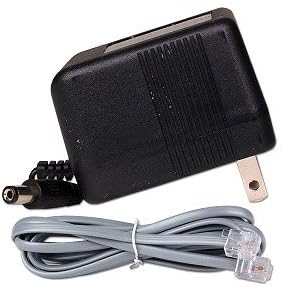
Image: The power adapter and standard RJ-11 phone cable included with the modem, essential for power and telephone line connection.
3. Setup Instructions
Follow these steps to connect your Actiontec EX560LKA modem:
- Connect to Phone Line: Locate the RJ-11 phone jack on the back of the modem. Connect one end of the provided RJ-11 phone cable to this jack and the other end to your telephone wall jack.
- Connect to Computer: Identify the serial port (DB9 connector) on your computer. Connect one end of the serial data cable to the modem's serial port and the other end to your computer's serial port. Ensure the connection is secure.
- Connect Power: Insert the small barrel connector of the power adapter into the power input jack on the modem. Plug the power adapter into a standard electrical outlet. The modem's Power (PWR) LED should illuminate.
- Install Drivers (if necessary): For older operating systems, you may need to install modem drivers. Refer to your computer's operating system documentation or the modem's installation CD for specific instructions.

Image: The product box illustrating the simple 1-2-3 setup process: 1) Phone Line, 2) Power, 3) Modem Connection to Computer.
4. Operating Instructions
4.1. LED Indicators
The front panel of the modem features several LED indicators to show its status:
- PWR (Power): Illuminates when the modem is receiving power.
- RD (Receive Data): Flashes when the modem is receiving data from the phone line.
- TD (Transmit Data): Flashes when the modem is transmitting data to the phone line.
- CH (Carrier Hold/Connect): Illuminates steadily when a connection (carrier) is established with another modem. Flashes during negotiation.
4.2. Establishing a Connection
Once the modem is connected, you can initiate a dial-up connection through your computer's operating system or dial-up networking software. The modem supports auto dial/answer and auto feature negotiation.
Data transmission speeds can reach up to 56 Kbps (V.92/V.90/K56flex technology). Fax speeds are supported at 14400, 12000, 9600, 7200, 4800, 2400, 1200, and 300 bps.
5. Maintenance
To ensure the longevity and proper functioning of your modem, follow these simple maintenance guidelines:
- Cleaning: Use a soft, dry cloth to clean the exterior of the modem. Do not use liquid cleaners or aerosol sprays.
- Ventilation: Ensure the modem is placed in a well-ventilated area to prevent overheating. Do not block any ventilation openings.
- Power Cycle: If the modem becomes unresponsive, disconnect the power adapter for 10 seconds, then reconnect it. This can resolve minor issues.
- Cable Connections: Periodically check all cable connections (power, phone, serial) to ensure they are secure.
6. Troubleshooting
If you encounter issues with your Actiontec EX560LKA modem, refer to the following common problems and solutions:
- Modem Not Powering On:
- Ensure the power adapter is securely connected to the modem and a working electrical outlet.
- Verify the electrical outlet is functional by plugging in another device.
- Cannot Establish a Connection:
- Check that the phone cable is correctly connected to both the modem and the wall jack.
- Confirm that the serial data cable is securely connected to both the modem and your computer.
- Verify that your phone line is active and not in use by another device.
- Ensure modem drivers are correctly installed on your computer.
- Check your dial-up networking settings in your operating system for correct phone number and dialing properties.
- Slow Connection Speed:
- Dial-up speeds can vary based on line quality and distance from the central office.
- Ensure no other devices are causing interference on the phone line.
- Modem Not Detected by Computer:
- Ensure the modem is powered on and the serial cable is firmly connected.
- Check your computer's Device Manager (Windows) or System Information (macOS/Linux) to see if the serial port is recognized and functioning correctly.
- Reinstall modem drivers if necessary.
7. Specifications
| Feature | Detail |
|---|---|
| Model Number | EX560LKA |
| Interface | Serial (DB9) |
| Data Transmission | V.92 / V.90 / K56flex technology |
| Max Data Speed | Up to 56 Kbps |
| Fax Speeds | 14400, 12000, 9600, 7200, 4800, 2400, 1200, 300 bps |
| Error Correction | MNP 2-4, V.44, V.42, LAPM |
| Data Compression | MNP 5, V.42bis |
| DTE Speed | 115,200 bps |
| Operating Modes | Auto dial/answer; auto feature negotiation, Full-Duplex |
| Product Dimensions | 5 x 6 x 1.25 inches |
| Item Weight | 11.2 ounces |
| Manufacturer | ACTIONTEC |
8. Warranty and Support
Specific warranty information for the Actiontec EX560LKA modem is typically provided with the product documentation at the time of purchase or can be found on the official Actiontec website. Please refer to your purchase receipt or the manufacturer's website for details regarding warranty coverage and terms.
For technical support, driver downloads, or further assistance, please visit the official Actiontec support website or contact their customer service department. Contact information is usually available on the manufacturer's website or in the original product packaging.
Note: As this product is an older model, direct manufacturer support may be limited. Online communities and historical driver archives may be helpful resources.