Introduction
Thank you for choosing the iConcepts M01517 Mobile 5-Port USB 2.0 Hub. This device is designed to expand the USB connectivity of your computer, allowing you to connect up to five USB 2.0 devices simultaneously. Its compact and mobile design makes it ideal for both desktop and portable use. Please read this manual carefully to ensure proper setup and operation.
Package Contents
Please verify that all items are present in your package:
- iConcepts M01517 Mobile 5-Port USB 2.0 Hub unit
- USB connection cable
Setup
Follow these steps to set up your USB hub:
- Connect the Hub to Your Computer: Take the provided USB connection cable. Plug one end into the designated input port on the iConcepts M01517 hub. Plug the other end into an available USB port on your computer.
- Automatic Driver Installation: Your operating system (Windows, macOS, Linux) should automatically detect the new hardware and install the necessary drivers. This process typically takes a few moments. No manual driver installation is usually required.
- Connect Your USB Devices: Once the hub is recognized by your computer, you can connect up to five USB devices (such as flash drives, keyboards, mice, printers, etc.) into the available ports on the iConcepts M01517 hub.
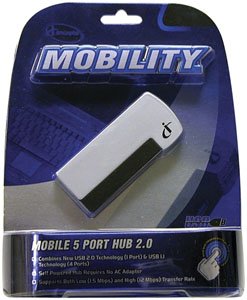
Image of the iConcepts M01517 Mobile 5-Port USB 2.0 Hub, showing its compact design and multiple USB ports ready for connection.
Operating
The iConcepts M01517 hub operates as a standard USB 2.0 hub, providing additional ports for your devices.
- Device Recognition: When a device is plugged into the hub, your computer will recognize it as if it were plugged directly into the computer's USB port.
- Data Transfer: The hub supports USB 2.0 data transfer speeds, which are suitable for most peripherals and data storage devices.
- Power Supply: This mobile hub is typically bus-powered, meaning it draws power directly from the computer's USB port. For high-power consumption devices, ensure your computer's USB port can supply sufficient power.
Maintenance
To ensure the longevity and optimal performance of your iConcepts M01517 USB hub, follow these maintenance guidelines:
- Cleaning: Use a soft, dry cloth to clean the exterior of the hub. Avoid using liquid cleaners or solvents, as they may damage the device.
- Storage: When not in use, store the hub in a cool, dry place away from direct sunlight and extreme temperatures.
- Handling: Avoid dropping the hub or subjecting it to strong impacts. Do not attempt to disassemble the unit.
Troubleshooting
If you encounter issues with your iConcepts M01517 USB hub, refer to the following common problems and solutions:
- Problem: Connected device is not recognized.
Solution:- Ensure the hub is securely connected to your computer's USB port.
- Try connecting the device to a different port on the hub.
- Try connecting the device directly to your computer's USB port to verify the device itself is functioning.
- Restart your computer.
- Problem: Slow data transfer speeds.
Solution:- Ensure both the hub and the connected device support USB 2.0 for optimal speeds.
- Avoid connecting too many high-bandwidth devices simultaneously to the hub.
- Problem: Hub or connected devices are not receiving power.
Solution:- Verify the hub's connection to the computer's USB port is firm.
- Try connecting the hub to a different USB port on your computer, as some ports may provide more power.
- If connecting high-power devices, consider using a self-powered hub (if available for this model) or connecting high-power devices directly to the computer.
Specifications
| Brand | iConcepts |
| Model | M01517 |
| Hardware Interface | USB |
| Total USB Ports | 5 |
| Number of Ports | 5 |
| Item Weight | 5 pounds |
| Date First Available | February 7, 2007 |
Warranty and Support
Specific warranty details and direct support contact information are not provided in this manual. For warranty claims, technical support, or further assistance, please refer to the official iConcepts website or contact your retailer. Keep your purchase receipt as proof of purchase.