
1. Introduction
This manual provides instructions for the installation, operation, and maintenance of the Allied Telesis AT-GS950/24-10 Gigabit Ethernet Smart Switch. The GS950 Series web Smart switch combines the simplicity of unmanaged switches with the performance and reliability of managed switches, offering a cost-effective solution for network edge management. It supports key features such as port-based VLANs, 802.1P QoS, port trunking/link aggregation, port mirroring, priority queues, Spanning Tree, and 802.1X security. With an 8K MAC address table and a 512K packet buffer, this switch is designed for integrating management into your network infrastructure.
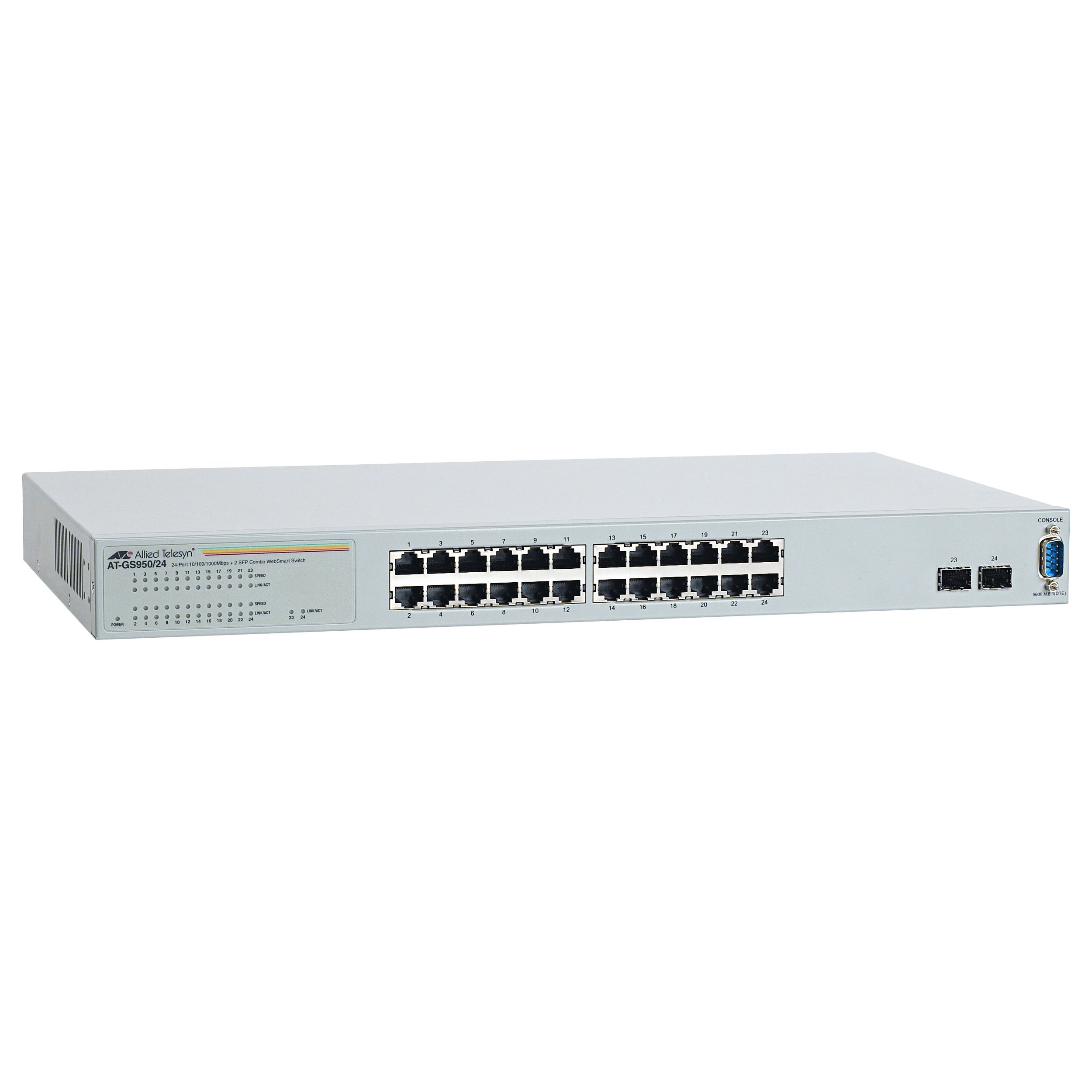
Figure 1: Front view of the Allied Telesis AT-GS950/24-10 Gigabit Ethernet Smart Switch, showing 24 Ethernet ports and two SFP ports.
2. Safety Information
Please read all safety instructions carefully before installing or operating this device. Failure to follow these instructions may result in electric shock, fire, or damage to the product.
- Power Source: Connect the device only to the type of power source indicated on the marking label.
- Ventilation: Ensure proper ventilation. Do not block any ventilation openings.
- Moisture: Do not expose the device to water or moisture.
- Temperature: Operate the device within the specified temperature range (up to 40°C).
- Servicing: Do not attempt to service this product yourself. Refer all servicing to qualified service personnel.
- Cables: Use only approved and appropriate cables for network connections.
3. Package Contents
Verify that your package contains the following items:
- Allied Telesis AT-GS950/24-10 Gigabit Ethernet Smart Switch (24 x 10/100/1000 + 2 x SFP ports)
- Power Cord
- Rack-mount kit (if applicable, for desktop enclosure)
- Quick Start Guide or Documentation CD
If any items are missing or damaged, please contact your vendor immediately.
4. Setup
4.1 Physical Installation
The AT-GS950/24-10 is designed for desktop deployment. Ensure the installation location meets the following criteria:
- A stable, flat surface.
- Adequate ventilation space around the device.
- Away from direct sunlight, heat sources, and excessive moisture.
- Within reach of a grounded power outlet.
4.2 Connecting Power
- Connect one end of the power cord to the power inlet on the rear panel of the switch.
- Connect the other end of the power cord to a grounded electrical outlet.
- The power LED on the front panel should illuminate, indicating the device is receiving power.
4.3 Connecting Network Devices
- Connect Ethernet cables from your network devices (computers, servers, other switches) to the 24 10/100/1000BASE-T ports on the front panel.
- For fiber optic connections, insert compatible SFP transceivers into the two SFP ports and connect fiber optic cables.
- Observe the link/activity LEDs for each port. A solid green LED indicates a valid link, and a blinking LED indicates data activity.
4.4 Initial Configuration (Web-based Management)
The AT-GS950/24-10 is a web-smart switch, meaning it can be configured via a web browser. Refer to the Quick Start Guide for the default IP address and login credentials to access the web management interface. Through this interface, you can configure advanced features such as VLANs, QoS, and port security.
5. Operating the Switch
Once powered on and connected, the AT-GS950/24-10 switch operates automatically to forward network traffic. As a managed switch, it offers a range of configurable features to optimize network performance and security.
5.1 Basic Operation
- Data Forwarding: The switch intelligently forwards data frames between connected devices at Gigabit speeds.
- Auto-Negotiation: Each Ethernet port automatically detects the speed and duplex mode of the connected device.
- Auto MDI/MDIX: Eliminates the need for crossover cables.
5.2 Advanced Features (via Web Management)
Access the web management interface using a standard web browser to configure the following features:
- VLANs (Virtual Local Area Networks): Segment your network for improved security and performance.
- QoS (Quality of Service): Prioritize critical network traffic (e.g., voice or video) to ensure consistent performance.
- Port Trunking/Link Aggregation: Combine multiple physical links into a single logical link for increased bandwidth and redundancy.
- Port Mirroring: Monitor network traffic by sending a copy of packets from one port to another.
- Spanning Tree Protocol (STP): Prevent network loops and ensure network stability.
- 802.1X Security: Implement port-based network access control.
6. Maintenance
Regular maintenance helps ensure the longevity and optimal performance of your switch.
- Cleaning: Periodically clean the exterior of the switch with a soft, dry cloth. Do not use liquid or aerosol cleaners. Ensure ventilation openings are free from dust and obstructions.
- Firmware Updates: Check the Allied Telesis website for available firmware updates. Keeping the firmware up-to-date can provide new features, performance improvements, and security patches. Follow the instructions provided with the firmware update carefully.
- Environmental Conditions: Ensure the operating environment remains within the specified temperature and humidity ranges to prevent hardware damage.
7. Troubleshooting
This section provides solutions to common issues you might encounter with your AT-GS950/24-10 switch.
| Problem | Possible Cause | Solution |
|---|---|---|
| No power LED indication | Power cord disconnected or faulty power outlet. | Check power cord connections. Try a different power outlet. |
| No link LED for a connected device | Faulty Ethernet cable, incorrect port, or device not powered on. | Verify cable integrity. Ensure the connected device is powered on. Try a different port or cable. |
| Slow network performance | Cable issues, network congestion, or duplex mismatch. | Check cable quality. Investigate network traffic patterns. Ensure devices are set to auto-negotiate speed and duplex. |
| Cannot access web management interface | Incorrect IP address, network configuration issue, or firewall. | Verify the switch's IP address. Ensure your computer is on the same subnet. Temporarily disable firewalls. |
8. Specifications
Key technical specifications for the Allied Telesis AT-GS950/24-10 Gigabit Ethernet Smart Switch:
| Feature | Description |
|---|---|
| Model Number | AT-GS950/24-10 |
| Brand | Allied Telesis |
| Enclosure Type | Desktop |
| Subtype | Gigabit Ethernet |
| Ports | 24 x 10/100/1000BASE-T + 2 x SFP |
| Data Transfer Rate | 1000 Megabits Per Second (Gigabit) |
| Interface Type | SFP |
| Item Weight | 7.2 pounds (3.27 kg) |
| Product Dimensions | 19.7 x 15.2 x 4.9 inches (50.04 x 38.61 x 12.45 cm) |
| Upper Temperature Rating | 40 Degrees Celsius |
| Management | Web-based Smart Management |
| MAC Address Table Size | Up to 8K entries |
| Packet Buffer Size | 512K |
9. Warranty Information
Allied Telesis products are designed for reliability and performance. For specific warranty terms and conditions applicable to your AT-GS950/24-10 switch, please refer to the warranty statement included with your product or visit the official Allied Telesis website. Warranty coverage typically includes defects in materials and workmanship under normal use.
10. Technical Support
If you require technical assistance or have questions not covered in this manual, please contact Allied Telesis technical support. Before contacting support, please have your product model number (AT-GS950/24-10) and serial number ready.
- Online Resources: Visit the Allied Telesis website for FAQs, documentation, and software downloads.
- Contact Information: Refer to the Allied Telesis website for regional support contact details (phone numbers, email).


