
Introduction
This manual provides instructions for setting up, operating, and maintaining your Logitech Cordless Desktop EX110. This wireless keyboard and mouse combination offers reliable performance and convenience for your desktop or notebook computer. Please read this manual thoroughly before using your new device.
Package Contents
- Logitech Cordless Keyboard EX110
- Logitech Cordless Mouse EX110
- USB/PS/2 Wireless Receiver
- AA Batteries (for mouse)
- AAA Batteries (for keyboard)
Setup
1. Battery Installation
The Logitech Cordless Desktop EX110 requires batteries for both the keyboard and mouse.
- For the Keyboard: Locate the battery compartment on the underside of the keyboard. Insert two (2) AAA alkaline batteries, ensuring correct polarity (+/-). Close the battery compartment cover.
- For the Mouse: Locate the battery compartment on the underside of the mouse. Insert two (2) AA alkaline batteries, ensuring correct polarity (+/-). Close the battery compartment cover.
Note: For optimal performance and longevity, use high-quality alkaline batteries. Rechargeable NiMH batteries can also be used.
2. Connecting the Wireless Receiver
The wireless receiver connects both your keyboard and mouse to your computer.
- USB Connection: Plug the USB connector of the wireless receiver into an available USB port on your computer.
- PS/2 Connection: If your computer has PS/2 ports and you prefer to use them, connect the appropriate PS/2 adapters (if included) to the receiver's connectors, then plug them into the corresponding PS/2 keyboard and mouse ports on your computer.
The system should automatically detect the devices. No additional drivers are typically required for basic functionality.
3. Establishing Connection
After connecting the receiver and installing batteries, press the 'Connect' button on the wireless receiver, then press the 'Connect' button on the underside of the keyboard and the mouse. The devices should establish a connection within a few seconds.
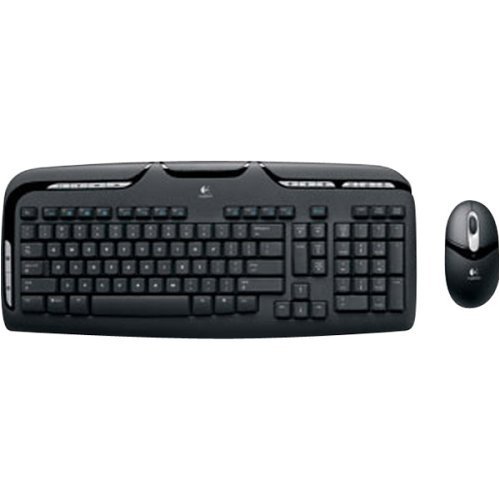
Image: Logitech Cordless Desktop EX110, showing the wireless keyboard, mouse, and USB receiver.
Operating Instructions
Keyboard Features
- Media Controls: Dedicated one-touch buttons allow for quick control of audio and video playback, including volume adjustment and mute functions.
- Programmable F-Keys: Enhanced F-keys provide direct access to common tasks such as launching your internet home page, email client, or the onscreen calculator.
- Spill-Resistant Design: The keyboard is designed to withstand minor liquid spills, protecting internal components.
Mouse Features
- 800-dpi Optical Tracking: Provides precise and responsive cursor control on various surfaces.
- Scroll Wheel: Facilitates easy navigation through web pages and documents.
- Left-Hand Buttons: Conveniently located buttons on the left side of the mouse allow for quick web navigation (e.g., back/forward) or closing browser windows.
Maintenance
Cleaning
To clean your keyboard and mouse, use a soft, damp cloth. Avoid using harsh chemicals or abrasive cleaners. For the keyboard, you may use compressed air to remove debris from between the keys.
Battery Replacement
When the keyboard or mouse performance degrades, or if an indicator light (if present) signals low battery, replace the batteries as described in the 'Battery Installation' section. Dispose of used batteries according to local regulations.
Troubleshooting
- No response from keyboard or mouse:
- Ensure batteries are correctly installed and not depleted. Replace if necessary.
- Verify the wireless receiver is securely plugged into a functional USB or PS/2 port.
- Press the 'Connect' buttons on the receiver, keyboard, and mouse to re-establish the connection.
- Ensure the devices are within the operational range (approximately 6 feet) of the receiver.
- Lag or intermittent response:
- Wireless interference can affect performance. Avoid placing cordless phones, cell phones, or wireless network antennas too close to the receiver.
- Ensure there are no large metal objects between the devices and the receiver that could block the signal.
- Mouse cursor erratic or not tracking:
- Clean the optical sensor on the underside of the mouse.
- Use the mouse on a suitable surface; highly reflective or transparent surfaces may cause issues.
Specifications
| Brand | Logitech |
| Model Number | 967561-0403 |
| Connectivity Technology | USB / PS/2 |
| Movement Detection | Optical (Mouse) |
| Keyboard Layout | QWERTY |
| Number of Keys | 110 |
| Keyboard Battery Type | 2 x AAA batteries |
| Mouse Battery Type | 2 x AA batteries |
| Compatible Operating Systems | Windows, macOS, Linux |
| Special Features | One-touch media controls, Convenient left-hand mouse buttons, Spill-resistant keyboard |
Warranty and Support
The Logitech Cordless Desktop EX110 is covered by a 5-year limited warranty. For detailed warranty information, technical support, or to download additional software (if available), please visit the official Logitech support website. Keep your purchase receipt as proof of purchase for warranty claims.


