
Introduction
This manual provides instructions for the proper setup, operation, maintenance, and troubleshooting of your SanDisk SDDR-89-J70 12-in-1 Reader/Writer. This device is designed to provide convenient access to data on various memory card formats via a USB 2.0 connection.
Setup
Connecting the Reader/Writer to Your Computer
- Locate an available USB port on your computer.
- Insert the USB connector of the SanDisk SDDR-89-J70 12-in-1 Reader/Writer into the USB port.
- The computer's operating system should automatically detect and install the necessary drivers. No additional software installation is typically required for modern operating systems.
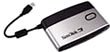
Image: The SanDisk SDDR-89-J70 12-in-1 Reader/Writer, illustrating its compact design and USB connector, ready for connection to a computer. This image shows the device itself, which connects directly to a USB port.
Operating Instructions
Inserting Memory Cards
The SanDisk SDDR-89-J70 supports various memory card formats. Each card type has a dedicated slot. Refer to the labels on the reader for correct slot identification.
- CompactFlash (CFI/II): Insert the card firmly into the designated CF slot, ensuring correct orientation to avoid bending pins.
- SD/MMC/Mini SD/RS-MMC: Insert the card into the appropriate slot until it clicks into place. For Mini SD and RS-MMC, an adapter (not included) may be required if the reader does not have a dedicated smaller slot.
- Memory Stick (MS/MS Duo/MS Pro/MS Pro Duo): Insert the card into the Memory Stick slot with the contacts facing down.
- SmartMedia (SM): Insert the SM card into its dedicated slot.
- xD-Picture Card (XD): Insert the XD card into its dedicated slot.
Accessing Data
- Once a memory card is inserted, your computer will typically recognize it as a removable drive.
- Open 'My Computer' (Windows) or 'Finder' (macOS) and locate the new drive letter or icon corresponding to your memory card.
- Double-click the drive to access the files on the card. You can now copy, move, or delete files as needed.
Safely Removing Memory Cards
To prevent data corruption, always safely eject the memory card before physically removing it from the reader.
- Windows: Click the 'Safely Remove Hardware' icon in the system tray, select the memory card drive, and wait for the 'Safe to Remove Hardware' message.
- macOS: Drag the memory card drive icon to the Trash, or right-click (Control-click) the drive icon and select 'Eject'.
- Once safely ejected, gently pull the memory card out of its slot.
Maintenance
Proper care ensures the longevity and optimal performance of your SanDisk SDDR-89-J70 Reader/Writer.
- Cleaning: Use a soft, dry, lint-free cloth to clean the exterior of the device. Avoid using liquid cleaners or solvents. Do not attempt to clean inside the card slots with any objects.
- Storage: Store the reader in a cool, dry place away from direct sunlight and extreme temperatures.
- Handling: Avoid dropping the device or subjecting it to strong impacts. Do not force memory cards into slots.
Troubleshooting
Device Not Recognized by Computer
- Ensure the USB cable is securely connected to both the reader and the computer.
- Try connecting the reader to a different USB port on your computer.
- Test the reader on another computer to determine if the issue is with the reader or your computer's USB ports.
- Restart your computer.
Memory Card Not Reading
- Ensure the memory card is inserted correctly into the appropriate slot. Do not force the card.
- Check if the memory card is damaged or dirty. Clean the contacts with a soft, dry cloth if necessary.
- Verify that the memory card is not write-protected (some SD cards have a small lock switch).
- Test the memory card in another compatible device to confirm it is functional.
Slow Data Transfer Speeds
- Ensure you are using a USB 2.0 port on your computer for optimal speeds. Connecting to a USB 1.1 port will result in slower transfers.
- The actual transfer speed can also depend on the speed class of your memory card.
- Avoid running multiple demanding applications during large file transfers.
Specifications
| Model Number | SDDR-89-J70 |
| Interface | USB 2.0 |
| Supported Media Types | CompactFlash (CFI/II), SD Card, Mini SD, MultiMediaCard (MMC), RS-MMC, Memory Stick (MS), Memory Stick Duo, Memory Stick PRO, Memory Stick PRO Duo, SmartMedia (SM), xD-Picture Card (XD) |
| Data Transfer Rate | Up to 480 Megabits Per Second (USB 2.0 theoretical maximum) |
| Operating System Compatibility | Universal (Windows, macOS, Linux - typically plug-and-play) |
| Manufacturer | SanDisk |
Warranty and Support
The SanDisk SDDR-89-J70 12-in-1 Reader/Writer comes with a 2-year limited warranty from the date of purchase. This warranty covers defects in materials and workmanship under normal use.
For technical support, warranty claims, or further information, please visit the official SanDisk support website. You may find FAQs, driver updates, and contact information for customer service there.
SanDisk Official Website: www.sandisk.com