
1. Introduction
This manual provides detailed instructions for the setup, operation, maintenance, and troubleshooting of your Logitech S200 Multimedia Speaker System. Please read this manual thoroughly before using the product to ensure proper functionality and to maximize your listening experience.
2. Product Overview
The Logitech S200 is a 2.1 channel wired multimedia speaker system designed for use with personal computers and other compatible audio devices. It consists of a subwoofer for bass reproduction and two satellite speakers for mid-range and high-frequency audio.
Components:
- 1x Subwoofer unit
- 2x Satellite speakers
- Wired remote control (integrated into one satellite speaker)
- Audio cable (3.5mm jack)
- Power cable

Figure 2.1: Front view of the Logitech S200 speaker system, showing the central subwoofer and two satellite speakers.
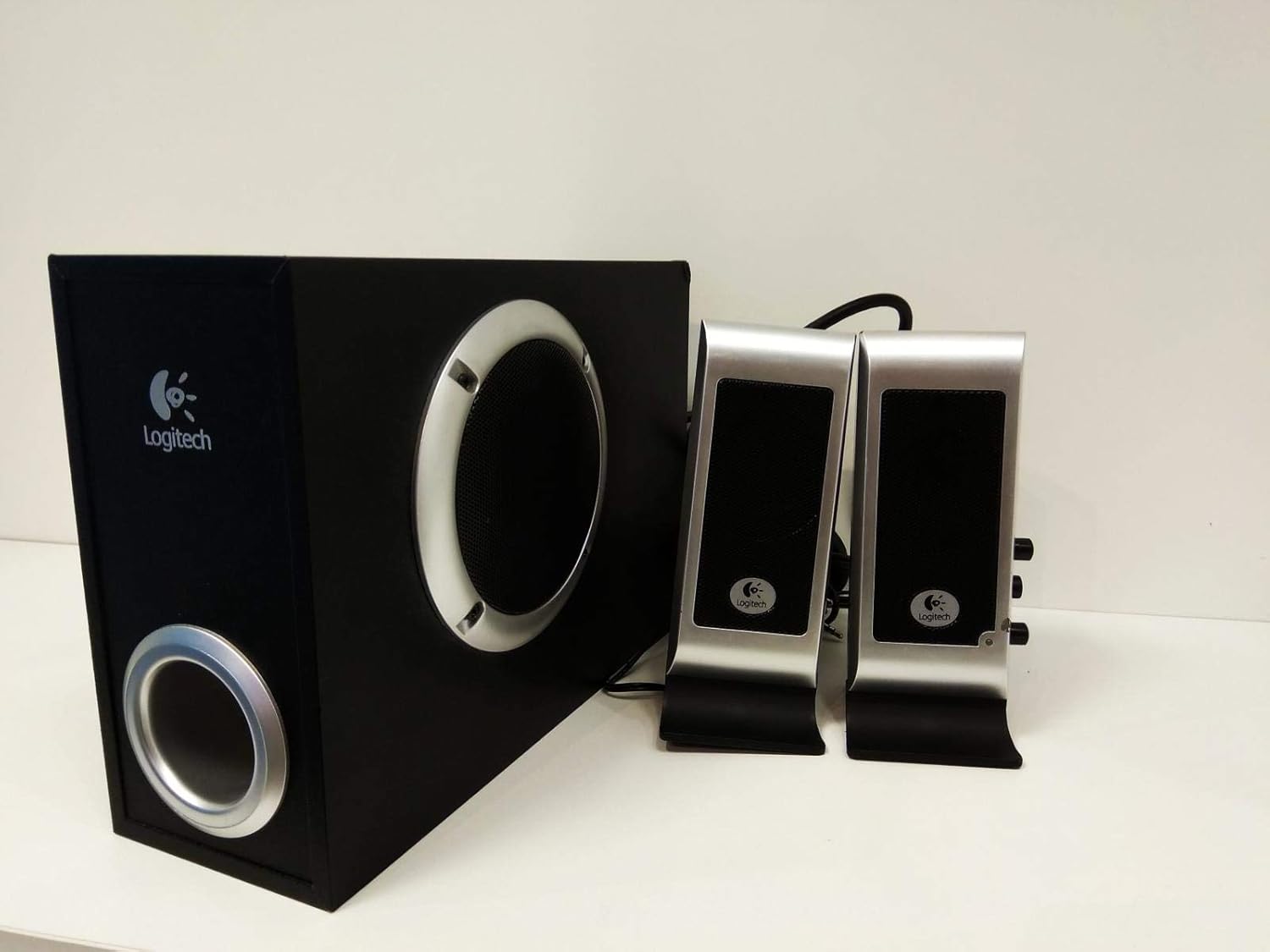
Figure 2.2: Side view of the Logitech S200 subwoofer and front view of the satellite speakers, illustrating the compact design.
3. Setup Instructions
Follow these steps to correctly set up your Logitech S200 speaker system:
- Positioning the Speakers: Place the subwoofer on the floor, preferably under your desk or in a corner for optimal bass response. Position the two satellite speakers on either side of your monitor or listening area, ensuring they are equidistant from your listening position for balanced stereo sound.
- Connecting Satellite Speakers to Subwoofer: Connect the cables from the satellite speakers to the corresponding ports on the back of the subwoofer. Ensure a secure connection.
- Connecting to Audio Source: Plug the 3.5mm audio cable (usually green) from the subwoofer into the audio output jack (headphone or line-out) of your computer, laptop, smartphone, or other audio device.
- Connecting Power: Plug the power cable from the subwoofer into a standard electrical outlet.
- Power On: Turn on the speaker system using the power control located on one of the satellite speakers. A blue LED indicator will illuminate when the system is powered on.

Figure 3.1: Rear view of the subwoofer and satellite speakers, showing the connection ports for power, audio input, and satellite speaker cables.
4. Operating Instructions
4.1 Power On/Off
The power switch is integrated with the volume control knob on one of the satellite speakers. Rotate the knob clockwise until you hear a click to turn the system on. Rotate counter-clockwise until you hear a click to turn it off.
4.2 Volume Control
Adjust the overall volume by rotating the large knob on the satellite speaker. Rotate clockwise to increase volume and counter-clockwise to decrease volume.
4.3 Bass Control
The bass volume can be adjusted using a separate knob, typically located on the subwoofer unit or the same satellite speaker as the main volume control. Adjust to your preferred bass level.
4.4 Headphone and Microphone Jacks
One of the satellite speakers features a headphone output jack and a microphone input jack. These allow for convenient connection of headphones and a microphone without needing to access the computer's ports directly. Plugging in headphones will mute the speakers.
5. Maintenance
To ensure the longevity and optimal performance of your Logitech S200 speaker system, follow these maintenance guidelines:
- Cleaning: Use a soft, dry cloth to clean the speaker surfaces. Avoid using abrasive cleaners, solvents, or strong detergents, as these can damage the finish.
- Dust Removal: Regularly dust the speaker grilles and vents to prevent accumulation, which can affect sound quality and internal cooling.
- Placement: Keep the speakers away from direct sunlight, heat sources, and areas with high humidity. Ensure adequate ventilation around the subwoofer.
- Cable Management: Avoid kinking or sharply bending the cables. Ensure cables are not under heavy objects or in areas where they can be tripped over.
6. Troubleshooting
If you encounter issues with your speaker system, refer to the following common problems and solutions:
| Problem | Possible Cause | Solution |
|---|---|---|
| No sound |
|
|
| Distorted sound |
|
|
| No bass |
|
|
| Power indicator (blue LED) is off |
|
|
7. Specifications
| Feature | Detail |
|---|---|
| Model Name | S200 |
| Model Number Item | 970145-0914 |
| Brand | Logitech |
| Speaker Type | Subwoofer (2.1 Multimedia Speaker System) |
| Connectivity Technology | Wired |
| Maximum Speaker Output Power | 5 Watts RMS |
| Wattage (Total) | 17 Watts |
| Audio Output Mode | Stereo |
| Control Method | Remote Control (integrated) |
| Power Source | Corded Electric |
| Product Dimensions | 400 x 215 x 142 cm (approximate) |
| Item Weight | 3.06 kg |
| Material | Plastic |
| Mounting Type | Tabletop Mount |
| Recommended Applications | For computers |
| Compatible Devices | Laptop, Smartphone, Tablet, Television |
| Operating System Compatibility | Linux, Mac OS, Microsoft Windows |
8. Warranty and Support
Logitech products are manufactured to high quality standards and are backed by a limited hardware warranty. For specific warranty terms and conditions applicable to your region, please refer to the warranty information included with your purchase or visit the official Logitech support website.
For further assistance, technical support, or to access additional resources, please visit the official Logitech support website: www.logitech.com/support


