
1. Introduction
Thank you for choosing the Hama 57278 Mini Wireless Optical Mouse. This manual provides important information on the safe operation, installation, and maintenance of your device. Please read these instructions carefully before using the product and keep them for future reference.
2. Safety Information
- Do not open the device. Improper repair can lead to considerable hazards for the user.
- Do not operate the product outside the power limits given in the specifications.
- Protect the product from dirt, moisture, and overheating, and use it only in dry environments.
- Keep this product, as all electrical products, out of the reach of children.
- Do not drop the product and do not expose it to any major shocks.
- Dispose of packaging material immediately according to locally applicable regulations.
- Do not modify the product in any way. Doing so voids the warranty.
3. Package Contents
Please check that the package contains the following items:
- Hama 57278 Mini Wireless Optical Mouse (Red)
- USB Receiver
- Batteries (pre-installed or included separately)
- Instruction Manual (this document)

Image: The Hama 57278 Mini Wireless Optical Mouse in red, shown alongside its compact USB receiver.
4. Product Overview
Familiarize yourself with the components of your Hama Mini Wireless Optical Mouse:
- Left Click Button: Standard primary mouse function.
- Right Click Button: Standard secondary mouse function.
- Scroll Wheel / Middle Button: For scrolling through documents and web pages, and as a clickable button.
- Optical Sensor: Located on the underside, detects movement.
- ON/OFF Switch: Located on the underside, conserves battery life.
- Battery Compartment: Located on the underside.

Image: Top view of the Hama 57278 mouse, highlighting the left and right click buttons and the scroll wheel.
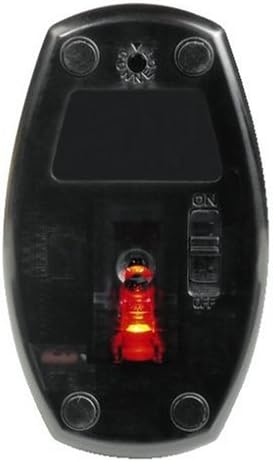
Image: Bottom view of the Hama 57278 mouse, showing the optical sensor and the ON/OFF power switch.
5. Setup
5.1. Installing Batteries
- Locate the battery compartment on the underside of the mouse.
- Open the battery compartment cover.
- Insert the provided batteries, ensuring correct polarity (+/-).
- Close the battery compartment cover securely.
5.2. Connecting the USB Receiver
- Plug the USB receiver into an available USB port on your computer.
- Your computer should automatically detect and install the necessary drivers. This may take a few moments.
5.3. Turning On the Mouse
- Locate the ON/OFF switch on the underside of the mouse.
- Slide the switch to the "ON" position.
- The mouse should now be connected and ready for use.
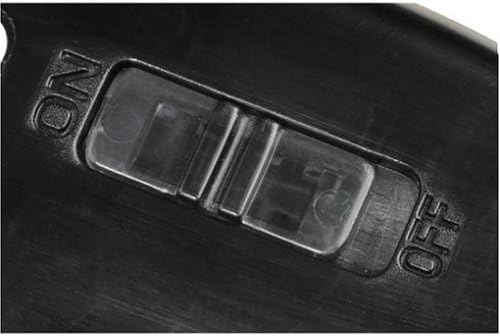
Image: A close-up view of the ON/OFF switch located on the bottom of the Hama 57278 mouse.
6. Operating Instructions
6.1. Basic Functions
- Left Click: Use for selecting items, opening files, and activating links.
- Right Click: Use for accessing context menus and additional options.
- Scroll Wheel: Rotate the wheel to scroll up or down through documents and web pages. Press the wheel down for a middle-click function, which often opens links in new tabs or enables auto-scrolling.

Image: A detailed view of the Hama 57278 mouse's left button, right button, and the central scroll wheel.
6.2. Power Saving Feature
The mouse is equipped with an energy-saving mode. If the mouse is inactive for a period, it will automatically enter a low-power state to conserve battery life. To reactivate, simply move the mouse or click any button.
For extended periods of non-use, it is recommended to switch the mouse OFF using the ON/OFF switch on the underside.
7. Maintenance
7.1. Cleaning
- Disconnect the USB receiver from your computer before cleaning.
- Use a slightly damp, lint-free cloth to clean the exterior of the mouse.
- Do not use aggressive cleaning agents, alcohol, or other chemical solutions.
- Ensure no moisture enters the device.
7.2. Battery Replacement
When the mouse performance degrades or it stops responding, it may be time to replace the batteries. Follow the steps in section 5.1 to replace the batteries. Always use new batteries of the specified type.
8. Troubleshooting
- Mouse not responding:
- Ensure the mouse is switched ON.
- Check if the batteries are correctly inserted and have sufficient charge. Replace if necessary.
- Ensure the USB receiver is securely plugged into a working USB port. Try a different USB port.
- Move the mouse closer to the USB receiver to rule out interference or range issues.
- Restart your computer.
- Erratic cursor movement:
- Clean the optical sensor on the underside of the mouse.
- Use the mouse on a clean, non-reflective surface. Avoid glass or highly reflective surfaces.
- Check for low battery power.
- Connection issues:
- If the mouse loses connection frequently, try plugging the USB receiver into a different USB port, preferably one closer to the mouse.
- Avoid placing the receiver near other wireless devices that might cause interference.
9. Specifications
| Model Number | 00057278 |
| Connectivity | Wireless (Radio Transfer), USB Receiver |
| Sensor Type | Optical LED |
| DPI | 800 dpi |
| Number of Buttons | 3 (Left, Right, Scroll Wheel Click) |
| Scroll Function | Yes, Scroll Wheel |
| Power | Batteries (included) |
| Special Features | Energy Saver, ON/OFF Switch |
| Compatibility | Windows 98SE/Me/2000/XP (Driver included for these systems) |
| Color | Red |
| Hand Orientation | Ambidextrous |
10. Warranty and Support
Hama GmbH & Co KG assumes no liability and provides no warranty for damage resulting from improper installation/mounting, improper use of the product, or from failure to observe the operating instructions and/or safety notes.
For technical support or warranty claims, please contact your retailer or the Hama customer service department. You can find more information on the official Hama website: www.hama.com