1. Introduction
This manual provides detailed instructions for the safe and effective use of your Canon PowerShot S2 IS digital camera. Please read this manual thoroughly before using the camera and keep it in a safe place for future reference. The Canon PowerShot S2 IS is a 5.0-megapixel digital camera featuring a 12x optical image-stabilized zoom lens, designed for capturing high-quality still images and VGA video with stereo sound.
2. Safety Information
- Battery Safety: Use only specified AA-size alkaline or NiMH rechargeable batteries. Do not mix old and new batteries, or different types of batteries. Remove batteries if the camera will not be used for an extended period.
- Water and Moisture: This camera is not waterproof. Do not expose it to rain, moisture, or immerse it in water.
- Handling: Avoid dropping the camera or subjecting it to strong impacts. Do not attempt to disassemble or modify the camera.
- Operating Environment: Do not use or store the camera in extremely hot, cold, or humid environments. Avoid direct sunlight for prolonged periods.
- Flash Usage: Do not use the flash too close to people's eyes, especially children, as it may impair eyesight.
3. Setup
3.1 Unpacking
Carefully remove all items from the packaging. Ensure the following components are present:
- Canon PowerShot S2 IS camera body
- Neck strap NS-DC3
- AA-size Alkaline batteries (x4)
- Stereo video cable STV-250N
- Interface cable IFC-400PCU
- SD memory card SDC-16MB
- Digital Camera Solution CD-ROM
- Lens cap
3.2 Battery Installation
The Canon PowerShot S2 IS operates on four AA-size batteries. Open the battery compartment cover, located on the bottom of the camera. Insert the four AA batteries according to the polarity indicators (+/-) inside the compartment. Close the cover securely.
3.3 SD Card Installation
Locate the SD card slot, typically next to the battery compartment or on the side of the camera. Insert the provided SD memory card (SDC-16MB) into the slot with the label facing the correct direction until it clicks into place. To remove, press the card gently to release it.
3.4 Attaching the Neck Strap
Thread the neck strap (NS-DC3) through the strap mounts on the camera body as shown in the diagram. Ensure it is securely fastened to prevent accidental drops.

Figure 3.4.1: Front view of the Canon PowerShot S2 IS camera with the neck strap attached and lens cap on.
3.5 Initial Power On and Date/Time Setting
After installing batteries and the SD card, press the power button to turn on the camera. The first time you power on, you may be prompted to set the date and time. Use the directional buttons and the SET/OK button to adjust the date and time settings on the LCD screen. Confirm your selections to proceed.
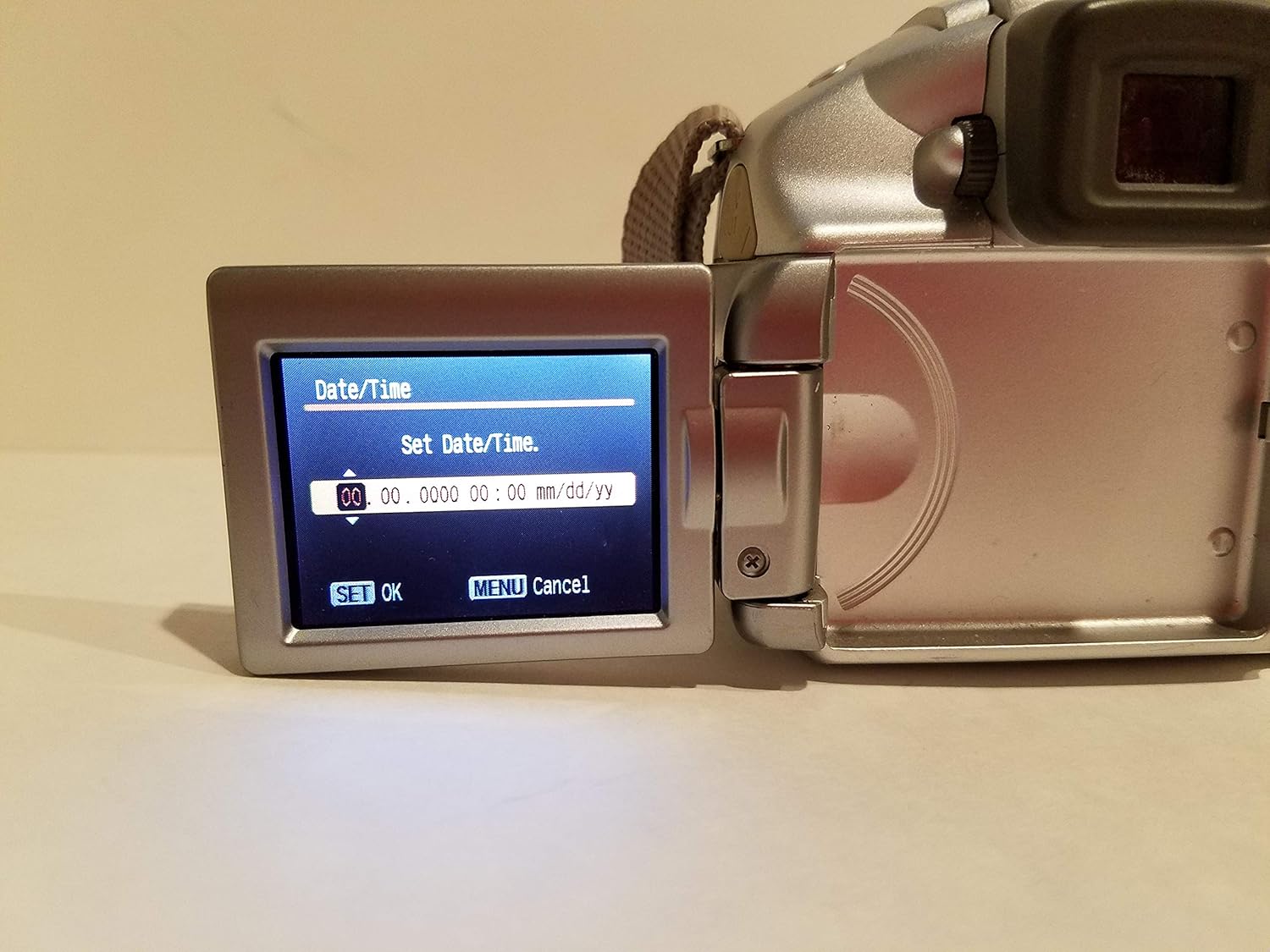
Figure 3.5.1: The camera's vari-angle LCD screen displaying the "Set Date/Time" menu, showing fields for year, month, day, hour, and minute. The "SET OK" and "MENU Cancel" options are visible at the bottom.
4. Operating the Camera
4.1 Camera Controls Overview
Familiarize yourself with the main controls on the camera body. The rear panel features the vari-angle LCD, a control dial, and various function buttons for navigation and settings adjustment.

Figure 4.1.1: Rear view of the Canon PowerShot S2 IS camera, showing the closed vari-angle LCD, the electronic viewfinder, and control buttons including FUNC, JUMP, SET, MENU, and DISP.
4.2 Basic Photography
- Powering On: Press the POWER button. The lens will extend, and the LCD will activate.
- Selecting a Shooting Mode: Use the mode dial (usually on the top of the camera) to select your desired shooting mode, such as AUTO for general use, LANDSCAPE, or other SCENE modes.
- Focusing: Point the camera at your subject. Half-press the shutter button to activate autofocus. The camera will focus on the subject, and a green frame will appear on the LCD when focus is achieved. The camera uses TTL (Through-The-Lens) and FlexiZone autofocus technologies.
- Zooming: Use the zoom lever (typically around the shutter button) to adjust the 12x optical zoom. The camera also features a 4x digital zoom for extended reach.
- Image Stabilization: The camera features Optical Image Stabilization (IS) to reduce blur caused by camera shake, especially at longer zoom settings. This function operates automatically.
- Using the Flash: The built-in flash can be set to Auto, On, or Off via the camera's menu or a dedicated flash button. For low-light conditions, the flash will automatically pop up if set to Auto.
- Taking a Picture: Once focused, fully press the shutter button to capture the image.
- Reviewing Images: Press the PLAY button (often indicated by a triangle icon) to view your captured photos and videos on the 1.8-inch vari-angle LCD display.

Figure 4.2.1: Front view of the Canon PowerShot S2 IS camera with the built-in flash popped up, ready for use in low-light conditions.
4.3 Video Recording
The PowerShot S2 IS can record VGA (480p) video at 30 frames per second with stereo sound.
- Starting/Stopping Video: Switch the mode dial to the movie mode icon (usually a film camera symbol). Press the shutter button to start recording, and press it again to stop.
- MovieSnap Feature: While recording a movie, you can press the shutter button to capture a full 5.0-megapixel still image without interrupting the video recording.
- Audio Features: The camera records in stereo and includes an adjustable microphone level setting and a wind filter option for improved sound quality.
- Zoom and Focus during Video: Digital zooming and manual focus adjustments are possible during movie recording.
4.4 Advanced Settings
Access the camera's menu system using the MENU button to adjust advanced settings:
- Exposure Control: Manual exposure control is available for experienced users.
- White Balance: Adjust white balance settings to match lighting conditions (e.g., Flash torch).
- ISO Sensitivity: Select ISO settings from Auto, 50, 100, 200, 400 to control light sensitivity.
- Self-Timer: Set a delay before the shutter fires, useful for self-portraits or group shots.
- Continuous Shooting: The camera supports continuous shooting at up to 30 frames per second.
5. Connecting to a Computer and Printing
5.1 Connecting to a Computer
To transfer images and videos to your computer:
- Ensure the camera is powered off.
- Connect the camera to your computer using the supplied interface cable IFC-400PCU. The camera supports USB 2.0 Hi-Speed for fast data transfer.
- Turn on the camera. Your computer should recognize the camera as a removable storage device.
- Install the Digital Camera Solution CD-ROM software if prompted or if you wish to use Canon's proprietary software for image management.
5.2 Direct Printing
The PowerShot S2 IS is compatible with Canon Direct Printing. You can print directly from the camera to a compatible Canon printer without a computer.
- Connect the camera to a compatible Canon Direct Printer using the supplied USB cable.
- Follow the on-screen instructions on the camera's LCD to select images and print settings.
6. Maintenance
6.1 Cleaning the Camera
- Camera Body: Use a soft, dry cloth to wipe the camera body. For stubborn dirt, slightly dampen the cloth with water and then wipe dry. Do not use organic solvents like alcohol or paint thinner.
- Lens: Gently remove dust with a blower brush. For smudges, use a lens cleaning cloth specifically designed for optical surfaces. Avoid touching the lens with your fingers.
- LCD Screen: Wipe gently with a soft, dry cloth. Avoid pressing hard on the screen.
6.2 Battery Care
- Always remove batteries when the camera is not in use for extended periods to prevent leakage.
- Store batteries in a cool, dry place.
- If using rechargeable NiMH batteries, follow the manufacturer's instructions for charging and care.
6.3 Storage
When storing the camera for a long time, remove the batteries and SD card. Store the camera in a cool, dry, well-ventilated area, away from dust and direct sunlight. Use a desiccant if storing in a humid environment.
7. Troubleshooting
| Problem | Possible Cause / Solution |
|---|---|
| Camera does not power on. |
|
| "Black screen" or display issues. |
|
| Images are blurry. |
|
| Flash does not fire. |
|
| Cannot record video or take more photos. |
|
8. Specifications
| Feature | Detail |
|---|---|
| Model Name | Canon PowerShot S2 IS |
| Model Number | 9883A019 |
| Photo Sensor Resolution | 5.0 Megapixels |
| Optical Zoom | 12x |
| Digital Zoom | 4x |
| Image Stabilization | Optical |
| Lens Type | 36-432mm zoom lens (35mm equivalent) |
| Screen Size | 1.8 Inches (Vari-angle LCD) |
| Video Resolution | 480p (VGA) at 30 FPS |
| Audio Input | Microphone (Stereo) |
| Supported File Format | JPEG (Stills), AVI (Video) |
| Storage Media | SD/MMC card |
| Connectivity | USB 2.0 Hi-Speed |
| Power Source | 4x AA-size batteries |
| Item Weight | 1.1 Pounds |
| Color | Silver |
9. Warranty and Support
For information regarding your product's warranty, please refer to the warranty card included in your product packaging or visit the official Canon website. For technical support, service, or to inquire about replacement parts, please contact Canon customer service through their official channels. Keep your purchase receipt as proof of purchase for warranty claims.
You can find more information and support resources on the Canon Store on Amazon.


