
1. Introduction
The SONY Hi-MD Walkman MZ-RH10S is a portable audio device designed for high-quality digital music recording and playback. It supports the Hi-MD standard, allowing for extended recording times and compatibility with both Hi-MD and standard MiniDiscs. Featuring an Organic EL display and a jog dial, this device offers intuitive navigation and a sophisticated user experience.
Key Features:
- Hi-MD Standard Compatibility: Enables recording of up to approximately 45 hours of music (around 675 songs) on a single Hi-MD disc.
- MP3 Playback Support: In addition to ATRAC3plus, the MZ-RH10S supports direct MP3 file playback without conversion when transferred via the included SonicStage software.
- Organic EL Display: A clear, blue self-luminous display on the front panel provides excellent visibility and a 5-line display for comprehensive information at a glance.
- Jog Dial Navigation: Enhances operability and search functions, allowing for easy selection of artists, albums, and tracks.
- Versatile Recording Options: Supports optical digital, analog (LINE IN), and microphone input recording.
- USB Bus Power: Provides power during PC connection for data transfer and supports battery charging.
- WAV Format Conversion: Recorded content can be converted to WAV (PCM) format via SonicStage, useful for high-quality audio archiving.
- High-Quality Audio Design: Incorporates a digital amplifier and DSP "TYPE-S" for superior sound reproduction.
- 6-Band Equalizer: Allows customization of sound quality to personal preference.

Figure 1: The SONY Hi-MD Walkman MZ-RH10S unit, showing the main player, wired remote control with display, and included headphones. The unit is placed on its charging stand.
2. Setup
2.1 Initial Charging
Before first use, fully charge the internal rechargeable battery.
- Using the Charging Stand: Connect the AC adapter to the charging stand and place the MZ-RH10S unit onto the stand. The charging indicator will illuminate.
- Using USB Bus Power: Connect the MZ-RH10S to a computer using the supplied USB cable. The unit will draw power from the computer for charging. Note that charging via the charging stand is generally recommended for normal charging.
2.2 Software Installation (SonicStage)
To transfer music and data between your computer and the MZ-RH10S, install the included "SonicStage" application software.
- Insert the SonicStage installation CD-ROM into your computer's CD/DVD drive.
- Follow the on-screen instructions to complete the installation.
- Ensure your computer meets the minimum system requirements for SonicStage.
2.3 Loading a Hi-MD/MiniDisc
To load a disc:
- Slide the OPEN switch on the side of the unit to open the disc compartment.
- Insert a Hi-MD or standard MiniDisc with the label side facing up.
- Gently close the disc compartment until it clicks securely into place.

Figure 2: Front view of the SONY Hi-MD Walkman MZ-RH10S, highlighting the Organic EL display and control buttons, including the jog dial.
3. Operating Instructions
3.1 Basic Playback
- Connect headphones to the PHONES jack.
- Press the PLAY button to start playback.
- Adjust the volume using the VOL +/- buttons.
- To skip tracks, use the SKIP >>| or |<< SKIP buttons.
- Press the STOP button to stop playback.
3.2 Recording Audio
The MZ-RH10S supports various recording methods:
- Analog Input (LINE IN): Connect an external audio source (e.g., CD player, cassette deck) to the LINE IN jack using an audio cable.
- Microphone Input: Connect an external microphone to the MIC jack. Adjust microphone sensitivity as needed.
- Optical Digital Input: Connect a digital audio source (e.g., MD deck, DAT player) to the DIGITAL IN jack using an optical cable.
To start recording:
- Select the desired input source from the menu.
- Press the REC button to begin recording.
- Monitor recording levels on the display and adjust if necessary using the digital REC level control function.
- Press STOP to end recording.
3.3 Using SonicStage for File Transfer
The SonicStage software facilitates transferring music and data between your computer and the MZ-RH10S.
- Connect the MZ-RH10S to your computer via the USB cable.
- Launch the SonicStage application on your computer.
- Follow the software's interface to import music from CDs, transfer MP3 files to your Hi-MD, or upload recorded audio from the MZ-RH10S to your computer.
- Recorded audio (OpenMG Audio format) can be converted to WAV (PCM) format within SonicStage for archiving or further editing.
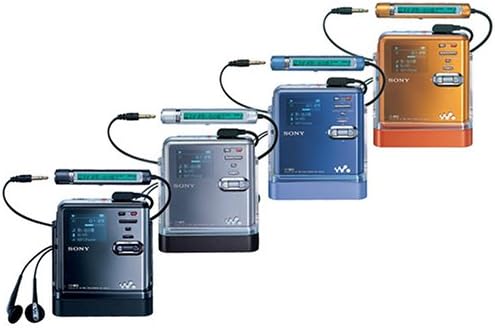
Figure 3: A display of multiple SONY Hi-MD Walkman MZ-RH10S units in different color variations, each with its remote and headphones, demonstrating the product's design and accessories.
4. Maintenance
4.1 Cleaning the Unit
- Wipe the exterior of the unit with a soft, dry cloth.
- For stubborn dirt, slightly dampen the cloth with water or a mild detergent solution, then wipe dry.
- Do not use abrasive cleaners, solvents, or alcohol, as these can damage the finish.
4.2 Battery Care
- To prolong battery life, avoid fully discharging the battery frequently.
- If the unit will not be used for an extended period, charge the battery to about 50% and store it in a cool, dry place.
- Battery performance may decrease over time with repeated charging and discharging.
4.3 Storage
- Store the MZ-RH10S in a clean, dry environment away from direct sunlight, extreme temperatures, and high humidity.
- Keep discs in their protective cases to prevent dust and scratches.
5. Troubleshooting
If you encounter issues with your MZ-RH10S, refer to the following common problems and solutions.
5.1 No Power / Unit Does Not Turn On
- Ensure the battery is sufficiently charged. Connect the unit to the charging stand or a computer via USB for charging.
- Check if the HOLD switch is in the OFF position.
- If using an AC adapter, ensure it is properly connected and functioning.
5.2 No Sound During Playback
- Verify that headphones are securely connected.
- Adjust the volume level.
- Ensure the disc is properly inserted and not damaged.
- Check if the unit is in pause mode.
5.3 Recording Errors / Poor Recording Quality
- Ensure the disc has sufficient free space.
- Check all input cable connections for security.
- Avoid excessive vibrations or movement during analog recording, as this can cause errors. Place the unit on a stable surface.
- Adjust the recording level to prevent distortion or weak audio.
- If using a microphone, ensure it is functioning correctly and positioned appropriately.
5.4 Display Not Working or Showing Incorrect Information
- Ensure the unit is powered on and the battery is charged.
- If the display is completely blank, try resetting the unit (refer to the full manual for specific reset procedures, if available).
- Verify that the display is not physically damaged.
6. Specifications
| Brand | Sony |
| Model Name | MZ-RH10S |
| Color | Silver |
| Product Dimensions (W x D x H) | 8.02 x 8.41 x 1.89 cm |
| Product Weight | 120 g |
| Display Technology | OLED |
| Compatible Media | Hi-MD, MiniDisc |
| Hi-MD Disc Capacity | Up to 1 GB |
| Compatible Audio Formats | ATRAC3plus, MP3, Linear PCM |
| Continuous Playback Time | Approx. 45 Hours |
| Recording Inputs | Optical Digital, Analog (LINE IN), Microphone |
| Power Source | Rechargeable Battery (charged via USB or charging stand) |
| Release Year | 2005 |
7. Warranty and Support
For warranty information, please refer to the warranty card included with your product at the time of purchase.
For technical support, service, or further inquiries, please contact Sony customer support in your region. Contact details can typically be found on the official Sony website or in the documentation provided with your product.