
Introduction
Welcome to the instruction manual for your new Thermaltake CL-P0024 Combo Cool DIY Tower112 CPU Cooler. This document provides essential information for the proper installation, operation, and maintenance of your cooling unit. Please read these instructions carefully before proceeding with installation to ensure optimal performance and longevity of your product.
The Thermaltake CL-P0024 is a high-performance CPU cooling solution designed with advanced Heatpipe Cooling Technology. It offers universal compatibility with various processor sockets, including Intel LGA775, P4, and AMD K7, K8 (including AMD Sempron Series), effectively addressing processor overheating issues.
Product Overview
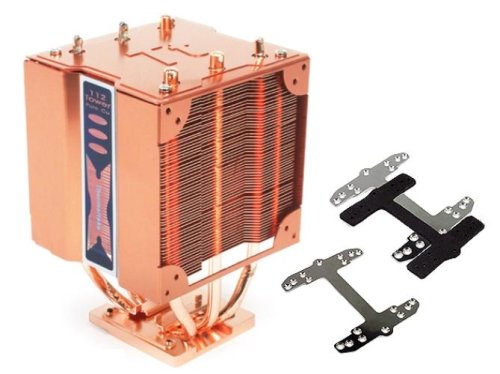
The CL-P0024 features a pure copper heatsink design for superior thermal conductivity and efficient heat dissipation. Its robust construction and versatile design allow for customization with 80mm or 90mm fans, supporting both single and dual fan configurations.
- Universal Compatibility: Supports Intel LGA775, P4, and AMD K7, K8 (including Sempron Series).
- Heatpipe Technology: Advanced heatpipe design for efficient heat transfer away from the CPU.
- Pure Copper Heatsink: Maximizes cooling performance.
- Secure Attachment: Specially designed clip ensures stable mounting on the motherboard.
- Flexible Fan Setup: Accommodates 80mm or 90mm fans, with options for one or two fans.
Setup and Installation
Proper installation is crucial for the effective operation of your CPU cooler. Please follow these general steps. Refer to your motherboard's manual for specific CPU socket and mounting instructions.
- Prepare the CPU: Ensure your CPU is clean and free of old thermal paste. Apply a thin, even layer of new thermal paste to the center of the CPU's integrated heat spreader (IHS).
- Position the Cooler: Carefully align the base of the Thermaltake CL-P0024 cooler with the CPU on the motherboard. Ensure the mounting clips or screws are correctly positioned for your specific socket type (Intel LGA775, P4, AMD K7, K8).
- Secure the Cooler: Engage the specially designed attachment clip or mounting mechanism. Apply even pressure to secure the cooler firmly to the motherboard. Avoid excessive force.
- Install Fans (Optional): If using 80mm or 90mm fans, attach them to the cooler's frame using the provided fan clips or screws. Ensure the fans are oriented to draw air through the heatsink for optimal cooling. The CL-P0024 supports both single and dual fan configurations.
- Connect Power: Connect the fan's 4-pin power connector to the appropriate CPU_FAN header on your motherboard.
- Verify Installation: Double-check all connections and ensure the cooler is securely mounted and does not obstruct other components.
Note: Some motherboard layouts may require specific fan orientations. For example, if your motherboard's CPU slot is rotated, you may need to adjust fan placement or consider removing shrouds for proper case clearance, as noted by some users.
Operating Instructions
Once properly installed, the Thermaltake CL-P0024 CPU cooler operates automatically, regulating CPU temperature based on system load. Modern motherboards and operating systems will manage fan speeds to maintain optimal thermal conditions.
- Monitor Temperatures: Utilize system monitoring software to periodically check your CPU temperature, especially during demanding tasks like gaming or video editing.
- Ensure Airflow: Maintain good airflow within your PC case by ensuring other case fans are properly installed and oriented.
- BIOS Settings: For advanced users, your motherboard's BIOS/UEFI settings may offer options to customize fan curves and temperature thresholds.
Maintenance
Regular maintenance helps ensure the longevity and optimal performance of your CPU cooler.
- Dust Removal: Periodically (e.g., every 3-6 months), power down your computer and carefully remove any accumulated dust from the heatsink fins and fan blades using compressed air or a soft brush. Dust buildup can significantly reduce cooling efficiency.
- Fan Inspection: Check fan blades for any obstructions or signs of wear. Ensure the fan spins freely without unusual noises.
- Thermal Paste: After several years, the thermal paste may dry out. Consider reapplying fresh thermal paste if you notice a significant increase in CPU temperatures.
Troubleshooting
If you encounter issues with your Thermaltake CL-P0024 cooler, refer to the following common problems and solutions:
- High CPU Temperatures:
- Ensure the cooler is securely mounted and making full contact with the CPU.
- Verify that thermal paste was applied correctly and is not dried out.
- Check if the fan(s) are spinning and connected to the CPU_FAN header.
- Clean any dust buildup from the heatsink fins and fan blades.
- Confirm adequate airflow within your PC case.
- Excessive Fan Noise:
- Check for any cables or obstructions hitting the fan blades.
- Ensure fan screws are tightened and the fan is securely attached.
- Dust buildup can cause imbalance; clean the fan blades.
- If the noise persists, the fan bearing may be worn. Consider replacing the fan.
- Cooler Not Fitting Properly:
- Verify compatibility with your motherboard's CPU socket.
- Ensure the mounting bracket or clip is correctly oriented for your specific socket.
- Check for interference with RAM modules or VRM heatsinks. Adjust cooler orientation if possible.
Technical Specifications
| Feature | Specification |
|---|---|
| Brand | Thermaltake |
| Model | CL-P0024 |
| Material | Copper |
| Noise Level | 30 Decibels |
| Power Connector Type | 4-Pin |
| Compatibility | Intel LGA775, P4; AMD K7, K8 (including Sempron Series) |
| Supported Fan Sizes | 80mm & 90mm (single or dual fan setup) |
| Item Weight | 454 g |
| Package Dimensions | 27.18 x 14.22 x 11.68 cm |
Warranty and Support
Thermaltake products are manufactured to high-quality standards. For specific warranty information regarding your CL-P0024 CPU cooler, please refer to the warranty card included with your purchase or visit the official Thermaltake website. Keep your proof of purchase for warranty claims.
For technical assistance, troubleshooting beyond this manual, or to inquire about replacement parts, please contact Thermaltake customer support. You can find contact information on the official Thermaltake website.
Online Resources: Visit the Thermaltake Store on Amazon