
Introduction
This manual provides essential instructions for the safe installation, operation, and maintenance of your APC AP7922 32A 230V Switched Rack PDU. The AP7922 is a rack-mountable power distribution unit designed to provide advanced power control and monitoring capabilities for IT equipment in data centers and server rooms. It features AC 230V input, Ethernet 10/100 connectivity, and 16 output connectors, all within a 2U, 19-inch form factor.
Important Safety Information
Please read and understand all safety instructions before installing or operating this equipment. Failure to follow these instructions could result in electric shock, fire, or serious injury.
- This device is intended for indoor use only.
- Connect the PDU to a properly grounded power source.
- Do not attempt to open or service the PDU. Refer all servicing to qualified personnel.
- Ensure the total current draw of connected equipment does not exceed the PDU's maximum current rating (32 Amps).
- Disconnect power before performing any maintenance or installation procedures.
Package Contents
Verify that all items are present upon unpacking:
- APC AP7922 Switched Rack PDU
- Installation Guide
- Rack-mounting brackets
- Serial configuration cable
- Documentation CD
Product Features
The APC AP7922 Switched Rack PDU offers the following key features:
- Switched Outlets: Remotely control power to individual outlets for power cycling, delayed sequencing, and load shedding.
- Network Management: Full-featured network management interface via Ethernet 10/100 for remote monitoring and control.
- Current Monitoring: Monitor the aggregate current draw per PDU to prevent circuit overloads.
- Rack-Mountable Design: Occupies 2U of rack space, compatible with standard 19-inch racks.
- Output Connectors: Equipped with 16 C13 output connectors.
- Input Voltage: Supports AC 230V input.
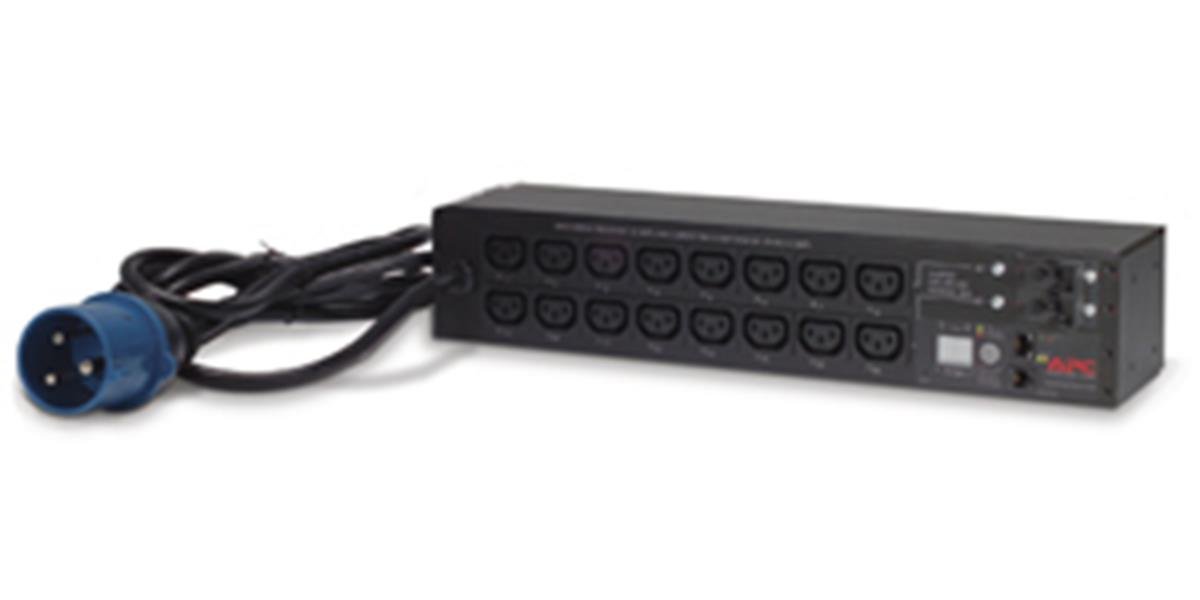
Image: Front view of the APC AP7922 Switched Rack PDU, showing the 16 C13 outlets and network interface.
Setup Instructions
1. Rack Mounting
- Identify two available 2U spaces in your standard 19-inch equipment rack.
- Attach the provided rack-mounting brackets to the PDU using the screws supplied.
- Secure the PDU into the rack using appropriate rack screws. Ensure it is firmly seated and level.
2. Power Connection
- Connect the PDU's input power cord to a dedicated 230V, 32A power source. Ensure the power source is properly grounded.
- Do not overload the circuit. Verify that the total load of connected devices will not exceed 32 Amps.
3. Network Connection
- Connect a standard Ethernet cable from the PDU's network port to your network switch or router.
- The PDU will obtain an IP address via DHCP by default. Refer to the full user manual for static IP configuration.
Operating Instructions
Powering On/Off Connected Devices
Once the PDU is powered and connected to the network, you can manage its outlets remotely.
- Access the PDU's web interface by entering its IP address into a web browser.
- Log in using the default credentials (refer to the full manual for details).
- Navigate to the outlet control section. From here, you can individually switch on, switch off, or cycle power to each of the 16 C13 outlets.
Monitoring Current Draw
The web interface also provides real-time monitoring of the aggregate current draw. This allows you to ensure that the PDU and its connected circuit are not overloaded.
Maintenance
- Cleaning: Periodically clean the exterior of the PDU with a soft, dry cloth. Do not use liquid cleaners or solvents.
- Firmware Updates: Check the APC website for available firmware updates to ensure optimal performance and security. Follow the instructions provided with the firmware package for safe updating.
- Cable Management: Ensure all power and network cables are neatly routed and secured to prevent accidental disconnections or damage.
Troubleshooting
| Problem | Possible Cause | Solution |
|---|---|---|
| PDU does not power on. | No input power; tripped circuit breaker. | Verify the power cord is securely connected. Check the building's circuit breaker for the PDU's power source. |
| Cannot access web interface. | Incorrect IP address; network connectivity issue; PDU not powered. | Ensure the PDU is powered on. Verify network cable connection. Confirm the correct IP address. Check network settings. |
| Outlets do not switch. | Software issue; PDU fault. | Try restarting the PDU. If the issue persists, contact technical support. |
| Overload alarm. | Total current draw exceeds PDU rating. | Disconnect non-essential equipment to reduce the load. Redistribute equipment across multiple PDUs if necessary. |
Technical Specifications
| Feature | Detail |
|---|---|
| Model Number | AP7922 |
| Brand | APC by Schneider Electric |
| Form Factor | 2U Rack-mountable, 19-inch |
| Input Voltage | 230 Volts AC |
| Input Current | 32 Amps |
| Output Voltage | 230 Volts AC |
| Output Current | 32 Amps (Max) |
| Number of Outlets | 16 |
| Connector Type | C13 |
| Network Interface | Ethernet 10/100 |
| Wattage | 7360 watts |
| Dimensions (H x W x D) | 4.49 x 17.52 x 3.5 inches |
| Weight | 0.7 Kilograms |
| Material | Metal |
| Color | Black |
Warranty and Support
Warranty Information
APC products typically come with a standard manufacturer's warranty. Please refer to the warranty card included with your product or visit the official APC website for detailed warranty terms and conditions specific to the AP7922 model.
Technical Support
For technical assistance, troubleshooting, or to report issues, please contact APC customer support. You can find contact information and additional resources on the official Schneider Electric website:


