
Introduction
The Logitech Z-5500 Digital THX 5.1 PC Multimedia Speaker System is designed to deliver high-fidelity audio for various entertainment needs, including PC gaming, movies, and music. This THX-certified system features a powerful subwoofer and five satellite speakers, providing immersive 5.1 surround sound. The integrated Digital SoundTouch control center allows for precise control over audio settings and input sources. This manual provides essential information for setting up, operating, maintaining, and troubleshooting your Z-5500 speaker system.
Package Contents
Upon unpacking your Logitech Z-5500 system, please verify that all components listed below are present:
- Four Satellite Speakers
- One Center Channel Speaker
- One Subwoofer (integrated amplifier)
- Digital SoundTouch Control Center
- Wireless Remote Control (with batteries)
- 6-Channel Direct Cable
- User's Manual (this document)

Image: All components of the Logitech Z-5500 system, including the subwoofer, five satellite speakers, the SoundTouch control center, remote, and various cables, laid out next to the packaging box.
Setup
1. Speaker Placement
Optimal speaker placement is crucial for achieving the best surround sound experience. Consider the following guidelines:
- Front Left and Right Satellites: Place these speakers equidistant from your listening position, typically on either side of your monitor or TV.
- Center Channel Satellite: Position this speaker directly in front of your listening position, usually above or below your monitor/TV, ensuring dialogue is clear and centered.
- Rear Left and Right Satellites: Place these speakers behind your listening position, ideally slightly to the sides, to create an enveloping surround effect.
- Subwoofer: The subwoofer can be placed anywhere in the room, but often performs best when positioned in a corner or near a wall to enhance bass response. Ensure it is at least 2 feet away from your PC or monitor due to its powerful magnet.

Image: A close-up view of the five satellite speakers (four standard, one center channel) of the Logitech Z-5500 system, showcasing their design and arrangement.
2. Connecting Speakers to the Subwoofer
Connect each satellite speaker to the corresponding spring clip terminals on the rear of the subwoofer. Ensure that the positive (+) wire (often marked with a stripe or color) from the speaker connects to the red (+) terminal on the subwoofer, and the negative (-) wire connects to the black (-) terminal. Incorrect polarity can result in poor sound quality.

Image: The rear panel of the Z-5500 subwoofer, highlighting the spring clip terminals for connecting the satellite speakers (Right Front, Left Front, Right Rear, Left Rear, Center) and the dedicated port for the SoundTouch control center.
3. Connecting the SoundTouch Control Center
Connect the SoundTouch control center to the dedicated port on the rear of the subwoofer using the provided cable. This cable carries both power and audio signals for the control center.
4. Connecting Audio Sources
The Z-5500 offers multiple input options for various devices:
- 6-Channel Direct (Analog): Use the included 6-channel direct cable to connect to a 5.1-channel sound card on your PC. Match the green (front), black (rear), and orange (center/sub) jacks from your sound card to the corresponding inputs on the control center.
- Digital Coaxial: Connect devices with a digital coaxial output (e.g., DVD player, game console) using a single coaxial cable.
- Digital Optical: Connect devices with a digital optical output (e.g., DVD player, game console, some TVs) using a TOSLINK optical cable.
- Stereo (Auxiliary): Use the stereo input for connecting MP3 players, CD players, or other devices with a standard 3.5mm stereo output.
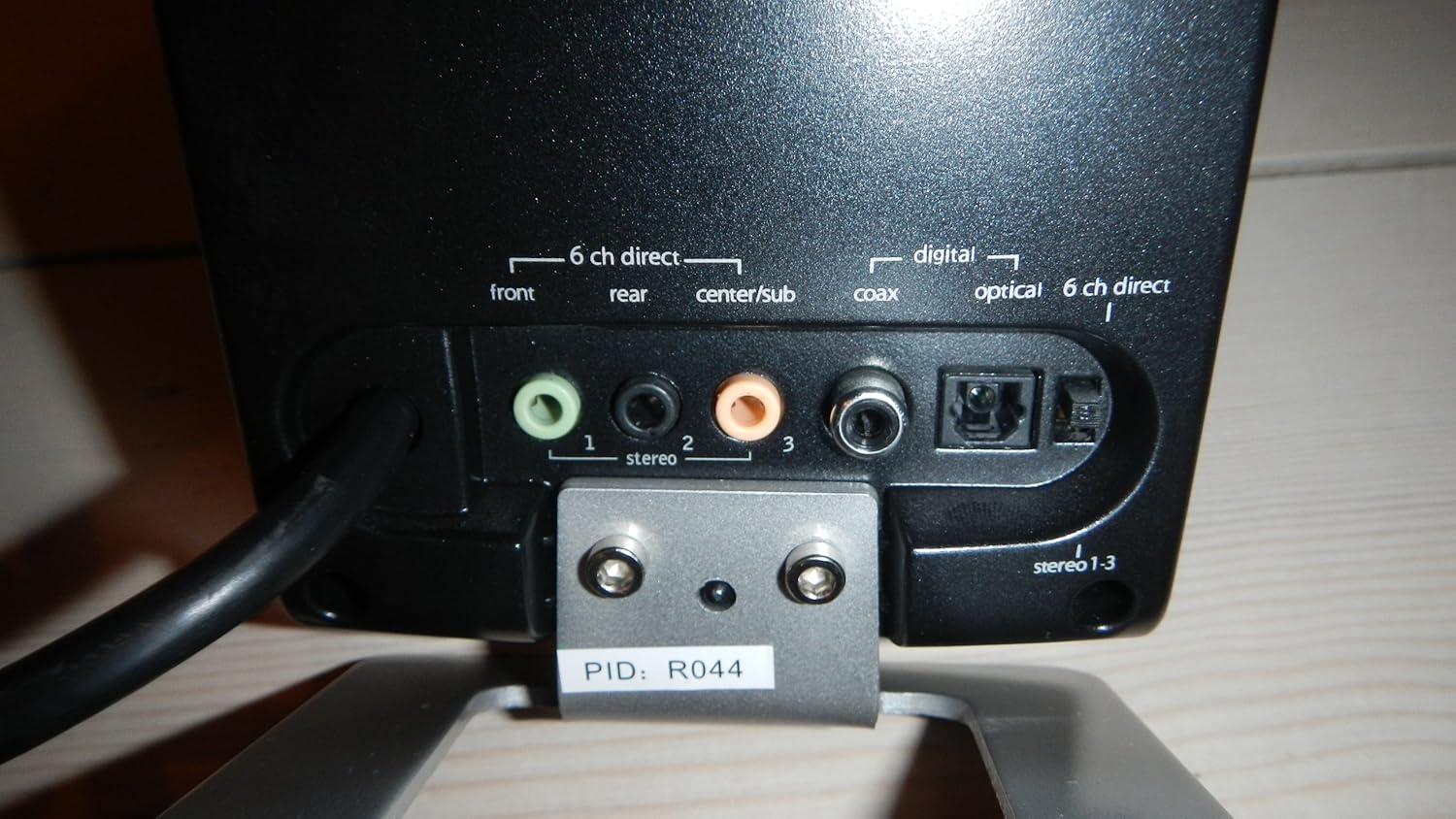
Image: The rear panel of the SoundTouch control center, displaying the various input options: 6-channel direct analog inputs (front, rear, center/sub), digital coaxial, and digital optical inputs.
5. Powering On
Once all connections are secure, plug the subwoofer's power cord into a wall outlet. Turn on the master power switch located on the rear of the subwoofer. The SoundTouch control center display should illuminate.
Operating
SoundTouch Control Center

Image: The SoundTouch control center, featuring a large volume knob, input selection buttons, effect modes, level adjustments, and a digital display.
The SoundTouch control center provides comprehensive control over your Z-5500 system:
- Power Button: Turns the system on or off (standby mode).
- Input Button: Cycles through available audio inputs (6-Channel Direct, Digital Coaxial, Digital Optical, Stereo).
- Effect Button: Selects various audio effects and decoding modes, including:
- Stereo: Standard stereo playback.
- Stereo x2: Duplicates stereo audio to rear speakers for a fuller sound.
- Dolby Pro Logic II Movie/Music: Converts stereo sources into simulated 5.1 surround sound for movies or music.
- THX: Engages THX-certified sound processing for optimal cinematic audio reproduction (when a THX-certified source is detected).
- Dolby Digital/DTS: Automatically decodes Dolby Digital or DTS signals from digital inputs for true 5.1 surround sound.
- Settings Button: Accesses advanced settings such as display brightness and contrast.
- Level Button: Allows individual adjustment of volume levels for the subwoofer, center, and surround speakers relative to the main volume.
- Mute Button: Temporarily mutes all audio output.
- Volume Knob: Adjusts the overall system volume.
Wireless Remote Control
The included wireless remote control duplicates most functions of the SoundTouch control center, offering convenient operation from your listening position. It allows you to adjust volume, select inputs, change effects, and mute the system without needing to access the control center directly.
Maintenance
To ensure the longevity and optimal performance of your Logitech Z-5500 speaker system, follow these maintenance guidelines:
- Cleaning: Use a soft, dry cloth to wipe down the surfaces of the speakers, subwoofer, and control center. Avoid using liquid cleaners, aerosols, or abrasive materials, as these can damage the finish or internal components.
- Ventilation: Ensure that the subwoofer's cooling fins and speaker grilles are not obstructed. Adequate airflow prevents overheating and maintains performance.
- Cable Management: Keep cables organized and untangled to prevent damage and ensure proper signal transmission. Avoid placing heavy objects on cables.
- Environmental Conditions: Operate the system in a dry environment, away from direct sunlight, excessive heat, or extreme cold. Avoid exposing the system to moisture or humidity.
Troubleshooting
If you encounter issues with your Z-5500 system, refer to the following common troubleshooting steps:
| Problem | Possible Cause / Solution |
|---|---|
| No sound from any speaker. |
|
| No sound from specific speakers (e.g., rear, center). |
|
| Distorted or unclear sound. |
|
| Remote control not working. |
|
Specifications
| Feature | Detail |
|---|---|
| Speaker Type | Center Channel, Subwoofer, Surround Sound |
| Surround Sound Channel Configuration | 5.1 |
| Total RMS Power | 505 Watts RMS |
| Satellite RMS Power | 317 Watts RMS (2 x 62W front, 2 x 62W rear, 69W center) |
| Subwoofer RMS Power | 188 Watts RMS |
| Total Peak Power | 1010 Watts |
| Frequency Response | 33 Hz – 20 kHz |
| Signal-to-Noise Ratio | >93.5 dB, typical 100 |
| Input Impedance | 8,000 ohms |
| Connectivity Technology | Wired (3.5 mm stereo jack, Digital Coaxial, Digital Optical) |
| Compatible Devices | Gaming Console, Personal Computer, CD/MP3 Players, DVD Players |
| Item Weight | 55.1 pounds (25 kg) |
| Product Dimensions | 277.56 x 234.25 x 372.05 inches (Subwoofer) |
| Model Number | 966196 |
| Manufacturer | Logitech |
Warranty Information
The Logitech Z-5500 Digital THX 5.1 PC Multimedia Speaker System comes with a 12-month parts and labor limited warranty from the date of original purchase. This warranty covers defects in materials and workmanship under normal use. For specific terms and conditions, please refer to the warranty card included with your product or visit the official Logitech support website.
Support
For further assistance, technical support, or to access updated drivers and software for your Logitech Z-5500 system, please visit the official Logitech support website. You may also find frequently asked questions (FAQs) and community forums that can provide additional help.
When contacting support, please have your product model number (966196) and proof of purchase readily available.