
Introduction
This manual provides detailed instructions for the installation, operation, and maintenance of your Western Digital 80 GB External USB 2.0 Hard Drive, model WDXUB800BBNN. This external storage device offers high-speed data transfer and convenient backup features, designed for both PC and Macintosh systems.

Image: Front view of the Western Digital 80 GB External USB 2.0 Hard Drive.
Product Features
- Dual-option Backup: Select between automatic or on-the-spot data backup methods.
- USB 2.0 Interface: Provides a high-speed connection for efficient data transfer.
- Safe Shutdown Feature: Ensures all data is safely transferred before the drive powers off, activated via the front-mounted power button.
- Rotational Speed: Operates at 7200 RPM for fast performance.
- Preformatted: Ready for use immediately upon connection.
- Quiet Operation: Engineered for near-silent performance.
- Flexible Placement: Can be positioned vertically or horizontally and is stackable.
- Heat Dissipation: Designed with a cool, heat-dissipating case.
Package Contents
Verify that your package contains the following items:
- 80 GB USB 2.0 External Hard Drive
- 6-foot (1.8m) USB 2.0 Certified Cable
- Software CD (includes Dantz Retrospect Express backup software)
- AC Adapter with Power Cord
- Vertical Stands
- Feet for Horizontal Placement
- Quick Install Guide
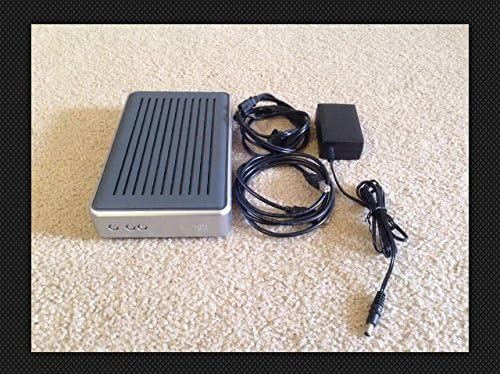
Image: Contents of the Western Digital 80 GB External USB 2.0 Hard Drive package, including the drive, cables, and power adapter.
System Requirements
PC Users
- Available USB Port
- Windows 98SE, Me, 2000, or XP
Macintosh Users
- Available USB Port
- Mac OS v9.2.2 or Mac OS X v10.2.8+
Setup Instructions
- Connect Power: Connect the AC adapter to the drive and then plug it into a power outlet.
- Connect USB Cable: Connect one end of the USB 2.0 cable to the drive and the other end to an available USB port on your computer.
- Power On: Press the front-mounted power button on the drive. The drive is preformatted and should be recognized automatically by your operating system.
- Software Installation (Optional): Insert the included Software CD into your computer's optical drive. Follow the on-screen instructions to install Dantz Retrospect Express backup software if desired. This software provides advanced backup functionalities.

Image: Front panel of the drive, highlighting the power and backup buttons.
Operating Instructions
Data Transfer
Once connected and recognized by your computer, the drive will appear as a removable storage device. You can drag and drop files to and from the drive, or use your operating system's copy/paste functions to manage data.
Backup Options
- Manual Backup: Simply copy files to the drive as needed.
- Software-Assisted Backup: Utilize the Dantz Retrospect Express software (if installed) to configure automatic backup schedules or perform on-the-spot backups with advanced options.
Safe Shutdown
To prevent data corruption, always use the Safe Shutdown feature. Press the front-mounted power button to initiate a safe shutdown. This ensures all data transfers are complete before the drive powers down.
Placement
The drive can be placed vertically using the included stands or horizontally using the provided feet. Ensure adequate ventilation around the drive to maintain optimal operating temperature.
Maintenance
- Cleaning: Use a soft, dry cloth to clean the exterior of the drive. Do not use liquid cleaners or solvents.
- Environment: Operate the drive in a clean, dry environment, away from direct sunlight, extreme temperatures, and strong magnetic fields.
- Ventilation: Ensure the ventilation slots are not obstructed to allow for proper heat dissipation.
- Data Integrity: Regularly back up critical data to multiple locations to prevent data loss.
Troubleshooting
- Drive Not Detected:
- Ensure the power adapter is securely connected to both the drive and a working power outlet.
- Verify the USB cable is firmly connected to both the drive and your computer's USB port. Try a different USB port or cable if available.
- Restart your computer.
- Check your computer's Disk Management (Windows) or Disk Utility (Mac) to see if the drive is listed but not assigned a drive letter or mounted.
- Slow Performance:
- Ensure you are using a USB 2.0 port for optimal speed. Connecting to a USB 1.1 port will result in slower transfer rates.
- Close any unnecessary applications running in the background.
- Clicking Sounds:
Unusual clicking sounds may indicate a potential hardware issue. Immediately back up any critical data and contact Western Digital support if this occurs.
Specifications
| Model Number | WDXUB800BBNN |
| Digital Storage Capacity | 80 GB |
| Hard Disk Interface | USB 2.0 |
| Connectivity Technology | USB |
| Hard Disk Rotational Speed | 7200 RPM |
| Compatible Devices | Desktop Computers |
| Product Dimensions | 12.75 x 6.44 x 7.88 inches |
| Item Weight | 4.35 pounds |
| Manufacturer | Western Digital |
| First Available Date | October 8, 2004 |
Warranty and Support
For information regarding warranty coverage, technical support, or service, please refer to the warranty card included with your product or visit the official Western Digital support website. Keep your purchase receipt for warranty claims.
Online Support: www.westerndigital.com/support


