
1. Product Overview
The Logitech Harmony H-688 is a universal remote control designed to integrate and manage your entire home theater system with simplified, one-button operation. It eliminates the need for multiple remotes by consolidating control of various devices into a single unit. The H-688 features dedicated buttons for common functions and digital video recorders, enhancing user convenience.

Figure 1: Top view of the Logitech Harmony H-688 Universal Remote Control, showcasing its ergonomic design and button layout.
2. Setup Instructions
Setting up your Logitech Harmony H-688 remote control is primarily done through an online web wizard. This process guides you through configuring your devices and activities.
2.1 Initial Setup
- Install Batteries: Open the battery compartment on the back of the remote and insert four (4) AAA batteries. Ensure correct polarity.
- Connect to Computer: Use the provided USB cable to connect your Harmony H-688 remote to your computer.
- Access Online Wizard: Navigate to the Logitech Harmony website (refer to the product packaging or Logitech's official support page for the exact URL). Follow the on-screen instructions to create an account or log in.
- Add Devices: The wizard will prompt you to add your home entertainment devices (e.g., TV, DVD player, audio receiver, cable box). You will typically select the brand and model number for each device.
- Create Activities: Define activities such as "Watch TV," "Watch DVD," or "Listen to Music." The wizard will automatically configure the necessary commands for each device involved in the activity.
- Update Remote: Once configuration is complete, the wizard will upload the settings to your Harmony H-688 remote via the USB connection.
The Harmony H-688 does not require manual macro programming; the online wizard handles complex command sequences automatically.

Figure 2: Close-up of the Harmony H-688's LCD screen and activity buttons (Watch TV, Watch DVD, etc.) at the top of the remote.
3. Operating Instructions
The Harmony H-688 is designed for intuitive operation, allowing you to control multiple devices with a single touch.
3.1 Activity Buttons
- The remote features four (4) single-touch activity buttons (e.g., "Watch TV," "Watch DVD"). Pressing one of these buttons will automatically power on the necessary devices, switch inputs, and set up your system for that specific activity.
- For example, pressing "Watch TV" might turn on your TV, cable box, and audio receiver, then switch the TV to the correct input for your cable box.
3.2 Dedicated Device Control
- The remote includes dedicated buttons for common functions such as volume, channel, mute, and navigation.
- Specific buttons are also provided for digital video recorders (DVRs) like TiVo, allowing direct access to their functions.
- The LCD screen provides contextual information and additional commands relevant to the currently selected activity or device.
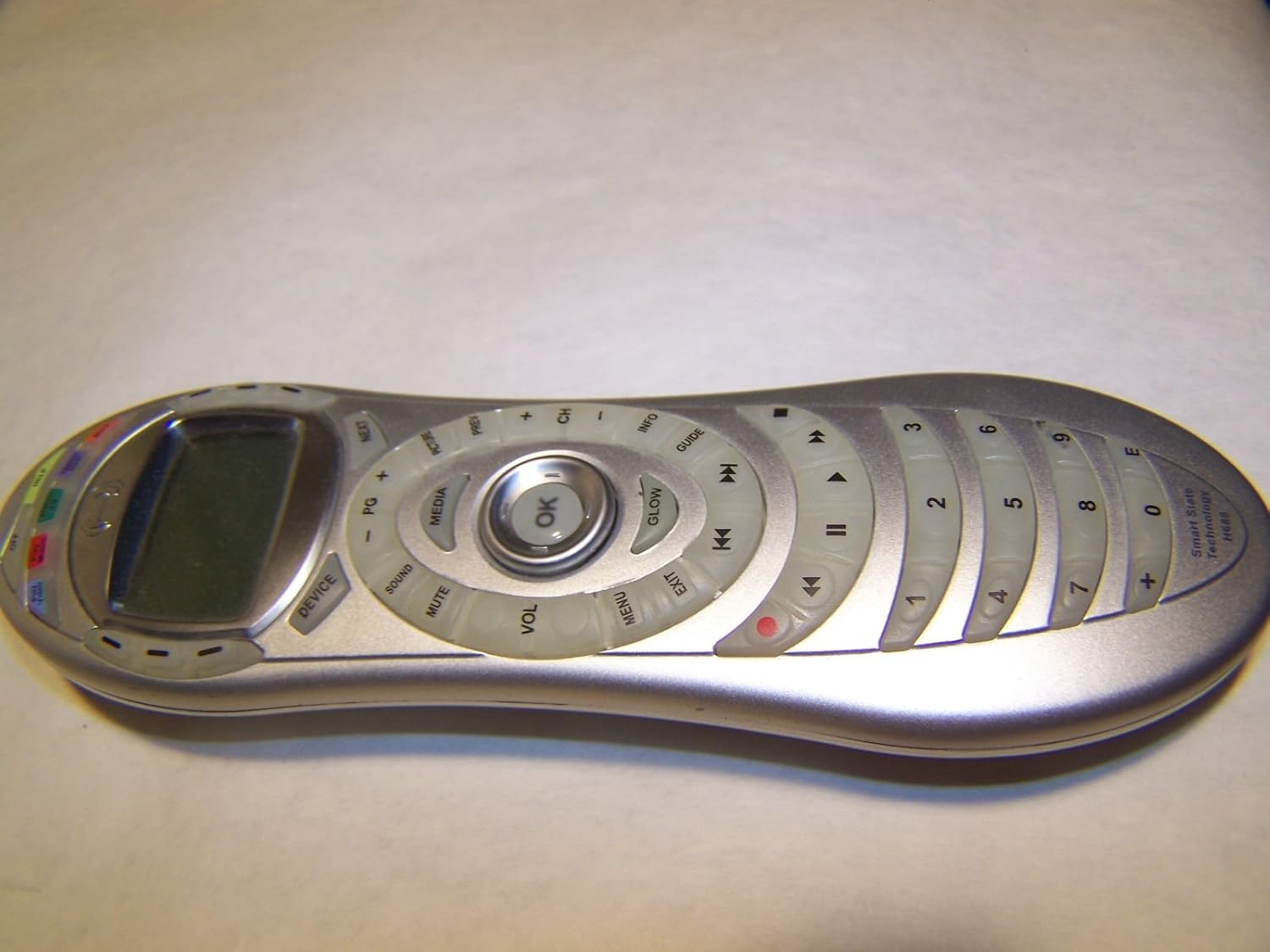
Figure 3: Angled view of the Harmony H-688, highlighting the ergonomic shape and the arrangement of control buttons.
4. Maintenance
4.1 Battery Replacement
The Harmony H-688 requires four (4) AAA batteries. When the remote's performance degrades or it becomes unresponsive, it is likely time to replace the batteries. Open the battery compartment on the back of the remote, remove the old batteries, and insert new AAA batteries, ensuring correct polarity.
4.2 Cleaning
To clean your remote control, use a soft, dry, lint-free cloth. For stubborn dirt or grime, slightly dampen the cloth with water or a mild, non-abrasive cleaner. Avoid using harsh chemicals, solvents, or abrasive materials, as these can damage the remote's finish or internal components. Ensure no liquid enters the remote's openings.
5. Troubleshooting
This section addresses common issues you might encounter with your Harmony H-688 remote control.
5.1 Devices Not Responding or Out of Sync
- Check Line of Sight: Ensure there is a clear line of sight between the remote's IR emitter and your devices. Obstructions can block signals.
- Use Help Button: If devices are out of sync (e.g., one device is on when it should be off), press the Help button on the remote. The remote will guide you through steps to correct the state of your devices.
- Manual Sync: For persistent sync issues, cover the remote's IR emitter, press the OFF button, and then manually power off any devices that are still on. This helps reset the remote's understanding of device states.
- Re-sync Configuration: Connect the remote to your computer and re-upload the configuration from the online wizard to ensure the latest settings are applied.
5.2 Remote Unresponsive or Buttons Not Working
- Replace Batteries: The most common cause of unresponsiveness is low batteries. Replace all four (4) AAA batteries with fresh ones.
- Clean Buttons: If specific buttons require excessive force or do not respond, gently clean around the buttons with a soft, dry cloth. Debris can sometimes interfere with button contacts.
- Reset Remote: In some cases, removing the batteries for a few minutes and then reinserting them can resolve temporary issues.
5.3 Online Setup Issues
- Internet Connection: Ensure your computer has a stable internet connection when using the online wizard.
- USB Connection: Verify the USB cable is securely connected to both the remote and your computer. Try a different USB port if necessary.
- Browser Compatibility: Ensure you are using a supported web browser. Clear browser cache and cookies if issues persist.
6. Specifications
| Feature | Detail |
|---|---|
| Brand | Logitech |
| Model Number | 966185-0403 (H-688) |
| Special Feature | Universal |
| Color | Silver |
| Max Number of Supported Devices | 1 (refers to the number of devices it can control simultaneously in an activity, but can be configured for many) |
| Compatible Devices | Home Theater components |
| Connectivity Technology | USB (for setup) |
| Controller Type | Button Control |
| Number of Batteries | 4 |
| Battery Type | AAA |
| Item Weight | Approximately 1 Pound |
| GTIN / UPC | 097855028808 |
7. Warranty Information
Specific warranty details for the Logitech Harmony H-688 Universal Remote Control are not available in this document. For comprehensive warranty information, please refer to the official Logitech website or the warranty card included with your product at the time of purchase.
8. Customer Support
Contact information for customer support is not provided in this document. For technical assistance, troubleshooting guides, or to access the online setup wizard, please visit the official Logitech support website. You may also find helpful resources and community forums there.


