
Microsoft Wireless Optical Desktop Executive Keyboard and Mouse Combo
User Manual
1. Introduction
This manual provides comprehensive instructions for the Microsoft Wireless Optical Desktop Executive Keyboard and Mouse Combo. Please read this manual thoroughly before use to ensure proper setup and operation. This combo is designed for use with personal computers running Windows or Mac operating systems.
2. Package Contents
- Microsoft Wireless Optical Desktop Executive Keyboard
- Microsoft Wireless Optical Desktop Executive Mouse
- USB Wireless Receiver
- 4 AA Batteries (2 for keyboard, 2 for mouse)
- User Guide (this document)
3. Setup
3.1 Battery Installation
- Keyboard: Locate the battery compartment on the underside of the keyboard. Open the cover and insert two AA batteries, ensuring correct polarity (+/-). Close the cover.
- Mouse: Locate the battery compartment on the underside of the mouse. Open the cover and insert two AA batteries, ensuring correct polarity (+/-). Close the cover.
3.2 Connecting the USB Wireless Receiver
- Plug the USB wireless receiver into an available USB port on your computer.
- Your operating system should automatically detect and install the necessary drivers. This process may take a few moments.
- Once drivers are installed, the keyboard and mouse should be ready for use. If not, press the 'Connect' button on the receiver and then on the keyboard/mouse (if available) to establish a connection.
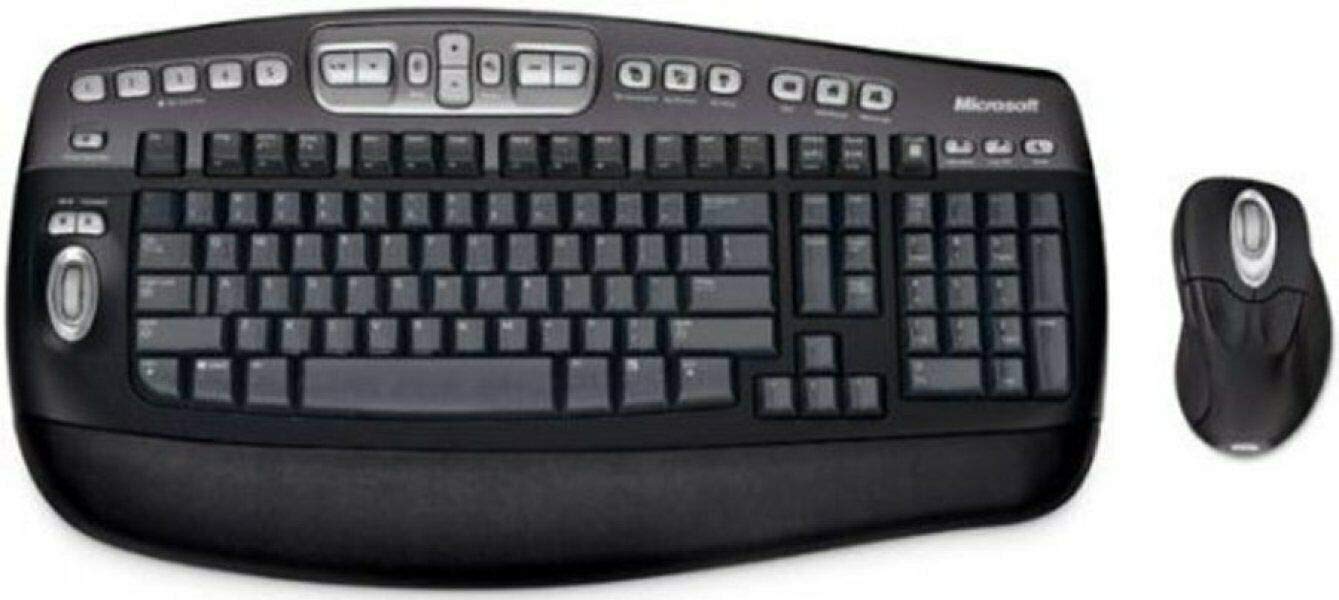
An image showing the Microsoft Wireless Optical Desktop Executive Keyboard and Mouse Combo, highlighting its ergonomic design and wireless components.
4. Operation
4.1 Keyboard Features
- Wider Keys with Softer Edges: Designed for comfortable typing.
- Hot Keys: Provides one-touch access to frequently used computer functions and files such as Mail, Web/Home, Messenger, My Documents, and My Pictures.
- 5 Programmable 'My Favorites' Keys: Customize these keys for one-touch access to your favorite websites or applications.
4.2 Mouse Features
- High-Performance Optical Technology: Ensures precise control without the need for maintenance.
- Ergonomic Design: Shaped for comfortable use during extended periods.
- Scroll Wheel with Application Switching: Push down on the scroll wheel to easily move between open windows.
- 5 Programmable Buttons: Includes two side buttons for forward/back navigation in web browsers. All five buttons, including the wheel button, can be reassigned to various functions.
4.3 Customizing Keys and Buttons
To customize the programmable keys on the keyboard and buttons on the mouse, you may need to install Microsoft's IntelliType Pro and IntelliPoint software, respectively. These can typically be downloaded from the official Microsoft support website. Follow the on-screen instructions within the software to assign desired functions.
5. Maintenance
5.1 Cleaning
- Keyboard: Use a soft, lint-free cloth slightly dampened with water or a mild cleaning solution. Avoid excessive moisture. Do not spray cleaners directly onto the keyboard.
- Mouse: Clean the exterior with a soft, damp cloth. For the optical sensor, use a dry cotton swab to gently remove any dust or debris.
5.2 Battery Replacement
Replace the AA batteries in both the keyboard and mouse when performance degrades or the low battery indicator (if present) illuminates. Always use fresh, high-quality AA alkaline batteries. Dispose of old batteries according to local regulations.
6. Troubleshooting
6.1 Keyboard or Mouse Not Responding
- Ensure batteries are correctly installed and not depleted. Replace if necessary.
- Verify the USB wireless receiver is securely plugged into a working USB port. Try a different USB port.
- Ensure the keyboard and mouse are within range of the receiver (typically up to 30 feet or 10 meters).
- Re-establish the connection: Press the 'Connect' button on the receiver, then on the keyboard and mouse.
- Restart your computer.
6.2 Erratic Mouse Movement
- Clean the optical sensor on the underside of the mouse.
- Ensure you are using the mouse on a suitable surface. Highly reflective or transparent surfaces may cause issues. A mouse pad is recommended.
- Check for interference from other wireless devices.
6.3 Hot Keys or Programmable Buttons Not Working
- Ensure Microsoft IntelliType Pro (for keyboard) and IntelliPoint (for mouse) software is installed and up to date.
- Check the software settings to confirm keys/buttons are assigned correctly.
7. Specifications
| Brand | Microsoft |
| Model | Wireless Optical Desktop Executive |
| Connectivity Technology | Radio Frequency |
| Special Feature | Ergonomic Design |
| Compatible Devices | Personal Computer (Windows/Mac) |
| Batteries | 4 AA batteries required (included) |
| Item Weight | 4.75 pounds |
| Package Dimensions | 20.4 x 10.9 x 3.5 inches |
8. Warranty and Support
8.1 Warranty Information
For detailed warranty information, please refer to the documentation included with your product packaging or visit the official Microsoft support website. Warranty terms and conditions may vary by region and product.
8.2 Customer Support
For further assistance, technical support, or driver downloads, please visit the official Microsoft support website. You can typically find support resources by searching for your product model on their site.


