Introduction
This manual provides comprehensive instructions for the setup, operation, maintenance, and troubleshooting of your Logitech G Cordless Rumblepad 2. Please read this manual thoroughly before using the device to ensure optimal performance and longevity.
The Logitech Cordless Rumblepad 2 offers a wireless gaming experience with vibration feedback, designed for PC and Mac compatibility. It features 2.4 GHz cordless technology for a 30-foot range and dual vibration motors for immersive gameplay.
Package Contents
Before beginning, ensure all items are present in the package:
- Logitech Cordless Rumblepad 2
- 2.4 GHz Wireless Receiver
- Two (2) AA Batteries
- User Documentation (this manual)
- Gaming Software CD (or download instructions)
- Warranty Information
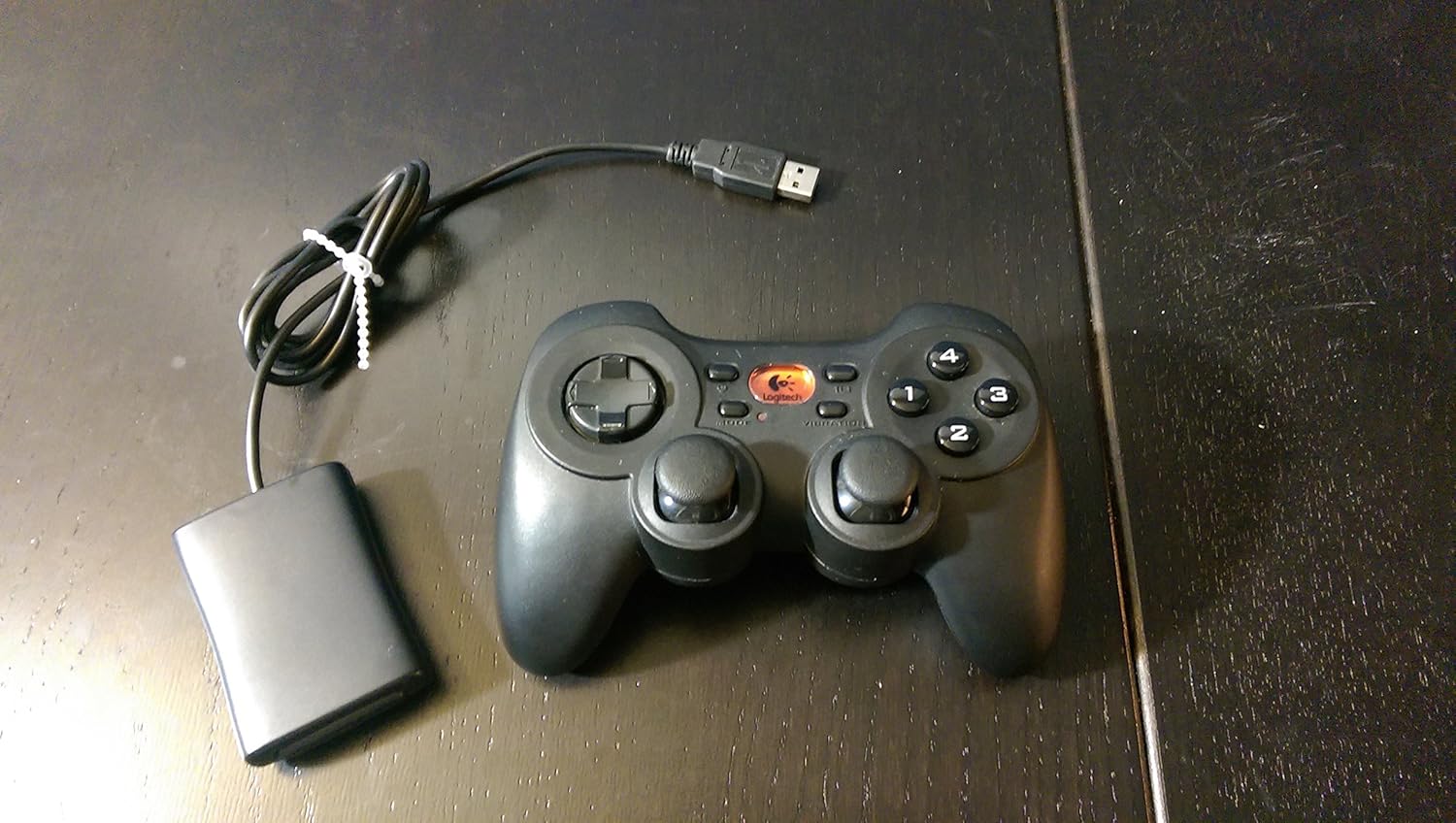
Image: The Logitech G Cordless Rumblepad 2 gamepad shown alongside its compact USB wireless receiver.
Setup
1. Battery Installation
- Locate the battery compartment on the underside of the Cordless Rumblepad 2.
- Open the battery compartment cover.
- Insert the two (2) AA batteries, ensuring correct polarity (+/-) as indicated inside the compartment.
- Close the battery compartment cover securely.
2. Connecting the Wireless Receiver
- Plug the 2.4 GHz wireless receiver into an available USB port on your PC or Mac.
- Allow your operating system to detect and install the necessary drivers. This process may take a few moments.

Image: A close-up view of the compact Logitech 2.4 GHz wireless receiver, which connects to a computer's USB port.
3. Software Installation (Optional, Recommended)
For full functionality, including button customization and game profiles, install the Logitech gaming software:
- Insert the provided gaming software CD into your computer's optical drive.
- Follow the on-screen instructions to complete the installation.
- Alternatively, download the latest software from the official Logitech support website.
Operating the Cordless Rumblepad 2
Controller Layout and Functions

Image: A side profile view of the Logitech G Cordless Rumblepad 2, highlighting its ergonomic design and button placement.
The Cordless Rumblepad 2 features a familiar button layout for intuitive control:
- Dual Analog Sticks: Provide smooth 360-degree control for precise movement and camera control.
- 8-Way D-Pad: For directional input, commonly used in fighting games or menu navigation.
- 10 Programmable Action Buttons: Customizable buttons for in-game actions.
- Mode Button: Toggles between different controller modes or profiles.
- Vibration Selector: Activates or deactivates the dual vibration feedback motors.
Vibration Feedback
The dual vibration feedback motors provide tactile sensations for in-game events such as hits, crashes, and explosions. Ensure the Vibration Selector is enabled for this feature to function.
Power Management
The Cordless Rumblepad 2 is designed for extended battery life, offering up to 100 hours of gameplay. To conserve battery power, the gamepad will enter a low-power state after a period of inactivity. Press any button to reactivate it.
Maintenance
- Cleaning: Use a soft, dry cloth to clean the surface of the gamepad. For stubborn dirt, a slightly damp cloth can be used, but ensure no moisture enters the device. Avoid abrasive cleaners or solvents.
- Battery Replacement: Replace AA batteries when the gamepad's performance degrades or it fails to power on. Always use fresh, high-quality batteries.
- Storage: When not in use for extended periods, remove the batteries to prevent leakage and store the gamepad and receiver in a cool, dry place away from direct sunlight.
Troubleshooting
| Problem | Possible Cause | Solution |
|---|---|---|
| Gamepad not responding. | Low or dead batteries. Receiver not connected or recognized. Out of range. | Replace batteries. Ensure receiver is securely plugged into a USB port. Move closer to the receiver (within 30 feet). |
| Vibration feedback not working. | Vibration feature disabled. Game does not support vibration. Software issue. | Check the Vibration Selector button on the gamepad. Verify game compatibility. Reinstall Logitech gaming software. |
| Buttons or analog sticks are unresponsive or sticky. | Dirt or debris under buttons. Hardware malfunction. | Clean the gamepad thoroughly. If problem persists, contact Logitech support. |
| Interference or lag. | Other wireless devices nearby. Obstructions. | Move the receiver to a different USB port, preferably one with a clear line of sight to the gamepad. Minimize other 2.4 GHz wireless devices in the area. |
Specifications
- Model Name: Cordless Rumblepad 2
- Model Number: 963326-0403
- Connectivity: 2.4 GHz Wireless
- Wireless Range: Up to 30 feet (10 meters)
- Battery Type: 2 x AA batteries
- Estimated Battery Life: Up to 100 hours
- Vibration Feedback: Dual motors
- Controls: 2 Analog Sticks, 8-Way D-Pad, 10 Programmable Action Buttons, Mode Button, Vibration Selector
- Compatible Devices: PC, Mac
- Product Dimensions: 9 x 8.5 x 3.25 inches (approximate)
- Item Weight: 8.8 ounces (approximate)
- Manufacturer: Logitech G
- First Available: November 20, 2006
Warranty Information
The Logitech G Cordless Rumblepad 2 comes with a limited hardware warranty. Please refer to the warranty information included in your product package or visit the official Logitech support website for detailed terms and conditions, including warranty period and claim procedures.
Support
For further assistance, technical support, or to download the latest drivers and software, please visit the official Logitech support website. You can also find FAQs and community forums there.
Logitech Support Website: www.logitech.com/support


