
Pelican pl-7055
Contents
Pelican G3 Wireless Game Cube Controller User Manual
Model: pl-7055
Brand: Pelican
Introduction
The Pelican G3 Wireless Controller II for GameCube provides a wireless gaming experience, allowing users to operate their GameCube from a distance of up to 50 feet. This controller is designed to replicate the traditional GameCube controller's button layout and design, ensuring a familiar user experience. It operates on up to eight distinct channels to minimize interference from other wireless devices. The controller requires two AA batteries for operation and includes a low-battery indicator.
Product Overview
The Pelican G3 Wireless Game Cube Controller is designed for comfortable and responsive gameplay. Below are key components and features.

Image 1: Front View of Controller Packaging. This image displays the Pelican G3 Wireless Game Cube Controller sealed in its clear plastic retail packaging. The packaging highlights "WIRELESS" functionality and compatibility with GameCube and Wii systems. The controller itself is white with standard GameCube button colors (green, red, blue, yellow) and a black D-pad and analog stick. The wireless receiver is visible at the bottom of the package.
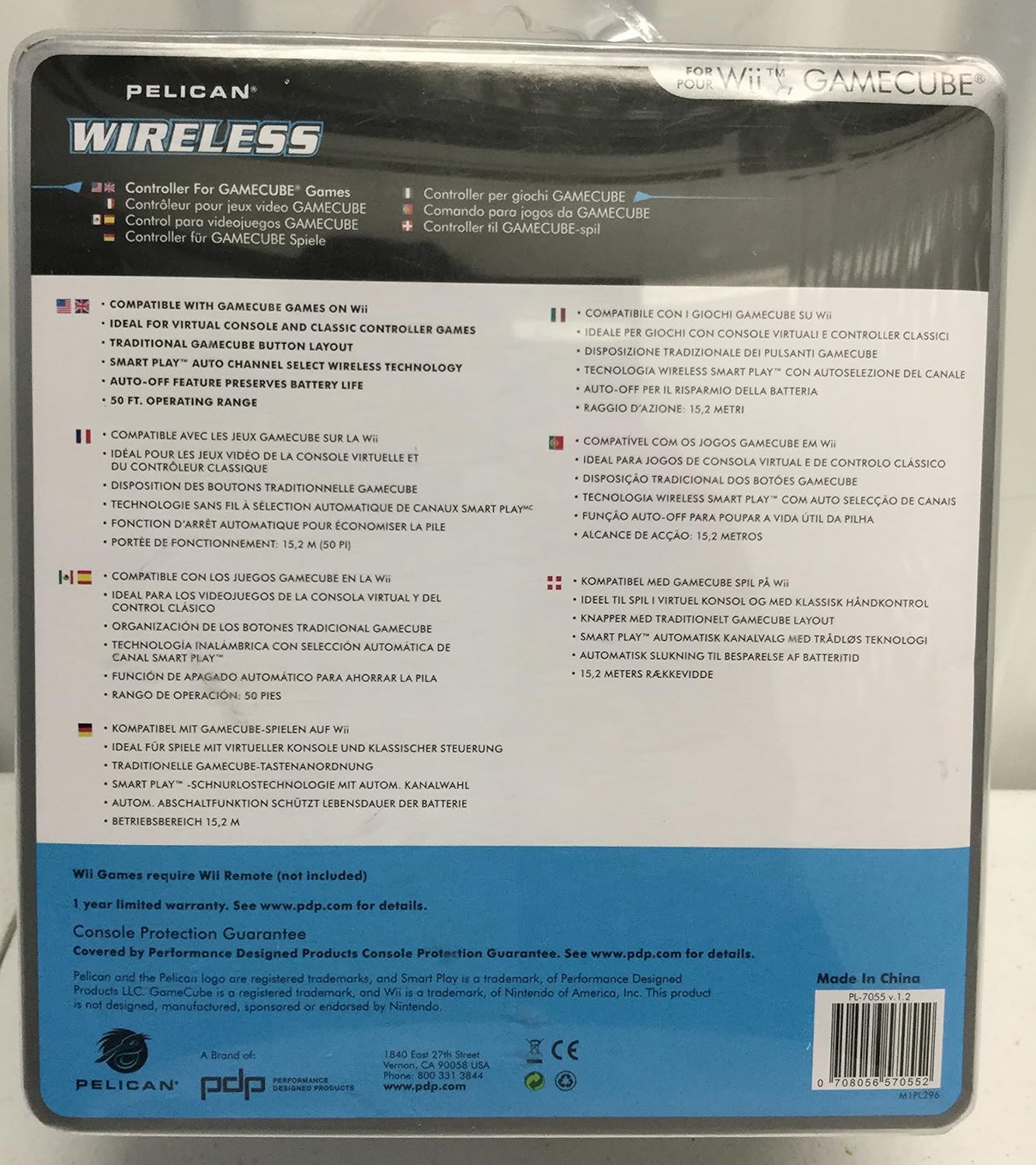
Image 2: Back View of Controller Packaging. This image shows the rear of the Pelican G3 Wireless Game Cube Controller's retail packaging. It lists key features in multiple languages, including "Operates at a range of up to 50 feet" and "Works on up to 8 channels, to guarantee no interference." Information regarding the 1-year limited warranty and manufacturer contact details (www.pdp.com, 800 331 3844) are also visible.
Key Features:
- Wireless Operation: Functions wirelessly up to 50 feet from the console.
- Multi-Channel Support: Utilizes up to 8 channels to prevent signal interference.
- Familiar Design: Mimics the button layout and ergonomic design of a traditional GameCube controller.
- Battery Indicator: Equipped with a low-battery warning light.
- Power Source: Requires two (2) AA batteries (not included).
Setup
- Install Batteries: Open the battery compartment on the back of the controller. Insert two (2) AA batteries, ensuring correct polarity (+/-). Close the compartment securely.
- Connect Receiver: Plug the wireless receiver into one of the controller ports on your GameCube console.
- Power On: Turn on your GameCube console.
- Synchronize Controller: Press the "Start/Pause" button on the controller. The controller should automatically synchronize with the receiver. If synchronization fails, ensure the receiver is properly connected and batteries are correctly installed.
Operating the Controller
The Pelican G3 Wireless Controller functions identically to a standard GameCube controller, providing access to all game controls wirelessly.
Basic Controls:
- Analog Stick: Primary movement control.
- C-Stick: Secondary analog stick, often used for camera control or specific in-game actions.
- D-Pad: Directional pad for menu navigation or specific game inputs.
- A, B, X, Y Buttons: Main action buttons.
- L, R Buttons: Left and Right shoulder buttons, often used for blocking, aiming, or special actions.
- Z Button: Additional shoulder button.
- Start/Pause Button: Pauses the game or confirms selections.
The controller's wireless technology allows for freedom of movement within a 50-foot radius, and its multi-channel system helps prevent interference from other wireless devices in the vicinity.
Maintenance
Battery Replacement:
When the low-battery indicator illuminates, it is time to replace the batteries. Open the battery compartment on the back of the controller, remove the old AA batteries, and insert two new AA batteries, observing the correct polarity. Dispose of used batteries responsibly.
Cleaning:
To clean the controller, use a soft, dry cloth. For stubborn dirt, a slightly damp cloth can be used, but ensure no moisture enters the controller's internal components. Do not use harsh chemicals or abrasive cleaners.
Troubleshooting
| Problem | Possible Cause | Solution |
|---|---|---|
| Controller not responding. | Low or dead batteries; receiver not properly connected; controller not synchronized. | Replace batteries. Ensure receiver is fully inserted into the GameCube port. Press the Start/Pause button to re-synchronize. |
| Interference or erratic behavior. | Other wireless devices nearby; channel interference. | Move closer to the console. Ensure no other wireless devices are operating on similar frequencies. The controller automatically selects channels to minimize interference. |
| Short operating range. | Obstructions between controller and receiver; low batteries. | Ensure a clear line of sight between the controller and receiver. Replace batteries. |
Specifications
- Model Number: pl-7055
- ASIN: B0002SZF8W
- Wireless Range: Up to 50 feet (approx. 15.2 meters)
- Channels: Up to 8 interference-free channels
- Power Source: 2 x AA Batteries (not included)
- Item Weight: 12 ounces (approx. 340 grams)
- Package Dimensions: 8 x 5 x 2 inches (approx. 20.3 x 12.7 x 5.1 cm)
- Manufacturer: Pelican Accessories (Performance Designed Products)
- First Available: July 29, 2004
Warranty
This Pelican G3 Wireless Game Cube Controller comes with a 1-year limited warranty. For detailed warranty information and terms, please refer to the official Performance Designed Products (PDP) website or contact their customer support.
Note: Warranty terms may vary and are subject to the manufacturer's policies.
Support
For technical assistance, troubleshooting, or warranty inquiries, please contact Performance Designed Products (PDP) customer support:
- Website: www.pdp.com
- Phone: 1-800-331-3844
Ask a question about this manual
Ask about setup, troubleshooting, compatibility, parts, safety, or missing instructions. Manuals+ will review the question and use this page’s manual context to help answer it.