
KINYO GZ-501
KINYO GZ-501 GameZone 5.1 Surround Sound System User Manual
Model: GZ-501
Introduction
Thank you for purchasing the KINYO GZ-501 GameZone 5.1 Surround Sound System. This system is designed to provide an immersive audio experience for gaming, movies, and music. It features five pre-amplified satellite speakers and an extended throw subwoofer for enhanced bass performance. This manual provides essential information for the proper setup, operation, and maintenance of your new sound system.
What's in the Box
Please check the contents of your package to ensure all items are present:
- 1 x Subwoofer Unit (main unit)
- 5 x Satellite Speakers (Front Left, Front Right, Center, Rear Left, Rear Right)
- 1 x Remote Control
- Audio Connection Cables (RCA type)
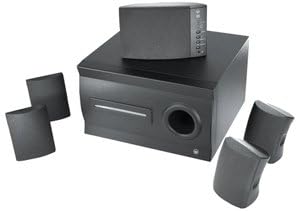
Image: The KINYO GZ-501 system showing the central subwoofer unit and the five satellite speakers arranged around it. The subwoofer is a dark, rectangular unit with a port on the front, and the satellite speakers are compact, dark-colored units.
Setup
Follow these steps to set up your KINYO GZ-501 system:
- Placement: Position the subwoofer on the floor, preferably near your display. Place the center speaker directly above or below your display. Position the front left and right speakers equidistant from the display, facing the listening area. Place the rear left and right speakers behind the listening area, also equidistant from each other.
- Connect Satellite Speakers: Connect each of the five satellite speakers to the corresponding output jacks on the rear of the subwoofer unit. Ensure that the speaker wires are securely connected to the correct channels (Front L/R, Center, Rear L/R). The speaker wires are built into the speakers.
- Connect to Audio Source: Use the provided RCA audio cables to connect the subwoofer unit to your audio source (e.g., PC sound card, game console, DVD player). The system supports Dolby Digital & DTS ready inputs. Match the color-coded RCA plugs to the corresponding input jacks on the subwoofer and your audio source.
- Power Connection: Plug the power cord from the subwoofer unit into a standard AC power outlet.
- Power On: Turn on the system using the power button on the subwoofer unit or the remote control.
Operating Instructions
Once your system is set up, you can begin using it:
- Power On/Off: Press the Power button on the remote control or the main unit to turn the system on or off.
- Volume Control: Use the 'Volume Up' and 'Volume Down' buttons on the remote control to adjust the overall system volume. The blue lights on the center channel will flash to indicate volume changes.
- Input Selection: The system features a built-in 3-way system selector. Use the 'Input' or 'Source' button on the remote control or the main unit to cycle through available audio inputs (e.g., PC, DVD, Game).
- Speaker Balance: While the system does not offer individual speaker volume adjustments, ensure your audio source (PC sound card, game console) is configured for 5.1 surround sound output to optimize channel balance.
Maintenance
Proper care will ensure the longevity of your KINYO GZ-501 system:
- Cleaning: Use a soft, dry cloth to clean the surfaces of the speakers and subwoofer. Do not use liquid cleaners or abrasive materials, as they may damage the finish.
- Ventilation: Ensure that the subwoofer unit has adequate ventilation. Do not block the vents or place the unit in an enclosed space that could lead to overheating.
- Magnetic Shielding: The speakers are magnetically shielded to protect your monitor and recording media from interference. Avoid placing strong magnetic objects directly next to the speakers.
- Storage: If storing the system for an extended period, disconnect it from power and store it in a cool, dry place away from direct sunlight and extreme temperatures.
Troubleshooting
If you encounter issues with your KINYO GZ-501 system, refer to the following common problems and solutions:
| Problem | Possible Cause | Solution |
|---|---|---|
| No sound from any speaker. | Power not connected or system off; incorrect input selected; audio cables loose. | Ensure power cord is securely plugged in and system is turned on. Verify correct input source is selected. Check all audio cable connections. |
| No sound from specific speakers (e.g., rear, center). | Speaker not connected properly; audio source not outputting 5.1 surround sound. | Check the connection of the specific speaker to the subwoofer. Ensure your audio source (PC, console) is configured for 5.1 channel output. |
| Distorted or unclear sound. | Volume too high; poor audio source quality; loose connections. | Reduce the volume. Test with a different audio source. Check all cable connections for tightness. |
| Remote control not working. | Batteries drained; obstruction between remote and unit. | Replace remote control batteries. Ensure no objects are blocking the remote's signal path to the subwoofer. |
| Subwoofer rattling or weak bass. | Subwoofer placed on unstable surface; volume too high for bass capabilities. | Ensure the subwoofer is on a stable, flat surface. Reduce overall volume if rattling persists. |
Specifications
Detailed technical specifications for the KINYO GZ-501 GameZone 5.1 Surround Sound System:
| Feature | Detail |
|---|---|
| Model Name | GZ-501 |
| Speaker Type | Satellite |
| Surround Sound Channel Configuration | 5.1 |
| Speaker Maximum Output Power | 25 Watts |
| Subwoofer Diameter | 5 Inches |
| Woofer Diameter | 5.25 Inches |
| Connectivity Technology | RCA (Wired) |
| Compatible Devices | Personal Computer, Television |
| Control Method | Remote Control |
| Power Source | Corded Electric |
| Item Weight | 16.25 Pounds |
| Product Dimensions (LxWxH) | 14.9 x 14.6 x 12.2 inches |
Warranty and Support
For warranty information and technical support, please refer to the documentation provided at the time of purchase or visit the official KINYO website. Keep your proof of purchase for warranty claims.
For further assistance, you may contact KINYO customer service through their official channels. Please have your model number (GZ-501) and purchase details ready when contacting support.
Related documentsGZ-501


Ask a question about this manual
Ask about setup, troubleshooting, compatibility, parts, safety, or missing instructions. Manuals+ will review the question and use this page’s manual context to help answer it.