
1. Product Overview
The iConcepts Wireless Optical Mouse and Keyboard Combo 62150N provides a convenient and efficient input solution for your personal computer. This combo features wireless radio frequency technology for a clutter-free workspace, an optical mouse for precise tracking, and a keyboard with multimedia hotkeys and spill-resistant design.
Key Features:
- New wireless radio frequency technology for reliable connection.
- 11 internet and multimedia hot keys for quick access to common functions.
- New optical sensor technology in the mouse, eliminating the need for a mouse ball.
- Precise and accurate cursor control.
- Spill-resistant keyboard design for enhanced durability.
- Compatible with Windows 98SE, 2000, ME, NT, XP, and Vista operating systems.
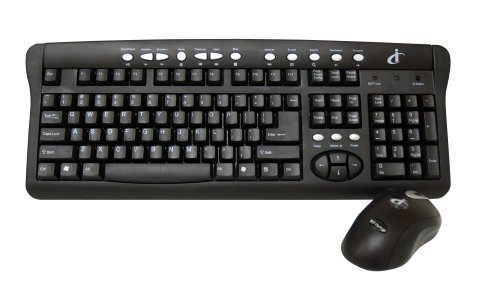
Figure 1: iConcepts Wireless Keyboard and Optical Mouse Combo 62150N. This image displays the full product, including the wireless keyboard with 11 one-touch internet and multimedia function keys, and the wireless optical 4D mouse. The USB receiver is also indicated.
2. Setup Instructions
2.1. Battery Installation
The keyboard and mouse require batteries for operation. Please follow the steps below:
- For the Keyboard: Locate the battery compartment on the underside of the keyboard. Open the cover and insert two (2) AA batteries, ensuring correct polarity (+/-). Close the battery compartment cover securely.
- For the Mouse: Locate the battery compartment on the underside of the mouse. Open the cover and insert two (2) AA batteries, ensuring correct polarity (+/-). Close the battery compartment cover securely.
Note: A total of four (4) AA batteries are required for the combo. Ensure batteries are fresh for optimal performance.
2.2. Connecting the USB Receiver
The wireless combo uses a single USB receiver to connect both the keyboard and mouse to your computer.
- Locate an available USB port on your computer.
- Insert the USB receiver firmly into the USB port.
- Your operating system should automatically detect and install the necessary drivers. This process may take a few moments.
- Once the drivers are installed, the keyboard and mouse should be ready for use.
Note: For best wireless performance, ensure the USB receiver is not obstructed and is placed within a reasonable range of the keyboard and mouse.
2.3. System Requirements
- Operating System: Windows 98SE, 2000, ME, NT, XP, or Vista.
- Available USB port.
3. Operating Instructions
3.1. Keyboard Functions
The keyboard operates like a standard QWERTY keyboard. In addition, it features dedicated hotkeys for enhanced functionality.
- Standard Keys: Use for typing text, numbers, and symbols.
- Function Keys (F1-F12): Perform specific tasks depending on the application.
- 11 Internet & Multimedia Hot Keys: These keys provide one-touch access to common internet and multimedia functions such as volume control, play/pause, stop, next/previous track, web browser, email, and more. Refer to the icons on the keys for their specific functions.
3.2. Mouse Functions
The optical mouse provides precise cursor control without a mouse ball.
- Left Button: Primary click function (e.g., selecting items, opening links).
- Right Button: Secondary click function (e.g., opening context menus).
- Scroll Wheel: Scroll vertically through documents and web pages. The mouse also supports 4D vertical and horizontal scroll, tune scroll, and zoom control.
- Optical Tracking: The mouse uses an optical sensor for movement detection, providing smooth and accurate cursor movement on most surfaces.
4. Maintenance
4.1. Cleaning
To maintain the performance and appearance of your wireless combo:
- Wipe the surfaces of the keyboard and mouse with a soft, damp cloth.
- Avoid using harsh chemicals, abrasive cleaners, or solvents.
- The keyboard features a spill-resistant design, but it is not waterproof. In case of spills, immediately disconnect the device and allow it to dry completely before reuse.
4.2. Battery Replacement
When the keyboard or mouse performance degrades (e.g., lag, unresponsiveness), it may be time to replace the batteries.
- Follow the battery installation steps outlined in Section 2.1.
- Dispose of used batteries according to local regulations.
5. Troubleshooting
If you encounter issues with your iConcepts Wireless Optical Mouse and Keyboard Combo, refer to the following common solutions:
| Problem | Possible Cause | Solution |
|---|---|---|
| Keyboard or mouse is unresponsive. | Low or dead batteries. | Replace batteries in the keyboard and/or mouse. |
| Keyboard or mouse is unresponsive. | USB receiver not properly connected. | Ensure the USB receiver is firmly plugged into a working USB port. Try a different USB port. |
| Lag or intermittent connection. | Interference or distance from receiver. | Move the keyboard and mouse closer to the USB receiver. Ensure no large metal objects are between the devices and the receiver. Avoid placing the receiver near other wireless devices. |
| Cursor movement is erratic. | Mouse sensor obstructed or dirty. | Clean the optical sensor on the underside of the mouse with a soft, dry cloth. Ensure you are using the mouse on a suitable surface. |
| Hotkeys are not working. | Driver issue or application incompatibility. | Ensure your operating system is up to date. Some hotkeys may require specific software or may not be fully supported by all applications. |
6. Specifications
| Brand | iConcepts |
| Model Number | 62150N |
| Connectivity Technology | Radio Frequency, USB |
| Color | Black |
| Special Features | Wireless RF Connectivity, Optical Tracking, Extra Multimedia Hot Keys, Spill Resistant Keyboard |
| Compatible Devices | Personal Computer |
| Movement Detection Technology | Optical |
| Operating System Compatibility | Windows 98SE, 2000, ME, NT, XP, Vista |
| Number of Keys (Keyboard) | Standard QWERTY layout with 11 multimedia hotkeys |
| Power Source | Battery Powered |
| Batteries Required | 4 AA batteries (2 for keyboard, 2 for mouse) |
| Item Weight | 2.95 Pounds (approx. 1.34 kg) |
7. Warranty and Support
For information regarding warranty coverage, technical support, or service inquiries, please refer to the documentation included with your purchase or contact iConcepts customer support directly.
Please retain your proof of purchase for warranty claims.