Introduction
Welcome to the user manual for your MADCATZ 6080 7-inch Universal Game Screen. This document provides essential information for setting up, operating, maintaining, and troubleshooting your device. Please read these instructions carefully to ensure proper use and to maximize your gaming experience.
Safety Information
- Read all instructions before operating the device.
- Keep the device away from water or excessive moisture.
- Do not expose the device to extreme temperatures or direct sunlight.
- Ensure proper ventilation to prevent overheating.
- Use only the power adapter supplied with the device.
- Do not attempt to open or repair the device yourself. Refer all servicing to qualified personnel.
Package Contents
Please verify that all items are present in your package. While specific contents may vary, typically you should find:
- MADCATZ 6080 7-inch Universal Game Screen
- Power Adapter
- AV Cable (Composite Video and Stereo Audio)
- User Manual (this document)
Product Overview
The MADCATZ 6080 is a compact 7-inch universal game screen designed to provide a portable display solution for various gaming consoles. It features a clear display, integrated speakers, and intuitive controls for an enhanced gaming experience on the go or in a compact setup.
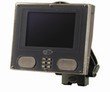
Front view of the MADCATZ 6080 7-inch Universal Game Screen, showing the display, control buttons, and speakers.
Key Features:
- 7-inch LCD display for clear visuals.
- Integrated stereo speakers for immersive audio.
- Universal compatibility with gaming consoles via AV input.
- Compact and portable design.
Setup
Follow these steps to set up your Universal Game Screen:
- Unpack the Device: Carefully remove the game screen and all accessories from the packaging.
- Connect Power: Plug the provided power adapter into the DC IN port on the game screen, then plug the adapter into a standard electrical outlet.
- Connect to Game Console: Connect the AV cable (yellow for video, red/white for audio) from your game console's AV output ports to the corresponding AV input ports on the MADCATZ 6080 screen. Ensure the colors match.
- Position the Screen: Place the screen on a stable, flat surface, ensuring adequate ventilation around the device.
Operating Instructions
Once set up, operating your game screen is straightforward:
- Power On/Off: Press the POWER button located on the front panel to turn the screen on or off.
- Volume Control: Use the VOLUME + and VOLUME - buttons to adjust the audio output level.
- Display Settings: Utilize the menu navigation buttons (often labeled MENU, UP, DOWN, SELECT) to access and adjust display settings such as brightness, contrast, and color saturation to your preference.
- Input Selection: If your model supports multiple inputs, use the INPUT or SOURCE button to cycle through available video inputs until your game console's signal is displayed.
Maintenance
Proper maintenance ensures the longevity and performance of your game screen:
- Cleaning the Screen: Use a soft, lint-free cloth specifically designed for electronics screens. Gently wipe the screen to remove dust and smudges. Do not use harsh chemicals or abrasive cleaners.
- Cleaning the Casing: Wipe the exterior casing with a soft, slightly damp cloth. Avoid getting moisture into any openings.
- Storage: When not in use for extended periods, store the device in a cool, dry place, away from direct sunlight and extreme temperatures.
Troubleshooting
If you encounter issues with your MADCATZ 6080, refer to the following common problems and solutions:
| Problem | Possible Solution |
|---|---|
| No power | Ensure the power adapter is securely connected to both the screen and a working electrical outlet. Check if the power button is pressed. |
| No picture | Verify that the AV cable is correctly connected to both the screen and the game console. Ensure the game console is powered on and outputting a signal. Check the input selection on the screen if applicable. |
| No sound | Check the audio connections of the AV cable. Ensure the volume on the screen is not muted or set too low. Verify the game console's audio output settings. |
| Picture is distorted or unclear | Adjust the brightness, contrast, and color settings in the screen's menu. Ensure the AV cable is not damaged and is securely connected. |
Specifications
Technical specifications for the MADCATZ 6080 7-inch Universal Game Screen:
| Feature | Detail |
|---|---|
| Model Number | 6080 |
| Screen Size | 7 inches |
| Manufacturer | MadCatz |
| Dimensions (L x W x H) | 24.13 x 21.59 x 16 cm |
| Item Weight | 0.28 g |
| Input | Composite Video (RCA), Stereo Audio (RCA) |
Warranty and Support
For warranty information, please refer to the documentation provided at the time of purchase. MAD CATZ products typically come with a limited warranty covering manufacturing defects. For technical support or further assistance, please visit the official MAD CATZ website or contact their customer service department through the contact information provided on their website.


