
1. Introduction
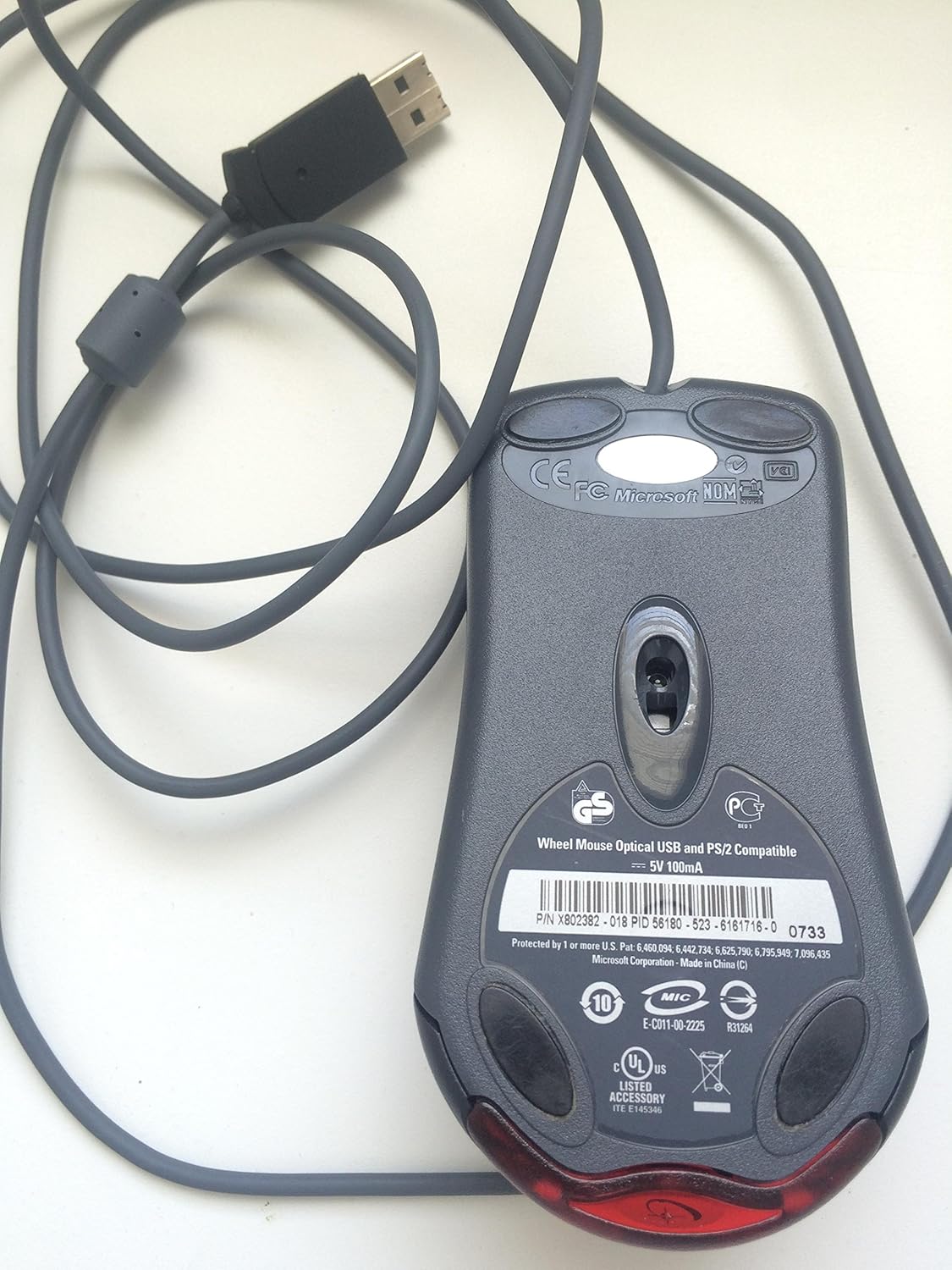
This manual provides essential information for the setup, operation, maintenance, and troubleshooting of your Microsoft Wheel Optical Mouse, Model D66-00069. Please read this manual thoroughly to ensure optimal performance and longevity of your device.
2. Setup
Follow these steps to connect your Microsoft Wheel Optical Mouse to your computer.
2.1 System Requirements
- PC: Windows XP (Pentium 233-MHz or faster), Windows 2000 (Pentium 133 MHz or higher processor), Windows ME/98 (Pentium 133 MHz or higher processor), Windows NT 4.0 SP Pack 6 or later (Pentium 133 MHz or higher processor).
- 25 MB of available hard-disk space.
- CD-ROM drive (for software installation, if applicable).
- Microsoft Internet Explorer version 5.0 or later (to view Help files).
- An available PS/2 or Universal Serial Bus (USB) port.
- Mac: 15MB free Hard Drive space, Mac OS X version 10.1 to 10.1.3 (excluding 10.0), Mac OS 8.6 to 9.x, CD-ROM drive, An available Universal Serial Bus (USB) port.
2.2 Connecting the Mouse
- Locate an available USB or PS/2 port on your computer.
- Insert the mouse connector into the appropriate port. The mouse is plug-and-play, meaning it should be recognized automatically by your operating system.
- If prompted, follow any on-screen instructions for driver installation. For advanced customization, install the provided software from the CD-ROM drive.
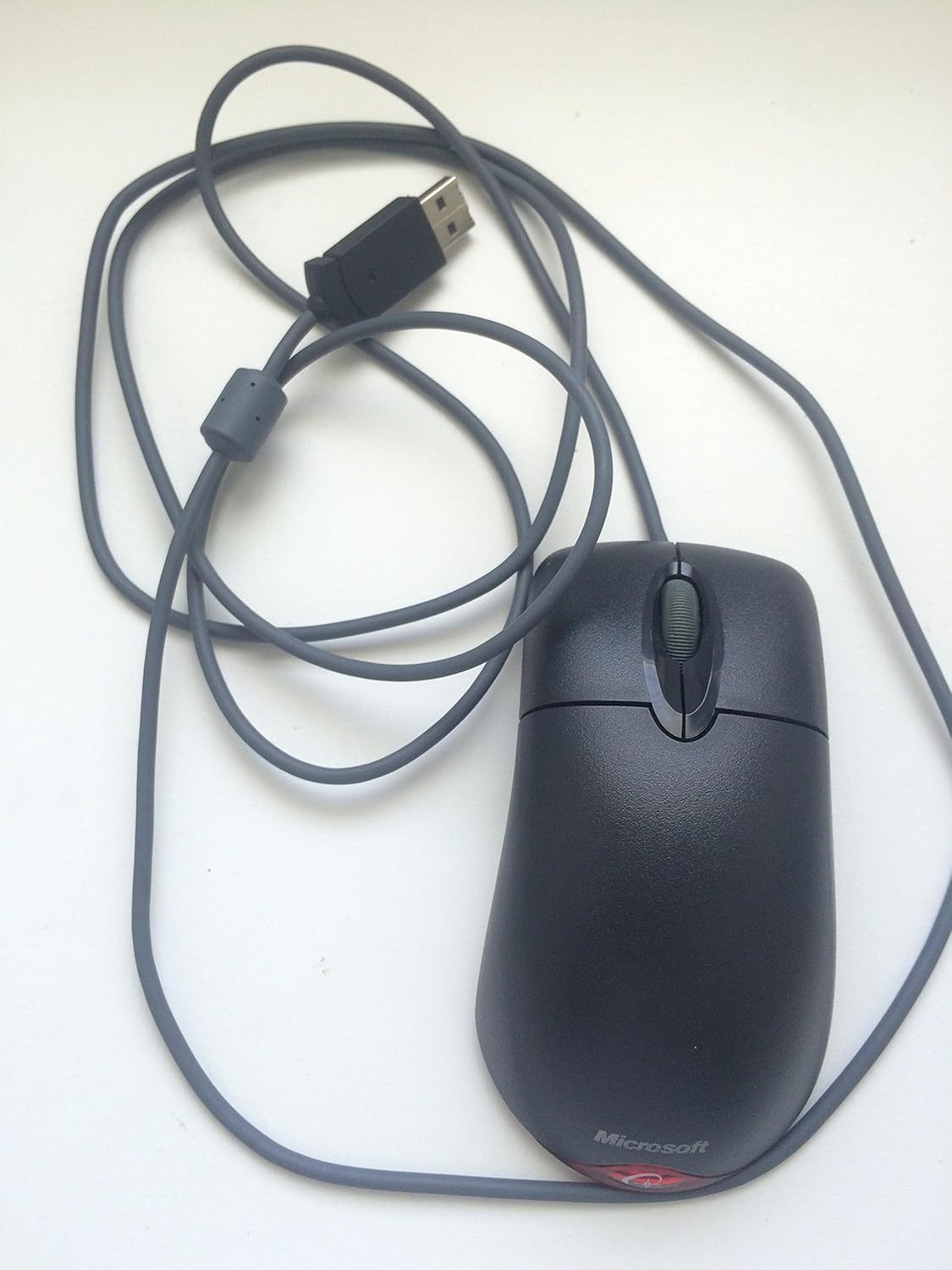
This video provides a general overview of the Microsoft Wheel Optical Mouse, demonstrating its physical features and basic functionality.
3. Operating the Mouse
The Microsoft Wheel Optical Mouse is designed for intuitive and precise control.
3.1 Basic Functions
- Left-Click Button: Used for selecting items, opening files, and activating functions.
- Right-Click Button: Used to open context menus for additional options.
- Scroll Wheel: Roll the wheel up or down to scroll through documents and web pages. Press the wheel down to activate the customizable middle-click function, often used for auto-scrolling or opening links in new tabs.
3.2 IntelliEye Optical Technology
The mouse utilizes IntelliEye optical technology, which tracks mouse movement 6000 times per second. This provides smooth, precise motion on almost any surface, eliminating the need for a mouse pad in most cases.
3.3 Customizable Buttons
The buttons and scroll wheel can be customized using the Microsoft mouse software. This allows you to assign new commands or repetitive tasks to suit your workflow, such as opening a file or web page with a single click.
4. Maintenance
To ensure the longevity and optimal performance of your mouse, follow these simple maintenance guidelines:
- Cleaning: Use a soft, lint-free cloth lightly dampened with water or a mild cleaning solution to wipe the surface of the mouse. Avoid harsh chemicals or abrasive materials.
- Optical Sensor: Keep the optical sensor on the underside of the mouse clean and free from dust or debris. Do not attempt to open the mouse casing.
- Cable Care: Avoid sharply bending or twisting the mouse cable to prevent internal damage.
5. Troubleshooting
If you encounter issues with your Microsoft Wheel Optical Mouse, try the following solutions:
- Mouse Not Responding:
- Ensure the USB or PS/2 connector is securely plugged into the correct port on your computer.
- Try plugging the mouse into a different USB or PS/2 port.
- Restart your computer.
- Erratic Cursor Movement:
- Clean the optical sensor on the bottom of the mouse.
- Ensure you are using the mouse on a suitable surface. Highly reflective or transparent surfaces may cause issues.
- Check for any software conflicts or outdated drivers. Reinstalling the mouse software may resolve the issue.
- Buttons or Scroll Wheel Not Working:
- Verify that the mouse software is correctly installed and configured.
- Test the mouse on another computer to determine if the issue is with the mouse or your system.
6. Specifications
| Feature | Detail |
|---|---|
| Brand | Microsoft |
| Series | Wheel Mouse Optical |
| Model Number | D66-00069 |
| Hardware Platform | PC, Tablet |
| Operating System Compatibility | Mac OS X v10.1x–10.4x, Windows Vista/XP/Pro/Home/Media Center Edition/Tablet PC Edition/Windows 2000 SP4 + |
| Item Weight | 14.2 ounces |
| Product Dimensions (LxWxH) | 9.5 x 9 x 2.25 inches |
| Color | Black |
| Power Source | Corded Electric |
| Connectivity Technology | USB |
| Movement Detection Technology | Optical |
7. Warranty Information
This product comes with a 3-year manufacturer warranty. For specific terms and conditions, please refer to the warranty documentation included with your purchase or visit the official Microsoft support website.
Legal Disclaimer: This product is sold as is.
8. Support
For further assistance, technical support, or to download the latest drivers and software, please visit the official Microsoft support website or contact their customer service. Ensure you have your product model number (D66-00069) available when seeking support.


