
1. Introduction
The Royal EZVUE1 is a personal digital assistant designed to help organize your daily tasks and information. This device integrates a telephone and address book, an internet directory, a mortgage/interest calculator, a built-in spell checker, and a 7-language translator. It also includes PC datalink software for data synchronization with your computer.
Please read this manual thoroughly to understand the full capabilities and proper operation of your EZVUE1 Personal Digital Assistant.
2. Product Features
The Royal EZVUE1 offers a range of features to enhance your productivity and organization:
- Schedule Planner: Organize appointments and events.
- To-Do List & Memo Book: Keep track of tasks and notes.
- Stopwatch/Countdown Timer: For timing various activities.
- Calculator: Perform basic and financial calculations, including mortgage and interest.
- Multi-language Prompts: Navigate the device in multiple languages.
- Telephone & Address Book: Store contact information.
- Internet Directory: A stored list of useful internet resources.
- Built-in Spell Checker: Assist with text entry accuracy.
- 7 Language Translator: Translate words and phrases between supported languages.
- PC Datalink Software: For data synchronization with a personal computer.
- Backlight Feature: Improves screen visibility in low-light conditions.
- Integrated Keypad: A mini pad with letters, numbers, and function keys located under the touchscreen for efficient data entry.
3. Setup
3.1. Battery Installation
The Royal EZVUE1 typically uses standard AAA or button cell batteries. Locate the battery compartment on the back of the device. Open the cover, insert the batteries according to the polarity indicators (+/-), and close the compartment securely.
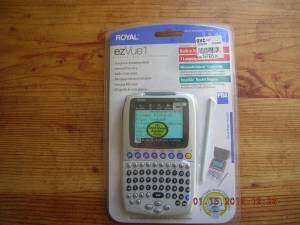
Image: Royal EZVUE1 Personal Digital Assistant. This image shows the compact design of the device, which includes a screen and a physical keypad.
3.2. Initial Power-On
Press and hold the POWER button to turn on the device. The screen will illuminate, and you may be prompted to set the initial date and time.
3.3. Setting Date and Time
Follow the on-screen instructions to set the current date and time. This is crucial for the schedule planner and other time-sensitive functions to operate correctly.
3.4. PC Datalink Software Installation
Insert the provided PC Datalink software CD into your computer's CD-ROM drive. Follow the on-screen instructions to install the software. This software allows you to synchronize data between your EZVUE1 and your computer.
4. Operating Instructions
4.1. Navigation
The EZVUE1 features both a touchscreen interface and a physical keypad located beneath the screen. You can use the included stylus for precise touchscreen input or the keypad for faster text and number entry. The keypad includes letters, numbers, basic calculator functions, and dedicated buttons for common features like MENU, OK, and scroll buttons.
To activate the screen backlight, refer to the device's specific settings, usually accessible via the MENU button or a dedicated backlight key.
4.2. Using Core Functions
- Telephone & Address Book: Select the 'Phone Book' or 'Contacts' option from the main menu. Use the keypad or stylus to enter names, phone numbers, and addresses.
- Schedule Planner: Access the 'Scheduler' or 'Calendar' function. You can view daily, weekly, or monthly schedules and add new appointments with details like time, date, and description.
- To-Do List & Memo Book: Navigate to 'To-Do' or 'Notes'. Create new tasks, set priorities, and write short memos. Memo notes are typically limited to 200 characters.
- Calculator: Select the 'Calculator' icon. Use the numeric keys on the keypad to perform calculations. For mortgage and interest calculations, look for a dedicated financial function within the calculator application.
- Spell Checker: This feature is often integrated into text entry fields. As you type, the device may highlight misspelled words or offer suggestions.
- 7 Language Translator: Find the 'Translator' application. Select the source and target languages, then input words or phrases for translation.
- Internet Directory: This function provides a pre-compiled list of useful website categories or links. It does not provide direct internet access.
- Stopwatch/Countdown Timer: Access these functions from the main menu or utilities section.
4.3. Data Synchronization
Connect your EZVUE1 to your computer using the appropriate cable (not specified in product details, typically USB or serial). Launch the PC Datalink software on your computer and follow its instructions to synchronize your contacts, schedules, and notes.
5. Maintenance
5.1. Cleaning the Device
To clean the screen and casing, use a soft, lint-free cloth. For stubborn smudges, slightly dampen the cloth with water or a screen-safe cleaning solution. Avoid abrasive materials or harsh chemicals, which can damage the screen or finish.
5.2. Battery Replacement
When the battery indicator shows low power, replace the batteries promptly to avoid data loss. Follow the battery installation steps outlined in Section 3.1. Dispose of old batteries responsibly according to local regulations.
5.3. Data Backup
Regularly back up your data using the PC Datalink software. This will protect your information in case of battery failure, device malfunction, or accidental data deletion.
6. Troubleshooting
6.1. Device Not Powering On
- Ensure batteries are correctly installed and fully charged.
- Replace old batteries with new ones.
- Press and hold the POWER button for a few seconds.
6.2. Screen Issues (e.g., Half Screen Working, Reflection)
- Check for physical damage to the screen.
- Adjust screen brightness settings if visibility is poor due to reflection.
- If only part of the screen is functional, the device may require service.
6.3. Data Synchronization Problems
- Ensure the device is properly connected to the computer.
- Verify that the PC Datalink software is correctly installed and updated.
- Restart both the EZVUE1 and the computer.
6.4. General Device Unresponsiveness
If the device becomes unresponsive, try removing and reinserting the batteries to perform a soft reset. Note that this may not always resolve underlying issues.
7. Specifications
| Product Dimensions | 9.2 x 5.5 x 1 inches |
| Item Weight | 1.6 ounces |
| Item Model Number | EZVUE1 |
| Manufacturer | Royal |
| Date First Available | February 26, 2004 |
8. Warranty and Support
For warranty information and technical support, please refer to the documentation included with your purchase or contact Royal customer service directly. Keep your proof of purchase for warranty claims.