
Important Safety Information
Please read all instructions carefully before operating this device. Keep this manual for future reference.
- Do not expose the unit to rain or moisture to prevent fire or shock hazards.
- Do not block ventilation openings. Ensure proper airflow around the unit.
- Use only the power adapters supplied with the unit. Using unauthorized adapters may damage the device and void the warranty.
- Avoid placing the unit on unstable surfaces.
- Do not attempt to service the unit yourself. Refer all servicing to qualified personnel.
- Dispose of batteries properly according to local regulations.
Package Contents
Verify that all items are present in the package:
- Coby TFDVD-7700 Portable DVD Player
- Full-function Remote Control
- Remote Control Battery
- Lithium-ion Rechargeable Battery
- AC Power Cord
- 100-240V UL Adapter
- DC Car/Boat Charger
- Car/Boat AC/DC Adapter and Cassette Audio Adapter
- 2 Sets of Stereo Headphones
- Headphone Jack Splitter
- Carrying Pouch
- Headrest Mounting Pouch
- User's Manual (this document)
Product Overview
The Coby TFDVD-7700 is a 7-inch side-loading portable DVD player designed for entertainment on the go. It features a widescreen TFT LCD display and built-in stereo speakers.
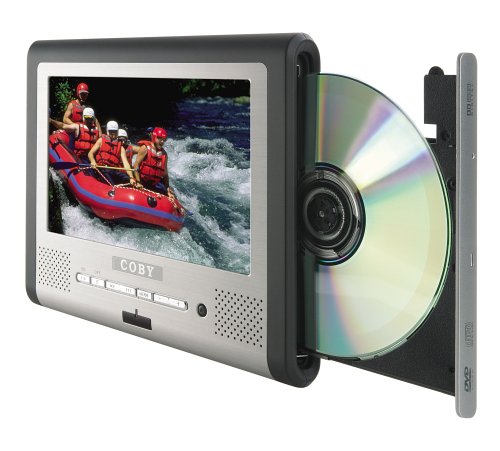
Figure 1: Coby TFDVD-7700 Portable DVD Player and its remote control. The player features a 7-inch screen, control buttons below the screen, and a side-loading DVD slot. The remote control has numerous buttons for full functionality.
Key Features:
- 7-inch Widescreen TFT LCD Display
- Side-loading DVD Mechanism
- Multi-format Playback (DVD, MP3 CD, JPEG CD)
- Built-in Stereo Speakers
- Composite Video Output for external display connection
- Full-function Remote Control
- Rechargeable Lithium-ion Battery
- Picture Zoom and Parental Controls
Setup
1. Charging the Battery
- Connect the 100-240V UL adapter to the DC IN port on the DVD player.
- Plug the adapter into a standard wall outlet.
- Allow the unit to charge fully before first use (approximately 3-4 hours). The charging indicator light will typically change color or turn off when charging is complete.
- For in-car use, connect the DC car charger to the DC IN port and plug it into your vehicle's cigarette lighter socket.
2. Inserting the Remote Control Battery
- Open the battery compartment on the back of the remote control.
- Insert the supplied battery, ensuring correct polarity (+/-).
- Close the battery compartment securely.
3. Connecting to an External Display (Optional)
- Locate the composite video output port on the DVD player.
- Connect a composite video cable (not always included, may need to be purchased separately) from the player's video output to the video input of your TV or monitor.
- Ensure your TV/monitor is set to the correct input source.
Operating Instructions
1. Powering On/Off
- To power on, slide the POWER switch to the ON position or press the POWER button on the remote.
- To power off, slide the POWER switch to the OFF position or press the POWER button on the remote.
2. Inserting a Disc
- With the unit powered on, gently insert a DVD, MP3 CD, or JPEG CD into the side-loading disc slot with the label side facing up.
- The player will automatically detect the disc and begin playback or display the disc menu.
3. Basic Playback Controls
Use the buttons on the unit or the remote control:
- PLAY/PAUSE: Press to start or pause playback.
- STOP: Press to stop playback.
- SKIP (<< / >>): Press to skip to the previous or next chapter/track.
- FAST FORWARD/REWIND: Press and hold to fast forward or rewind.
- VOLUME (+/-): Adjust the audio volume.
4. Using Headphones
- Plug one or both sets of stereo headphones into the headphone jack(s).
- Use the headphone splitter to connect both sets of headphones to a single jack if needed.
- Adjust volume to a comfortable level to prevent hearing damage.
5. Advanced Features
- MENU: Access the disc's main menu.
- SETUP: Access the player's system settings (e.g., language, display settings, parental controls).
- ZOOM: Enlarge a portion of the screen during video playback.
- ANGLE: Change the viewing angle on discs that support multiple angles.
- SUBTITLE: Select different subtitle tracks.
- SLOW/FAST MOTION: Control playback speed.
Maintenance
1. Cleaning the Unit
- Wipe the exterior of the unit with a soft, dry cloth.
- For stubborn marks, dampen the cloth slightly with water, then wipe dry immediately.
- Do not use abrasive cleaners, waxes, or solvents.
- To clean the screen, use a soft, lint-free cloth specifically designed for LCD screens.
2. Disc Care
- Handle discs by their edges to avoid fingerprints.
- Keep discs in their cases when not in use.
- Clean dirty discs with a soft, lint-free cloth, wiping from the center outwards.
3. Battery Care
- Recharge the battery regularly, even if the unit is not used frequently, to maintain battery life.
- Avoid fully discharging the battery repeatedly.
- Store the unit in a cool, dry place when not in use for extended periods.
Troubleshooting
If you encounter issues with your Coby TFDVD-7700, refer to the following common problems and solutions:
| Problem | Possible Cause | Solution |
|---|---|---|
| Unit does not power on. | Battery is discharged; Power adapter not connected; Power switch is OFF. | Charge the battery; Connect the power adapter; Slide the POWER switch to ON. |
| No disc detected / Disc error. | Disc is dirty or scratched; Disc inserted incorrectly; Unsupported disc format. | Clean the disc; Reinsert disc with label side up; Ensure disc is DVD, MP3 CD, or JPEG CD. |
| No sound. | Volume is too low; Headphones not connected properly; Mute function is active. | Increase volume; Reconnect headphones; Deactivate mute. |
| Picture is distorted or black. | External display connection issue; Disc problem. | Check composite video cable connection and TV input; Try a different disc. |
| Remote control not working. | Battery is dead or inserted incorrectly; Obstruction between remote and player. | Replace or reinsert battery; Ensure clear line of sight to the player's IR sensor. |
Specifications
- Model: TFDVD-7700
- Screen Size: 7 Inches (Widescreen TFT LCD)
- Supported Media Types: DVD, CD-R, CD-RW, SVCD, MP3 CD, JPEG CD
- Audio Output: Built-in Stereo Speakers, Headphone Jack
- Video Output: Composite Video
- Power Source: AC Adapter (100-240V), DC Car Charger, Rechargeable Lithium-ion Battery
- Manufacturer: Coby
Warranty Information
This product is covered by a limited warranty. Please refer to the warranty card included in your original packaging for specific terms and conditions, including coverage period and service procedures. Typically, Coby products come with a 90-day warranty on parts and labor from the date of purchase.
Keep your purchase receipt as proof of purchase for warranty claims.
Customer Support
For technical assistance, troubleshooting beyond this manual, or warranty inquiries, please contact Coby customer support.
Please have your model number (TFDVD-7700) and proof of purchase ready when contacting support.
Contact information (phone number, website) would typically be provided on the manufacturer's official website or in the warranty documentation.


