
1. Introduction
This manual provides detailed instructions for the installation, operation, and maintenance of your Creative Inspire T5400 5.1 Speaker System. Please read this manual thoroughly before using the product to ensure proper setup and optimal performance. Retain this manual for future reference.
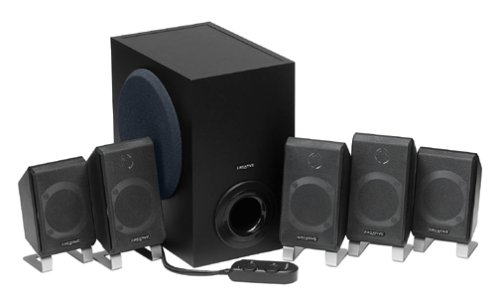
Image 1.1: Overview of the Creative Inspire T5400 5.1 Speaker System, showing the subwoofer and satellite speakers.
2. Package Contents
Verify that all components listed below are present in your package:
- Creative Inspire T5400 Subwoofer
- Five (5) Satellite Speakers (Front Left, Front Right, Center, Rear Left, Rear Right)
- Wired Remote Control
- Power Adapter
- Audio Cables (3.5mm stereo to 3.5mm stereo cables for 5.1 connection)
- Quick Start Guide (not included in this digital manual)
If any items are missing or damaged, please contact Creative customer support.
3. Setup Instructions
Follow these steps to set up your Creative Inspire T5400 5.1 Speaker System:
3.1 Speaker Placement
Proper speaker placement is crucial for optimal 5.1 surround sound experience.
- Front Left and Right Speakers: Place these speakers on either side of your monitor or television, equidistant from your listening position.
- Center Speaker: Position the center speaker directly above or below your monitor/television, centered with your listening position.
- Rear Left and Right Speakers: Place these speakers behind your listening position, ideally slightly to the sides and angled towards you.
- Subwoofer: The subwoofer can be placed on the floor, typically near the front speakers. Experiment with placement to find the best bass response for your room.
Image 3.1: Diagram illustrating optimal 5.1 speaker placement around a listening position. (Image not provided, conceptual description)
3.2 Connecting the Speakers to the Subwoofer
Each satellite speaker connects to the subwoofer using its integrated cable. Match the speaker to the corresponding port on the subwoofer:
- Identify the cables from each satellite speaker (Front Left, Front Right, Center, Rear Left, Rear Right).
- Locate the corresponding input jacks on the rear panel of the subwoofer. These are typically color-coded or labeled.
- Firmly insert each speaker cable into its designated jack.
Image 3.2: Close-up of the subwoofer's rear panel showing speaker input jacks. (Image not provided, conceptual description)
3.3 Connecting to an Audio Source (Computer/Television)
The Creative Inspire T5400 requires a 5.1 channel audio output from your source device. This typically involves three 3.5mm stereo jacks (Front, Rear, Center/Subwoofer).
- Locate the three 3.5mm audio input jacks on the rear panel of the subwoofer. These are usually color-coded (e.g., Green for Front, Black for Rear, Orange for Center/Subwoofer).
- Connect the provided audio cables from these jacks to the corresponding 5.1 audio output jacks on your computer's sound card or television.
- Ensure your computer's sound card drivers are installed and configured for 5.1 surround sound output.
Image 3.3: Illustration of connecting audio cables from the subwoofer to a computer sound card. (Image not provided, conceptual description)
3.4 Connecting the Wired Remote Control
The wired remote control connects to a dedicated port on the subwoofer.
- Locate the multi-pin connector for the wired remote on the subwoofer.
- Align the connector from the wired remote with the port and gently push until it clicks into place.
Image 3.4: Close-up of the wired remote control connector and the corresponding port on the subwoofer. (Image not provided, conceptual description)
3.5 Power Connection
Connect the power adapter to the subwoofer and then to a power outlet.
- Insert the DC plug of the power adapter into the "DC IN" port on the subwoofer.
- Plug the power adapter into a standard electrical wall outlet.
The system is now ready for operation.
4. Operating Instructions
The wired remote control provides convenient access to the main functions of your speaker system.
4.1 Power On/Off
- Press the Power button on the wired remote control to turn the speaker system on or off. An indicator light on the remote will illuminate when the system is powered on.
4.2 Volume Control
- Rotate the large Volume knob on the wired remote control clockwise to increase volume and counter-clockwise to decrease volume.
4.3 Bass Level Adjustment
- Use the Bass control knob on the wired remote control to adjust the subwoofer's bass output. Rotate clockwise for more bass, counter-clockwise for less bass.
4.4 Headphone Jack
- A Headphone jack is located on the wired remote control. Plugging in headphones will automatically mute the speakers, allowing for private listening. Unplugging headphones will restore audio to the speakers.
Image 4.1: Close-up of the wired remote control showing power, volume, bass, and headphone jack. (Image not provided, conceptual description)
5. Maintenance
Proper care ensures the longevity and performance of your speaker system.
5.1 Cleaning
- Disconnect the power before cleaning.
- Use a soft, dry, lint-free cloth to wipe the surfaces of the speakers and subwoofer.
- Do not use liquid cleaners, aerosols, or abrasive cleaning agents, as these can damage the finish or internal components.
5.2 Storage
- Store the speaker system in a cool, dry place away from direct sunlight and extreme temperatures.
- If storing for an extended period, it is recommended to pack the components in their original packaging to protect them from dust and physical damage.
6. Troubleshooting
If you encounter issues with your Creative Inspire T5400, refer to the following common problems and solutions:
| Problem | Possible Cause | Solution |
|---|---|---|
| No sound from any speaker. |
|
|
| Sound from only some speakers (e.g., only front). |
|
|
| Distorted or unclear sound. |
|
|
If the problem persists after trying these solutions, please contact Creative customer support.
7. Specifications
Key technical specifications for the Creative Inspire T5400 5.1 Speaker System:
- Brand: Creative
- Model Number: 51MF4025AA002
- Audio Output Mode: 5.1 Surround
- Number of Audio Channels: 5.1
- Total System Power: 115 Watts
- Speaker Maximum Output Power (per satellite): 25 Watts
- Connectivity Technology: Wired
- Connectivity Protocol: RCA, USB, aux (Note: Primary 5.1 audio input uses 3.5mm stereo jacks.)
- Control Method: Remote Control (Wired)
- Compatible Devices: Desktop, Laptop, Television
- Power Source: Corded Electric
- UPC: 054651062153
8. Warranty and Support
8.1 Warranty Information
The Creative Inspire T5400 5.1 Speaker System comes with a Limited Warranty. Specific terms and conditions of the warranty may vary by region and retailer. Please refer to the warranty card included with your product or visit the official Creative website for detailed warranty information.
8.2 Customer Support
For technical assistance, troubleshooting beyond this manual, or warranty claims, please contact Creative customer support:
- Online Support: Visit the official Creative website (us.creative.com/support) for FAQs, driver downloads, and contact options.
- Phone Support: Refer to your product packaging or the Creative website for regional phone support numbers.
When contacting support, please have your product model number (T5400 or 51MF4025AA002) and proof of purchase readily available.


