
1. Introduction
The NETGEAR FSM726 is a 24-port managed switch designed to accommodate expanding business network needs. It features 24 10/100 ports and 2 Gigabit Ethernet ports, which can utilize either built-in copper or GBIC slots. This Layer 2 switch offers two management interface options: an easy-to-use, browser-based interface and a command line interface, making it an ideal solution for users new to managed switching. All ports are auto-negotiating and support Auto Uplink technology for simplified connectivity.
2. Safety Information
Please read all safety warnings and instructions before installing or operating this device. Failure to do so may result in injury or damage to the equipment.
- Power Source: Use only the power adapter supplied with the device. Ensure the power outlet is properly grounded.
- Ventilation: Do not block any ventilation openings. Ensure adequate airflow around the device to prevent overheating.
- Location: Install the device in a stable, dry location away from direct sunlight, heat sources, and moisture.
- Servicing: Do not attempt to service this product yourself. Refer all servicing to qualified service personnel.
3. Package Contents
Verify that your package contains the following items:
- NETGEAR FSM726 24-Port Managed Switch
- Power Adapter/Cord
- Rack-mount Kit (if applicable)
- Resource CD (with documentation and utility software)
- Installation Guide
If any items are missing or damaged, please contact your NETGEAR reseller or customer support.
4. Setup
Follow these steps to set up your NETGEAR FSM726 switch:
- Unpack the Switch: Carefully remove the switch and all accessories from the packaging.
- Mounting (Optional): If rack-mounting, attach the provided rack-mount brackets to the sides of the switch using the included screws. Secure the switch into a standard 19-inch equipment rack.
- Connect Network Devices: Connect your network devices (computers, servers, other switches) to the 10/100 Ethernet ports on the front panel using standard Ethernet cables. The ports are auto-negotiating and support Auto Uplink.
- Connect Gigabit Ports: Utilize the two Gigabit Ethernet ports for high-speed connections to backbone devices or servers. These ports support either copper connections or GBIC modules (sold separately) for fiber optic links.
- Connect Power: Plug the power cord into the switch's power receptacle and then into a grounded electrical outlet. The power LED on the front panel should illuminate.
- Initial Configuration: Refer to the included Resource CD for detailed instructions on accessing the browser-based management interface or the command line interface for initial configuration. The default IP address and login credentials will be provided in the documentation.
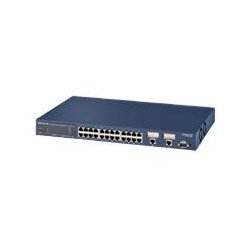
Image: Front view of the NETGEAR FSM726 24-Port Managed Switch, showing the 10/100 Ethernet ports, Gigabit ports, and status indicators.
5. Operating the Switch
Once the switch is powered on and connected, it will begin forwarding network traffic. As a managed switch, the FSM726 offers advanced configuration options through its management interfaces.
- Accessing the Management Interface: Open a web browser on a computer connected to the same network segment as the switch. Enter the switch's IP address (default or configured) into the browser's address bar. Log in using the provided credentials.
- Configuration Options: The web interface allows you to configure various Layer 2 features such as VLANs, Quality of Service (QoS), port mirroring, link aggregation, and security settings.
- Command Line Interface (CLI): For advanced users, the CLI provides granular control over the switch's functions. Access the CLI via Telnet or a serial console connection.
- Monitoring: The management interface also provides tools to monitor port status, traffic statistics, and system logs to ensure optimal network performance.
6. Maintenance
Regular maintenance helps ensure the longevity and optimal performance of your NETGEAR FSM726 switch.
- Cleaning: Keep the switch clean and free of dust. Use a soft, dry cloth to wipe the exterior. Do not use liquid or aerosol cleaners.
- Firmware Updates: Periodically check the NETGEAR support website for firmware updates. Firmware updates can provide new features, performance improvements, and security enhancements. Follow the instructions provided with the firmware update carefully.
- Environmental Conditions: Ensure the operating environment remains within the specified temperature and humidity ranges to prevent hardware failure.
- Cable Management: Keep network cables organized and properly secured to prevent accidental disconnections or damage.
7. Troubleshooting
If you encounter issues with your NETGEAR FSM726 switch, refer to the following common troubleshooting steps:
- No Power:
- Ensure the power cord is securely connected to both the switch and a working electrical outlet.
- Verify the power outlet is active by plugging in another device.
- No Link Light:
- Check the Ethernet cable connection between the switch port and the connected device. Try a different cable.
- Ensure the connected device is powered on and functioning correctly.
- Verify the port on the connected device is enabled.
- Cannot Access Management Interface:
- Confirm your computer is on the same IP subnet as the switch.
- Verify the switch's IP address. If unknown, you may need to reset the switch to factory defaults (refer to the full manual for instructions).
- Disable any firewall or antivirus software on your computer temporarily to rule out interference.
- Slow Network Performance:
- Check for excessive network traffic or broadcast storms.
- Ensure all cables are in good condition and properly connected.
- Verify duplex settings on the switch ports and connected devices.
For more detailed troubleshooting, consult the comprehensive user manual on the NETGEAR support website.
8. Specifications
| Brand | NETGEAR |
| Model Number | FSM726NA |
| Number of Ports | 24 x 10/100 Mbps, 2 x Gigabit (Copper/GBIC) |
| Product Dimensions | 20.7 x 12.6 x 4.4 inches |
| Item Weight | 7.75 pounds |
| Compatible Devices | Desktop, Servers, Network Devices |
| Management | Managed (Browser-based GUI, CLI) |
| UPC | 606449026856 |
9. Warranty Information
NETGEAR products are covered by a limited warranty. The specific terms and duration of the warranty may vary by region and product type. Please refer to the warranty card included with your product or visit the official NETGEAR website for detailed warranty information and registration procedures. Keep your proof of purchase for warranty claims.
10. Technical Support
For technical assistance, product registration, or to download the latest drivers and firmware, please visit the official NETGEAR support website:
You may also find helpful resources, FAQs, and community forums on the support site. When contacting support, please have your product model number (FSM726NA) and serial number ready.


