
Sony MZ-NF610
Contents
Sony MZ-NF610 Net MD Walkman Recorder Instruction Manual
Model: MZ-NF610 | Brand: Sony
Introduction
The Sony MZ-NF610 Net MD Walkman Recorder is a portable MiniDisc player and recorder designed for versatile audio management. It features an integrated AM/FM radio, TV audio, and weather band tuner, accessible via the remote control. This device supports high-speed recording of MP3s and CDs directly from a PC using a USB connection, offering up to 32x speed in LP4 mode. It can store over five hours of music on an 80-minute MiniDisc when utilizing LP4 mode. The MZ-NF610 incorporates Sony's G-Protection technology to prevent skipping during active use and is compatible with various audio formats including ATRAC3, MP3, WMA, and WAV. It also includes software for music management and organization.
Key Features
- Extended Recording Capacity: Stores over five hours of music on an 80-minute MiniDisc using LP4 mode.
- High-Speed PC Transfer: Enables rapid transfer of music from a PC via USB, with speeds up to 32x in LP4 mode.
- Integrated Tuner: Features an AM/FM radio, TV audio, and weather band tuner for diverse listening options.
- Music Management Software: Bundled with SonicStage Jukebox and MoodLogic software for organizing music by artist, song, style, or tempo, and creating custom playlists.
- Bookmark Function: Allows users to mark or program favorite songs in real-time during playback.
- Skip-Free G-Protection: Advanced technology minimizes or eliminates audio skipping during movement.
- Multi-Format Playback: Supports ATRAC3, MP3, WMA, and WAV audio formats.
- Easy Skip Group-Folder Function: Simplifies navigation by organizing songs into albums or groups.
- Long Battery Life: Provides up to 56 hours of continuous playback on a single AA battery, and includes a rechargeable battery.
- Accessories: Comes with a remote control, rechargeable battery, and headphones.
Setup Guide
1. Inserting a MiniDisc
To insert a MiniDisc into your Sony MZ-NF610, locate the disc slot on the device. Gently slide the MiniDisc into the slot until it clicks into place. Ensure the disc is oriented correctly with the label side facing up. The device will typically display "End" or "Blank Disc" depending on the disc's content.
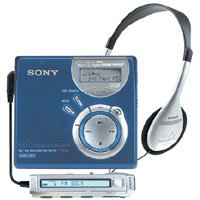
Image: A Sony 80-minute MiniDisc, ready for insertion into the player.
2. Initializing a New MiniDisc
For a new or blank MiniDisc, the device may display "Blank Disc". To prepare it for recording, you might need to initialize it. Refer to the on-screen menu options for "Edit" or "Erase All" to format the disc. This process will clear any existing data and prepare the disc for new recordings.
3. Connecting to a PC for High-Speed Transfer
Connect your MZ-NF610 to a PC using a USB cable. Install the bundled SonicStage Jukebox software. This software allows you to manage digital music files, create playlists, and transfer music to your MiniDisc at high speeds (up to 32x in LP4 mode). The MoodLogic software can also be used to organize music by mood or tempo and correct ID3 tag information.
Operating Instructions
1. Basic Playback
Once a MiniDisc is inserted, press the PLAY button to begin playback. Use the VOL + / - buttons to adjust the volume. The SKIP buttons allow you to navigate between tracks. The device supports multiple playback modes, which can be accessed via the menu.
2. Recording Audio
To record, ensure a blank or erasable MiniDisc is inserted. Press the REC button. The device will indicate "LINE" if it's ready to record from an external line input. The MZ-NF610 supports recording in LP2 or LP4 modes, which extend recording time at the expense of some audio quality. LP4 mode can record up to four times the standard length of an 80-minute disc.
3. Using the Bookmark Function
During playback, you can use the bookmark function to mark your favorite songs. This allows you to quickly locate and play specific tracks later. Consult the device's menu for options related to setting and managing bookmarks.
4. Organizing Tracks with Easy Skip
The Easy Skip group-folder function helps organize songs into albums or custom groups. After transferring music, use this feature to easily skip between different groups of tracks, enhancing navigation and listening experience.
Maintenance
1. MiniDisc Handling and Storage
Always handle MiniDiscs by their edges to avoid touching the recording surface. Store MiniDiscs in their protective cases when not in use to prevent dust and scratches. The included clear cases and labels help protect and organize your discs.
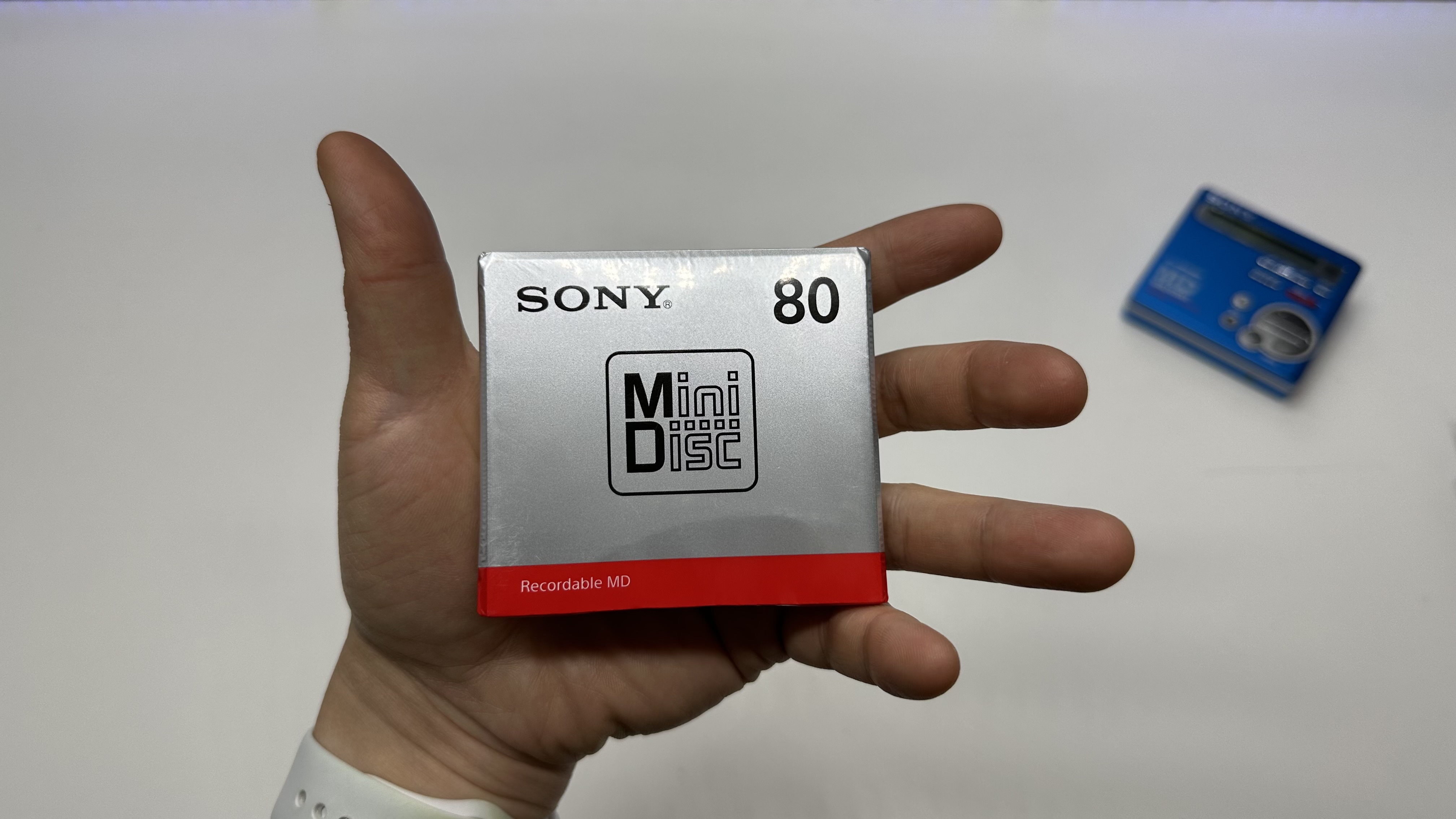
Image: Applying a label to a MiniDisc case for organization.
2. Using Labels for Organization
The MiniDiscs come with non-stick labels that can be written on and applied to the disc or its case. These labels are easily removable, allowing for re-labeling if the disc's content changes. Ensure that labels do not block the read/write protection switch on the MiniDisc itself to maintain proper functionality.
Troubleshooting
1. Recording Issues: "LINE" Display
If the device displays "LINE" when attempting to record, it indicates that the recorder is expecting an audio input from a line-in source. Ensure that an audio source is properly connected to the line-in port of the MZ-NF610. Without a connected audio source, recording will not proceed.
2. Software-Related Recording Limitations
Some users have reported limitations with the bundled SonicStage software, such as a "3 song limit" for direct burning to MDs without checking songs back into the computer. A workaround involves using third-party burning software like Nero to create an "Audio CD" project from MP3 files, saving it as an image file, and then mounting this image using Nero Image Drive. The SonicStage Simple Burner can then be "fooled" into recognizing this mounted image as a physical audio CD, allowing for transfer of more songs. This method bypasses the software's copy protection mechanisms.
3. Skipping During Playback
The MZ-NF610 features Skip-free G-Protection technology. If skipping occurs, ensure the MiniDisc is clean and free from scratches. Avoid excessive shock or vibration during playback. If the issue persists, try a different MiniDisc to determine if the problem lies with the disc or the player.
4. No Backlight on Remote or Player
Please note that neither the remote control nor the player itself features a backlight. This is a design characteristic of the device and not a malfunction.
Specifications
| Model Number | MZ-NF610 |
| Brand | Sony |
| Product Dimensions | 2.93 x 3.19 x 1.09 inches |
| Item Weight | 3.68 ounces |
| Batteries | 1 AA battery required (rechargeable battery included) |
| Recording Modes | LP2, LP4 (extends recording time) |
| PC Transfer Speed | Up to 32x (in LP4 mode) via USB |
| Audio Compatibility | ATRAC3, MP3, WMA, WAV |
| Tuner | AM/FM Radio, TV Audio, Weather Band |
| Manufacturer | Sony |
| Date First Available | February 10, 2003 |
| Discontinued | Yes |
Warranty Information
Specific warranty details for the Sony MZ-NF610 are not available in this document. Please refer to the original product packaging or contact Sony customer support for current warranty terms and conditions.
Customer Support
For further assistance, technical support, or service inquiries regarding your Sony MZ-NF610 Net MD Walkman Recorder, please visit the official Sony support website or contact their customer service department. Contact information can typically be found on the manufacturer's website or in the original product documentation.
Important Note Regarding Videos
No official product videos from the seller were available for embedding in this manual. The provided videos were created by influencers and do not meet the criteria for inclusion as official instructional content.
Ask a question about this manual
Ask about setup, troubleshooting, compatibility, parts, safety, or missing instructions. Manuals+ will review the question and use this page’s manual context to help answer it.