Introduction
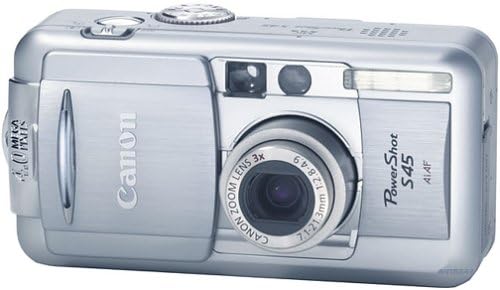
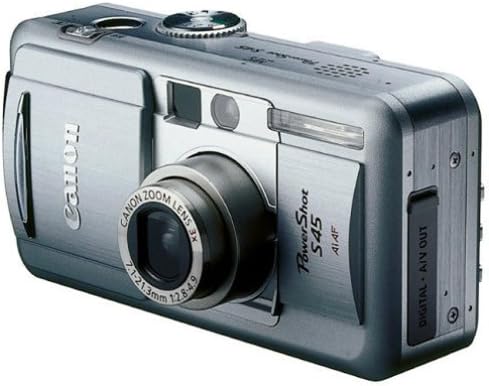
This manual provides detailed instructions for the safe and effective use of your Canon PowerShot S45 Digital Camera. Please read this manual thoroughly before using the camera and keep it in a safe place for future reference. The Canon PowerShot S45 features a 4-megapixel CCD sensor and a 3x optical zoom lens, designed for capturing high-quality digital images.
Setup
1. Unboxing and Initial Inspection
Upon opening the package, ensure all components are present. The standard package includes the PowerShot S45 digital camera, battery (NB-2L), battery charger, USB cable, AV cable, wrist strap, and ArcSoft Camera Suite CD-ROM with USB drivers for Windows and Mac.
2. Battery Installation and Charging
The camera is powered by a proprietary rechargeable lithium battery pack (NB-2L). Insert the battery into the battery compartment located on the bottom of the camera. Ensure it clicks into place. Before first use, fully charge the battery using the provided charger. Connect the charger to a power outlet and insert the battery. The charging indicator will show the charging status.
3. Memory Card Installation
The PowerShot S45 uses CompactFlash memory cards. The included 32 MB card holds approximately 27 images at default settings. The memory slot is compatible with CompactFlash Type II cards and Microdrives. Open the memory card slot cover, insert the CompactFlash card with the correct orientation until it clicks, and then close the cover securely.
Operating the Camera
1. Powering On/Off
To power on the camera, slide the lens cover open. The lens will extend, and the LCD screen will activate. To power off, slide the lens cover closed. The lens will retract.
2. Basic Shooting Modes
For beginners, the camera offers a simple point-and-shoot experience. Twist the mode dial to 'Auto' and begin capturing pictures. The camera's DIGIC image processor and iSAPS technology optimize settings for various scenes.
3. Advanced Shooting Options
The PowerShot S45 provides a range of advanced settings for experienced users:
- Metering Modes: Select from three light-metering modes for precise exposure control.
- White Balance: Utilize presets or two custom settings for accurate color reproduction.
- Exposure and Focus Bracketing: Capture multiple shots at different exposure or focus levels.
- Manual Focus and Autofocus Lock: Gain precise control over focus.
- Aperture and Shutter-Speed Priority: Adjust aperture or shutter speed for creative control.
- Adjustable ISO-Equivalent Sensitivity: Set ISO from 50 to 400 for varying light conditions.
- Shot Presets: Includes portrait, landscape, night scene, and stitch assist. Custom settings can also be saved.
4. Zoom Functionality
The camera features a 3x optical zoom and 3.6x digital zoom, providing a total 11x zoom capability. Use the zoom lever to adjust the focal length for wide scenes or close-up details.
5. Movie Mode
Record MPEG video with sound for up to three minutes. The movie mode includes editing controls and VCR-like playback. You can operate in automatic mode or utilize manual settings for creative video capture.
6. Flash Modes
The built-in flash offers five modes, allowing you to turn the flash and auto red-eye reduction on or off in various combinations.
7. Intelligent Orientation Sensor
The intelligent-orientation sensor automatically displays your images in proper rotations during playback on the LCD screen and your computer.
8. Direct Printing
For printing photos at home, the PowerShot S45 connects directly to compatible Canon Bubble Jet direct printers (S830D and S530D) and the card-photo printer CP-100.
Maintenance
1. Lens Care
Handle the lens cover with care. While designed to be sturdy, ensuring it closes firmly helps protect the lens from dust and damage. Avoid touching the lens surface directly.
2. Battery Care
To prolong battery life, avoid exposing the battery to extreme temperatures. Store the battery in a cool, dry place when not in use. Fully charge the battery before extended periods of non-use and periodically recharge it to maintain its capacity.
3. Storage
When not in use, store the camera in a protective case to prevent scratches and impacts. Keep the camera away from moisture, dust, and direct sunlight.
Troubleshooting
If you encounter issues with your Canon PowerShot S45, consider the following general troubleshooting steps:
- Camera Not Powering On: Ensure the battery is correctly inserted and fully charged. Check for any debris in the battery compartment.
- Memory Card Errors: Verify the CompactFlash card is inserted correctly and not locked. Try formatting the card (this will erase all data, so back up important files first).
- Image Quality Issues: Check shooting mode settings (e.g., ISO, white balance, exposure). Ensure the lens is clean and free from smudges.
- Connectivity Problems: Ensure USB cables are securely connected to both the camera and the computer. Verify that the correct drivers are installed on your computer.
For more specific issues, refer to the comprehensive troubleshooting guide available on the Canon support website or contact Canon customer service.
Specifications
| Feature | Specification |
|---|---|
| Brand | Canon |
| Model Name | S45 |
| Model Number | 8117A001 |
| Photo Sensor Resolution | 4 MP |
| Photo Sensor Size | 1/1.8-inch |
| Optical Zoom | 3x |
| Digital Zoom | 3.6x |
| Maximum Focal Length | 105 Millimeters |
| Minimum Focal Length | 35 Millimeters |
| Maximum Aperture | 2.8 f |
| Image Stabilization | Digital, Optical |
| Supported File Format | RAW |
| Flash Memory Type | Compact Flash |
| Flash Memory Installed Size | 32 MB (included) |
| Screen Size | 1.8 Inches |
| Display Type | LCD |
| Video Capture Format | MPEG-4 |
| Recording Capacity | 3 Minutes (video) |
| Battery Type | Canon Lithium-Ion (NB-2L) |
| Connectivity Technology | USB |
| Item Weight | 0.71 Pounds |
| Item Height | 2.28 inches |
Warranty and Support
Warranty Information
The Canon PowerShot S45 comes with a 1 Year Limited Warranty. Please retain your proof of purchase for warranty claims. For full details regarding warranty coverage, terms, and conditions, refer to the warranty card included with your product or visit the official Canon website.
Customer Support
For technical assistance, product inquiries, or service requests, please visit the Canon Store on Amazon or the official Canon support website. You can also find FAQs, driver downloads, and additional resources online.


