
Introduction
This manual provides detailed instructions for the setup, operation, and maintenance of your Olympia OL 3000 Infoglobe Digital Caller ID with Real-Time Clock. The Infoglobe combines a digital caller ID display with a real-time clock, offering convenient features such as programmable messages and automatic daylight saving time adjustments. Please read this manual thoroughly to ensure proper use and longevity of your device.
Key Features:
- Digital Caller ID with 30-record memory (requires phone company service).
- Real-time clock with automatic Daylight Saving Time adjustment.
- Three user-programmable messages.
- Five navigator keys for easy menu interaction.
- Battery backup for settings during power outages.
- Built-in year-round and daily greetings.
1. Setup
Follow these steps to set up your Olympia OL 3000 Infoglobe:
1.1 Unpacking and Placement
Carefully remove all components from the packaging. Place the Infoglobe on a stable, flat surface, away from direct sunlight, heat sources, and moisture.

Image 1.1: Front view of the Olympia OL 3000 Infoglobe, showing the blue globe and digital display. This image illustrates the overall appearance of the device.
1.2 Power Connection
- Connect the provided AC power adapter to the DC IN port on the back of the Infoglobe.
- Plug the AC adapter into a standard electrical outlet.

Image 1.2: Bottom view of the Olympia OL 3000 Infoglobe, showing the power input and telephone line ports. This image helps identify where to connect the power adapter and telephone line.
1.3 Battery Installation (Backup)
The Infoglobe requires 3 AAA batteries (not included) for backup power to retain settings during a power outage.
- Locate the battery compartment on the bottom of the unit.
- Open the battery compartment cover.
- Insert 3 AAA batteries, observing the correct polarity (+/-) as indicated inside the compartment.
- Close the battery compartment cover securely.
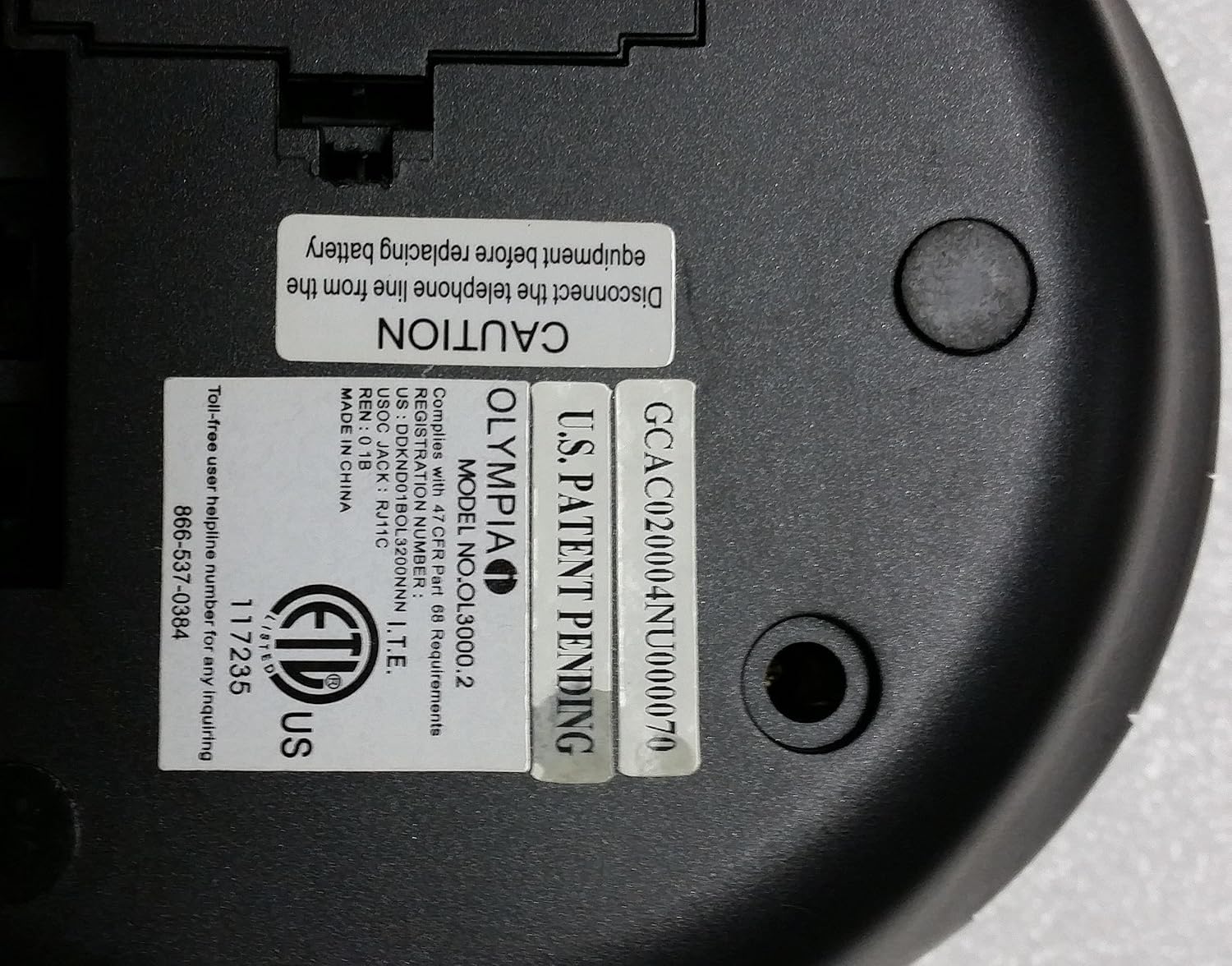
Image 1.3: Close-up of the battery compartment and label on the bottom of the Infoglobe. This image assists in locating and correctly installing the backup batteries.
1.4 Telephone Line Connection
To enable Caller ID functionality, connect the Infoglobe to your telephone line.
- Connect one end of the provided RJ11 telephone cord to the LINE port on the back of the Infoglobe.
- Connect the other end of the telephone cord to your wall telephone jack.
- If you wish to connect a telephone to the Infoglobe, use the PHONE port on the back of the unit.
Note: Caller ID service requires a subscription from your local telephone company.
2. Operating Instructions
The Olympia OL 3000 Infoglobe features five navigation buttons: LEFT, DOWN, SELECT, UP, and RIGHT. These buttons are used to navigate menus, view caller ID records, and adjust settings.

Image 2.0: Diagram illustrating the main unit and key controls of the Olympia OL 3000 Infoglobe. This provides an overview of button placement.

Image 2.1: Side view of the Infoglobe, highlighting the LEFT, DOWN, SELECT, UP, and RIGHT control buttons. This image helps users locate the primary control interface.

Image 2.2: Front view of the Infoglobe display, showing the time. This image demonstrates the typical display during normal operation.
2.1 Initial Time and Date Setting
Upon first power-up or after a prolonged power outage without battery backup, you may need to set the time and date manually.
- Press the SELECT button to enter the menu.
- Use the UP or DOWN buttons to navigate to "SET TIME" or "SET DATE".
- Press SELECT to confirm.
- Use UP or DOWN to adjust values (hours, minutes, month, day, year).
- Use LEFT or RIGHT to move between fields.
- Press SELECT to save and exit.
The device also features automatic Daylight Saving Time (DST) adjustment. Refer to the full user manual for details on enabling or disabling this feature.
2.2 Viewing Caller ID Records
When a call is received, the Infoglobe will display the caller's information (if available and subscribed to service).
- In standby mode, new call indications will be displayed.
- Press UP or DOWN to scroll through stored caller ID records.
- Press SELECT to view details of a specific record.
- The device stores up to 30 caller ID records.
2.3 Programmable Messages and Greetings
The Infoglobe allows you to set three user-programmable messages and features built-in year-round and daily greetings.
- Press SELECT to enter the menu.
- Navigate to "MESSAGES" or "GREETINGS" using UP or DOWN.
- Press SELECT to choose.
- Follow on-screen prompts to create or select messages. Use UP/DOWN to select characters and LEFT/RIGHT to move the cursor.
- Press SELECT to save.
3. Maintenance
3.1 Cleaning
To maintain the appearance and functionality of your Infoglobe:
- Disconnect the power adapter before cleaning.
- Wipe the exterior with a soft, dry cloth.
- Do not use abrasive cleaners, solvents, or harsh chemicals, as these can damage the finish.
- Avoid spraying liquids directly onto the device.
3.2 Battery Replacement
The 3 AAA backup batteries should be replaced periodically, especially if the device frequently loses its settings during power interruptions.
- Disconnect the telephone line from the equipment before replacing batteries.
- Follow the steps in Section 1.3 for battery installation.
- Dispose of old batteries according to local regulations.
4. Troubleshooting
If you encounter issues with your Olympia OL 3000 Infoglobe, refer to the following common problems and solutions:
| Problem | Possible Cause | Solution |
|---|---|---|
| No display or power. | Power adapter not connected or faulty; power outlet not working. | Ensure the power adapter is securely connected to the unit and a working electrical outlet. Test the outlet with another device. |
| Caller ID not displaying. | No Caller ID service subscription; telephone line not connected; incorrect phone line type. | Verify you have Caller ID service from your phone company. Ensure the telephone line is correctly connected to the LINE port. The device is compatible with Bellcore FSK CID Type 1. |
| Settings (time, date) are lost after power outage. | Backup batteries are dead or not installed. | Install or replace the 3 AAA backup batteries as described in Section 1.3. |
| Buttons (e.g., SELECT) are unresponsive. | Temporary software glitch; physical button malfunction. | Try disconnecting power for a few minutes and then reconnecting. If the issue persists, contact customer support. |
| Display shows garbled text or incorrect caller ID. | Internal malfunction; low backup battery power affecting memory. | Replace backup batteries. If the problem continues, a factory reset (if available, consult full manual) or contacting support may be necessary. |
5. Specifications
| Brand | Olympia |
| Model Number | OL 3000 |
| Display Type | Digital |
| Color | Blue |
| Power Source | Electrical (AC adapter), Battery Powered (3 AAA for backup) |
| Item Weight | 1.96 Pounds (approx. 0.89 kg) |
| Product Dimensions | 4.7 x 5.7 x 4.7 inches (approx. 11.9 x 14.5 x 11.9 cm) |
| Connectivity Technology | RJ11 (Telephone Line) |
| Caller ID Compatibility | Bellcore FSK CID Type 1 |
| Caller ID Memory | Up to 30 records |
| Special Features | Alarm, Programmable Messages, Real-Time Clock, Automatic DST Adjustment |
| Mounting Type | Tabletop |
| Manufacturer | Wave Industries |
6. Warranty Information
The Olympia OL 3000 Infoglobe comes with a 1-Year Limited Warranty. This warranty covers defects in materials and workmanship under normal use. Please retain your proof of purchase for warranty claims.
For specific terms and conditions of the limited warranty, please refer to the documentation included with your product or contact customer support.
7. Support and Contact Information
If you require further assistance or have questions not covered in this manual, please contact Olympia customer support:
- Toll-Free User Helpline: 866-537-0384
- For additional resources, you may refer to the official user manual PDF: Olympia OL 3000 User Manual (PDF)