
1. Introduction
The Canon KP-36IP Paper and Ink Pack is designed for use with compatible Canon SELPHY Compact Photo Printers, such as the Canon CP100 and SELPHY CP760. This pack provides the necessary consumables—a color ink cartridge and 36 sheets of 4x6 inch glossy photo paper—to produce high-quality, borderless photo prints using dye-sublimation technology. This manual provides instructions for the proper installation and use of this product.

Image 1.1: Contents of the Canon KP-36IP Paper and Ink Pack, showing the packaging, ink cartridge, and photo paper sheets.
2. Setup and Installation
To begin printing, install the ink cartridge and load the photo paper into your compatible Canon SELPHY printer. Refer to your specific printer's instruction manual for detailed steps on opening the printer's compartments.
2.1. Installing the Ink Cartridge
- Ensure your Canon SELPHY printer is powered off.
- Open the ink cartridge compartment cover on your printer. The location varies by model; consult your printer's manual.
- Remove the new KP-36IP ink cartridge from its packaging.
- Insert the ink cartridge into the designated slot until it clicks securely into place. Ensure it is fully seated.
- Close the ink cartridge compartment cover.
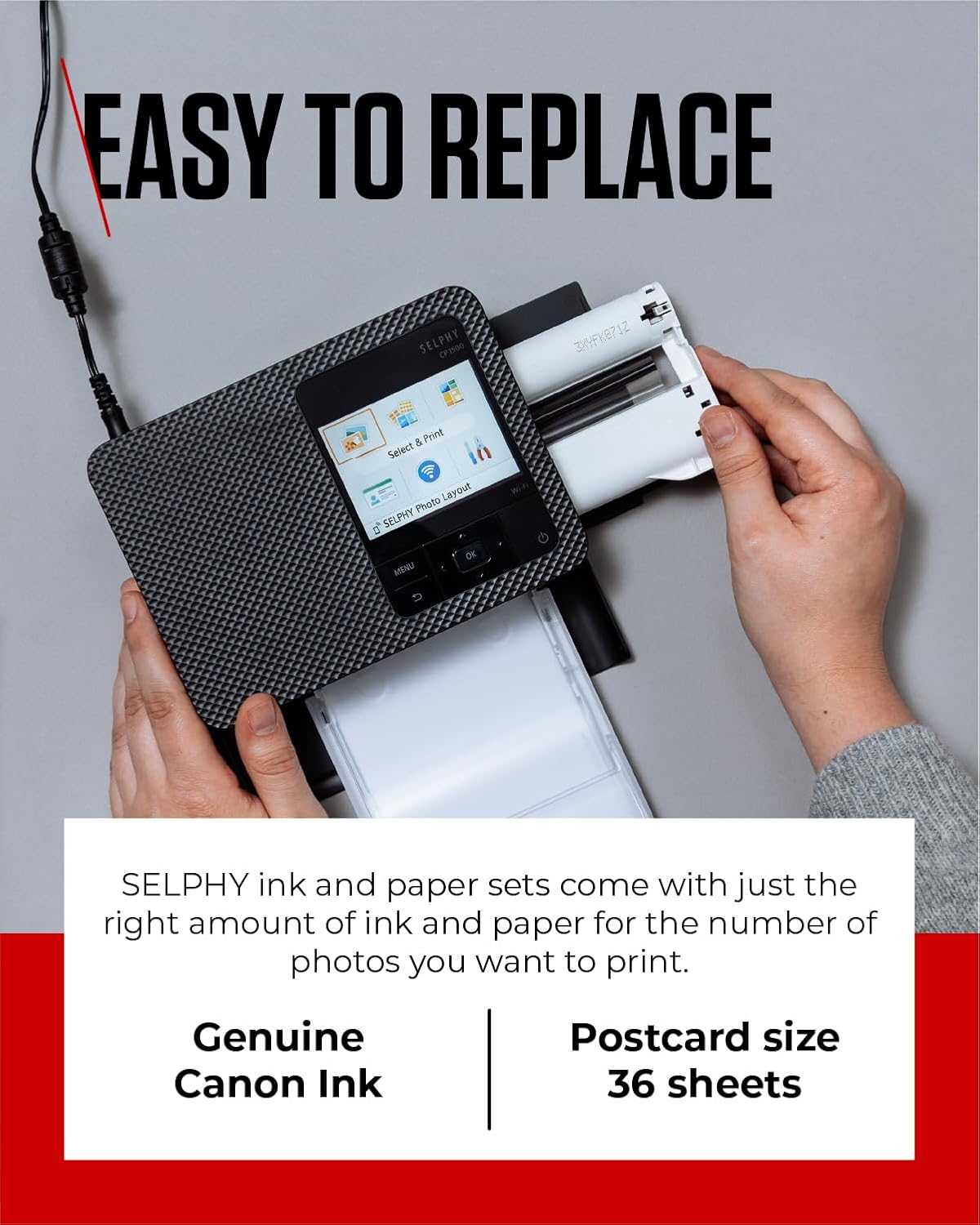
Image 2.1: A user inserting the ink cartridge into a Canon SELPHY printer, demonstrating the ease of replacement.
2.2. Loading Photo Paper
- Open the paper cassette cover on your Canon SELPHY printer.
- Place the 4x6 inch glossy photo paper sheets into the paper cassette with the glossy side facing up. Do not exceed the maximum paper capacity indicated in your printer's manual.
- Close the paper cassette cover and insert the cassette into the printer until it locks into place.
3. Operating Instructions
Once the ink cartridge and paper are loaded, you can begin printing. The Canon KP-36IP pack utilizes dye-sublimation technology, which applies color in successive layers (yellow, magenta, cyan) and then a protective overcoat, resulting in durable, high-quality prints.
- Print Settings: Ensure your printer's settings are configured for 4x6 inch glossy photo paper for optimal results.
- Borderless Printing: The KP-36IP paper supports borderless printing, allowing your images to extend to the very edge of the paper.
- Print Quality: The dye-sublimation process ensures smooth tonal gradations and vibrant colors, with a protective layer that resists smudges and fading.

Image 3.1: Examples of photo prints demonstrating the outstanding print quality achieved with Canon SELPHY printers and KP-36IP paper.
4. Print Maintenance and Storage
The prints produced with the Canon KP-36IP pack are designed for longevity thanks to the protective overcoat applied during the printing process. To maximize the lifespan of your photos:
- Handling: Avoid touching the printed surface immediately after printing to allow the protective layer to fully set. Handle prints by the edges to prevent fingerprints.
- Storage: Store prints in photo albums, archival boxes, or frames away from direct sunlight, high humidity, and extreme temperatures. This helps preserve color and prevent fading for up to 100 years under optimal conditions.
- Cleaning: If necessary, gently wipe prints with a soft, dry, lint-free cloth. Avoid using liquid cleaners or abrasive materials.

Image 4.1: A person gently cleaning a photo album containing small printed photos, illustrating proper care for long-lasting prints.
5. Troubleshooting
If you encounter issues while using the Canon KP-36IP Paper and Ink Pack, consider the following common solutions:
- Poor Print Quality / Incorrect Colors:
- Ensure the ink cartridge is correctly installed and fully seated.
- Verify that the paper is loaded correctly with the glossy side facing up.
- Check if the ink cartridge or paper supply is depleted. The KP-36IP pack is designed to run out of ink and paper simultaneously.
- Refer to your printer's manual for print head cleaning or calibration procedures, if applicable.
- Paper Jams:
- Ensure the paper is loaded correctly and not bent or damaged.
- Do not overload the paper cassette.
- Follow your printer's manual for instructions on clearing paper jams.
- Printer Not Recognizing Consumables:
- Remove and reinsert the ink cartridge and paper cassette to ensure proper connection.
- Confirm that you are using genuine Canon KP-36IP consumables.
- Restart your printer.
For more specific troubleshooting or error codes, consult the comprehensive manual provided with your Canon SELPHY Compact Photo Printer.
6. Specifications
| Product Name | Canon KP-36IP Paper and Ink Pack |
|---|---|
| Model Number | KP-36IP |
| Brand | Canon |
| Paper Type | Glossy Photo Paper |
| Paper Size | 4 x 6 inches (100 x 148 mm) |
| Sheet Count | 36 sheets |
| Ink Cartridge | One color ink cartridge (dye-sublimation) |
| Compatibility | Canon SELPHY Compact Photo Printers (e.g., CP100, CP760, CP1500, CP1300, CP1200, CP1000, CP910, CP900, CP820, CP810, CP800, CP790, CP780) |
| Printing Technology | Dye-sublimation |
| Print Longevity | Up to 100 years when stored in an album (under accelerated testing conditions) |

Image 6.1: A display of various Canon SELPHY printers and examples of photos printed with compatible paper and ink sets, highlighting broad compatibility.
7. Warranty and Support
The Canon KP-36IP Paper and Ink Pack comes with a 90-day warranty against manufacturing defects. For warranty claims or technical support, please contact Canon customer service.
For further assistance, visit the official Canon support website: Canon Support


