Introduction
This manual provides essential information for the proper setup, operation, and maintenance of your Sony PlayStation 2 DualShock 2 Analog Wired Controller, model SCPH-10010. This controller is designed for use with the PlayStation 2 console, offering enhanced control and immersive feedback for your gaming experience.
Safety Information
- Do not expose the controller to extreme temperatures, humidity, or direct sunlight.
- Avoid dropping or subjecting the controller to strong impacts.
- Keep the controller away from liquids. If liquid enters the controller, discontinue use immediately and consult a qualified technician.
- Do not attempt to disassemble or modify the controller. Doing so may cause damage and void any warranty.
- Ensure the cable is not tangled or stretched excessively to prevent damage.
Package Contents
Verify that your package contains the following item:
- One (1) Sony PlayStation 2 DualShock 2 Analog Wired Controller (SCPH-10010)

This image displays the Sony PlayStation 2 DualShock 2 Analog Wired Controller, model SCPH-10010, in its original clear plastic packaging. The front of the package shows the controller's design and branding.
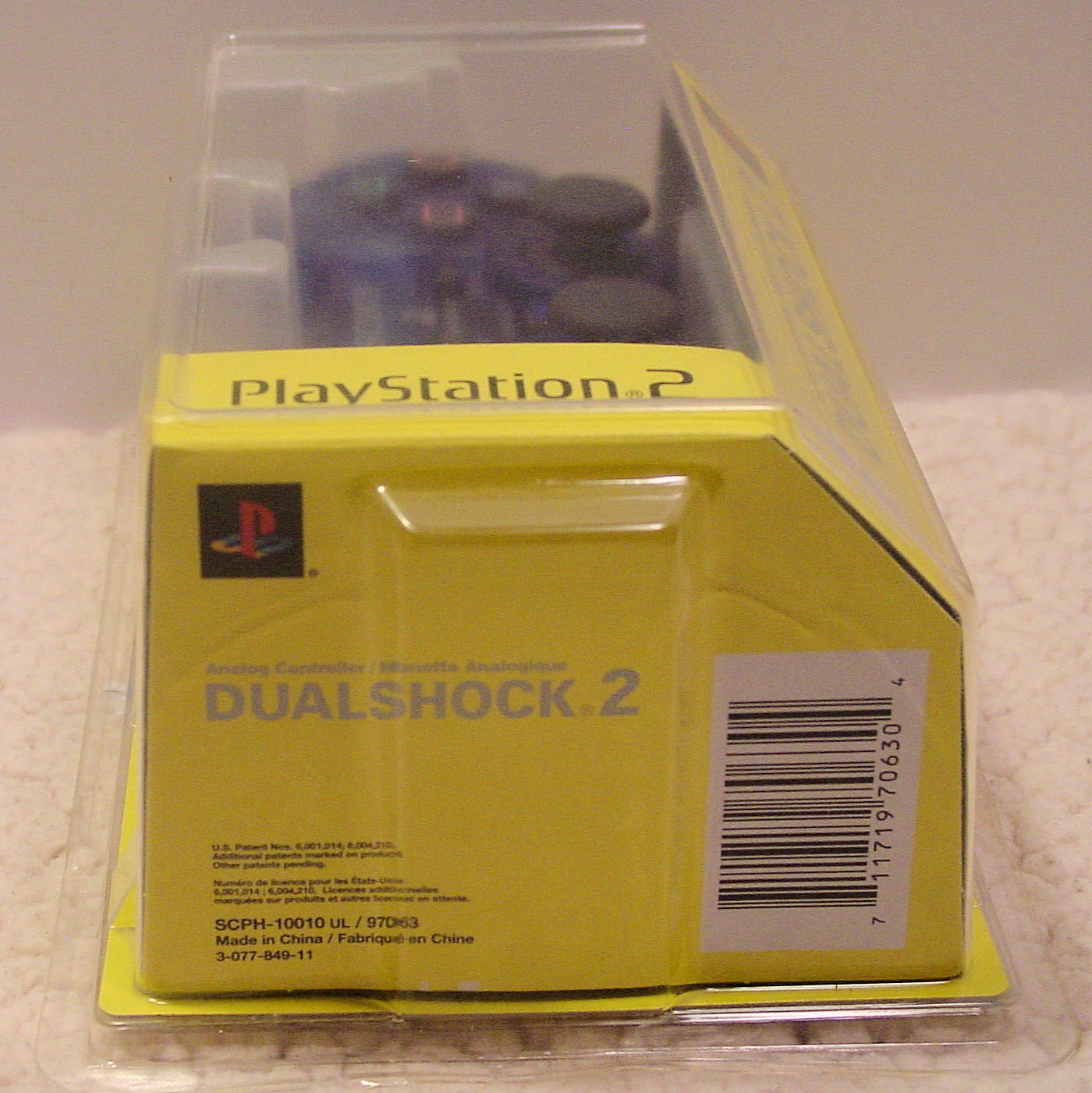
This image shows a side view of the Sony PlayStation 2 DualShock 2 Analog Wired Controller packaging. The barcode with the UPC 0711719706304 and the model number SCPH-10010 UL / 97063 are visible on the yellow cardboard insert.
Controller Overview
The DualShock 2 controller features an ergonomic design for comfortable gameplay and precise control. Key components include:
- Directional Pad (D-Pad): For digital movement and menu navigation.
- Left and Right Analog Sticks: For 360-degree analog movement and camera control. These are clickable buttons as well.
- Action Buttons (Triangle, Circle, Cross, Square): Pressure-sensitive buttons for in-game actions.
- START Button: Pauses games or confirms selections.
- SELECT Button: Often used for in-game menus or secondary functions.
- ANALOG Button: Toggles analog stick functionality on/off (indicated by a red LED).
- L1, L2, R1, R2 Buttons: Shoulder buttons, with L2 and R2 being pressure-sensitive.
- Vibration Function: Provides tactile feedback during gameplay.

This image presents a top-down view of the Sony PlayStation 2 DualShock 2 Analog Wired Controller. It highlights the layout of the directional pad, action buttons (Triangle, Circle, Cross, Square), analog sticks, START, SELECT, and ANALOG buttons, and the wired connection.
Setup
- Locate Controller Port: Identify an available controller port on the front of your PlayStation 2 console. The PlayStation 2 typically has two controller ports.
- Connect Controller: Insert the controller's plug firmly into the desired controller port. Ensure the plug is oriented correctly.
- Power On Console: Turn on your PlayStation 2 console. The controller is ready for use once the console has booted.
- Analog Mode: Press the ANALOG button located between the two analog sticks to activate or deactivate analog mode. A red LED will illuminate when analog mode is active, indicating that the analog sticks are enabled for control.
Operating Instructions
The DualShock 2 controller offers precise control for a wide range of PlayStation 2 games. Its pressure-sensitive buttons and analog sticks provide a nuanced gaming experience.
- Analog Control: When the ANALOG light is on, the analog sticks provide variable input, allowing for subtle movements in games like racing or action titles. The face buttons (Triangle, Circle, Cross, Square) and shoulder buttons (L2, R2) are also pressure-sensitive, meaning the game can detect how hard you press them.
- Digital Control: When the ANALOG light is off, the D-Pad provides digital (on/off) input. The analog sticks will not function in this mode.
- Vibration Feedback: The controller's vibration function provides immersive feedback, reacting to in-game events such as impacts, explosions, or specific actions. This feature is automatically managed by compatible games.
- Compatibility: This controller is compatible with all PlayStation 2 software and most original PlayStation software that supports the DualShock controller.
Maintenance
- Cleaning: Use a soft, dry cloth to clean the exterior of the controller. For stubborn dirt, slightly dampen the cloth with water. Avoid using harsh chemicals or abrasive cleaners.
- Storage: Store the controller in a clean, dry place away from direct sunlight and extreme temperatures when not in use. Avoid wrapping the cable too tightly around the controller to prevent damage.
- Cable Care: Regularly inspect the controller cable for any signs of wear, fraying, or damage. Do not pull the cable forcefully when disconnecting it from the console; always grasp the plug.
Troubleshooting
- Controller is unresponsive:
- Ensure the controller cable is securely plugged into the PlayStation 2 console's controller port. Try a different controller port if available. Test the controller with another game or console if possible to rule out game-specific issues or console port malfunction.
- Vibration function is not working:
- Verify that the game you are playing supports vibration feedback. Some games may have an option to enable/disable vibration in their settings menu. Ensure the controller is fully functional otherwise.
- Analog sticks or buttons are not responding correctly:
- Check if the ANALOG light is on if you intend to use analog control. If buttons feel sticky, gently clean around them with a slightly damp cloth. If the issue persists, the controller may require professional service.
Specifications
| Feature | Detail |
|---|---|
| Model Number | SCPH-10010 |
| Item Model Number (UPC) | 711719706304 |
| Connectivity | Wired |
| Dimensions (L x W x H) | 8.75 x 5.75 x 2.75 inches |
| Weight | 4 ounces |
| Manufacturer | Sony |
| Features | DualShock 2 vibration, Analog control, Pressure-sensitive buttons |
Warranty and Support
For information regarding warranty coverage and technical support for your Sony PlayStation 2 DualShock 2 Analog Wired Controller, please refer to the documentation included with your original purchase or visit the official PlayStation support website. Keep your proof of purchase for warranty claims.


