
1. Introduction
This manual provides essential information for setting up, operating, and maintaining your Disney's Magical Mirror game for the Nintendo GameCube console. Please read this manual thoroughly before use to ensure proper operation and to maximize your gaming experience.
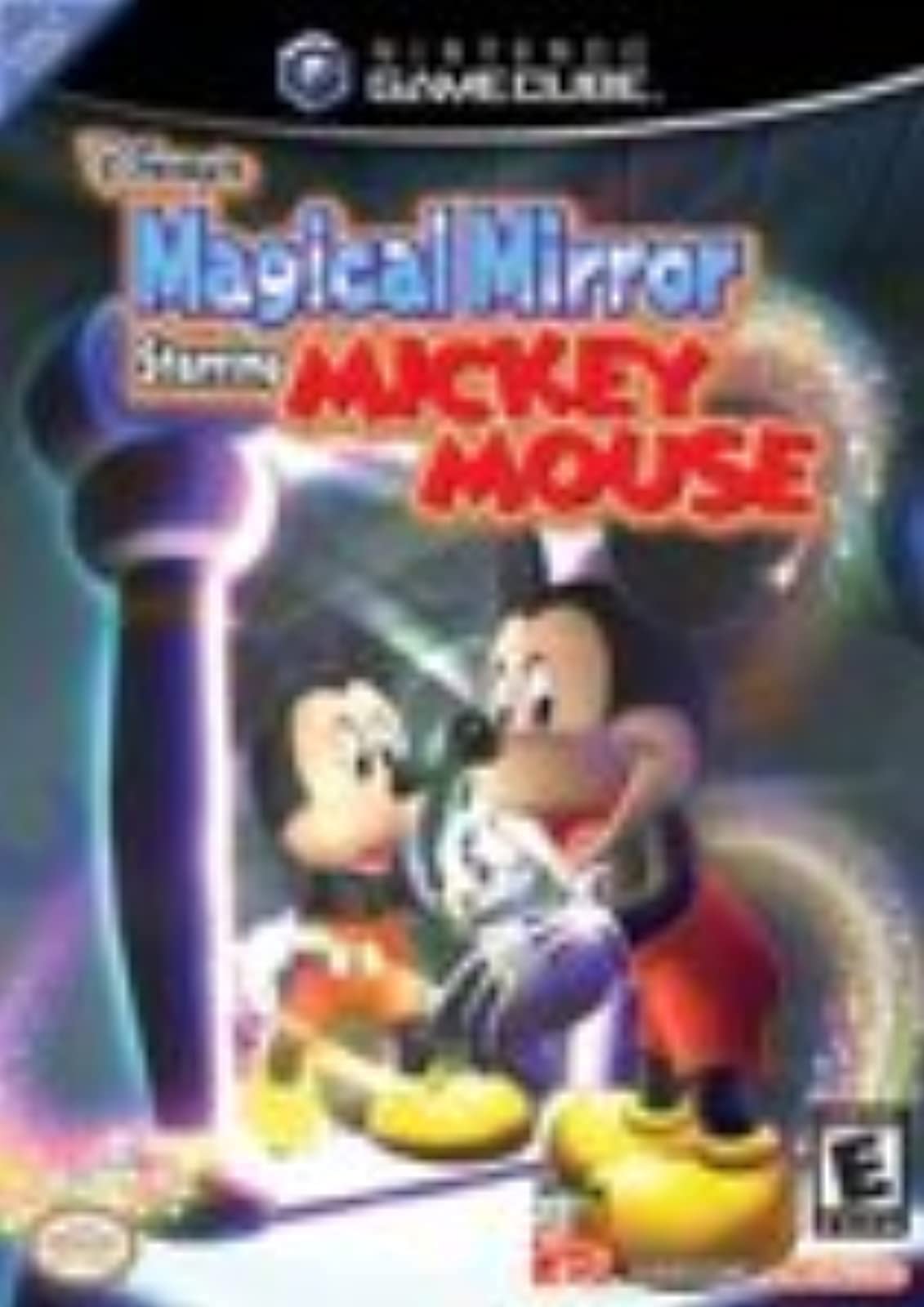
Image: The game case for Disney's Magical Mirror on Nintendo GameCube.
2. Setup
2.1 System Requirements
- Nintendo GameCube console
- Nintendo GameCube Controller
- Television with AV input
2.2 Initial Installation
- Ensure your Nintendo GameCube console is properly connected to your television and power source.
- Open the GameCube disc tray.
- Insert the Disney's Magical Mirror game disc, label side up, into the disc tray.
- Close the disc tray.
- Connect a Nintendo GameCube controller to one of the controller ports on the front of the console.
- Turn on the GameCube console and your television.
- Select the appropriate input channel on your television for the GameCube.
2.3 Game Boy Advance Link (Optional)
For additional in-game assistance, you may connect a Game Boy Advance system with Disney's Magical Quest Starring Mickey and Minnie using a GameCube/Game Boy Advance link cable (sold separately). Refer to the Game Boy Advance game manual for specific connection and gameplay instructions.
3. Operating Instructions
3.1 Game Objective
In Disney's Magical Mirror, Mickey Mouse is trapped in an alternate universe by a mischievous ghost. Your goal is to help Mickey recover the broken mirror pieces scattered throughout his house to allow him to return to his own world.
3.2 Basic Controls
The game utilizes a point-and-click control scheme. You will control a magical glove on screen to interact with the environment and guide Mickey.
- Control Stick: Move the magical glove cursor.
- A Button: Select, interact with objects, or guide Mickey to a location.
- B Button: Cancel action or return to previous screen.
- Start/Pause Button: Access the in-game menu.
3.3 Gameplay Mechanics
- Guiding Mickey: Point the glove to a location and press the A button to direct Mickey there.
- Interacting with Objects: Use the glove to click on various objects in the environment. Some objects may reveal hidden items, trigger events, or allow Mickey to perform