
Supermicro P3TDL3-O
Supermicro P3TDL3 Motherboard User Manual
Model: P3TDL3-O
1. Introduction
This manual provides comprehensive instructions for the installation, configuration, and maintenance of your Supermicro P3TDL3 Motherboard. Designed for server and workstation environments, this DUAL P3 INTEL SVR WRKS LE ATX motherboard offers robust performance and reliability. Please read this manual thoroughly before beginning installation to ensure proper setup and operation.
2. Package Contents
Verify that all items listed below are present in your motherboard package. If any items are missing or damaged, please contact your vendor immediately.
- Supermicro P3TDL3 Motherboard
- I/O Shield
- SATA Data Cables (quantity may vary)
- Driver CD/DVD (containing drivers and utilities)
- Quick Installation Guide (this manual provides more detail)
3. Board Layout and Components
Familiarize yourself with the layout of the Supermicro P3TDL3 motherboard before installation. Understanding the location of key components will aid in proper setup.
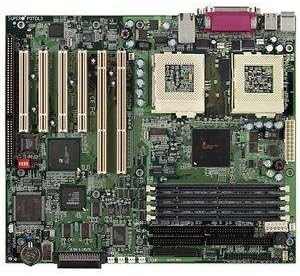
Figure 3.1: Overview of the Supermicro P3TDL3 Motherboard. This image displays the dual CPU sockets, multiple DIMM slots for memory, PCI and ISA expansion slots, and various connectors for power and peripherals.
Key components include:
- Dual Socket 370 (PGA370) CPU Sockets: For Intel Pentium III or Celeron processors.
- DIMM Slots: Multiple slots for SDRAM memory modules.
- PCI/ISA Expansion Slots: For installing add-on cards like graphics cards, network cards, or sound cards.
- IDE Connectors: For connecting PATA hard drives and optical drives.
- Floppy Disk Drive Connector: For legacy floppy drives.
- ATX Power Connectors: Main 20-pin and 4-pin 12V connectors for power supply.
- CMOS Battery: Maintains BIOS settings.
- Front Panel Connectors: For power button, reset button, HDD LED, power LED, and USB ports.
- Rear I/O Panel: PS/2 ports, Serial ports, Parallel port, USB ports, LAN port.
4. Setup and Installation
4.1 Safety Precautions
Always observe the following safety precautions to prevent damage to the motherboard or injury to yourself:
- Disconnect the power cord from the wall outlet before touching any components.
- Wear an anti-static wrist strap or frequently touch a grounded metal object to discharge static electricity.
- Handle components by their edges, avoiding contact with pins or circuitry.
- Ensure proper ventilation within the computer case.
4.2 CPU Installation
- Locate the CPU sockets (Socket 370) on the motherboard.
- Lift the CPU socket lever to the open position.
- Carefully align the CPU with the socket, ensuring pin 1 (marked by a triangle on the CPU and socket) matches. Do not force the CPU into the socket.
- Gently lower the CPU into the socket.
- Push the CPU socket lever down to secure the CPU.
- Apply thermal paste to the CPU and install the CPU cooler according to its manufacturer's instructions.
4.3 Memory (RAM) Installation
- Locate the DIMM slots.
- Open the clips at both ends of the DIMM slot.
- Align the notch on the SDRAM module with the key in the DIMM slot.
- Insert the module firmly into the slot until the clips snap into place.
4.4 Expansion Card Installation
- Identify the appropriate PCI or ISA slot for your expansion card.
- Remove the corresponding metal bracket cover from your computer case.
- Align the card with the slot and press down firmly until it is fully seated.
- Secure the card with a screw to the case.
4.5 Connecting Storage Devices
- IDE Devices: Connect the wide ribbon cable from your IDE hard drive or optical drive to the IDE connectors on the motherboard. Ensure the red stripe on the cable aligns with pin 1 on the connector. Set jumpers on drives for Master/Slave configuration as needed.
- Floppy Drive: Connect the smaller ribbon cable from your floppy drive to the FDD connector on the motherboard.
4.6 Front Panel and Power Connections
Refer to the motherboard diagram (Figure 3.1) for the exact location of these headers.
- Connect the main 20-pin ATX power connector and the 4-pin 12V power connector from your power supply to the motherboard.
- Connect the front panel cables (Power SW, Reset SW, HDD LED, Power LED) from your computer case to the corresponding pins on the front panel header. Pay attention to polarity for LEDs.
- Connect any front USB or audio headers if available on your case.
4.7 Mounting the Motherboard
- Install the I/O shield into the rear opening of your computer case.
- Align the motherboard with the standoffs inside the case. Ensure all screw holes on the motherboard align with the standoffs.
- Secure the motherboard with screws. Do not overtighten.
5. Operating and BIOS Setup
5.1 First Boot and BIOS Access
After completing all hardware installations, connect your monitor, keyboard, and mouse. Power on the system.
To enter the BIOS Setup Utility, press the DEL key repeatedly during the Power-On Self-Test (POST) sequence. The exact key may vary; watch for on-screen prompts.
5.2 Essential BIOS Settings
- Date and Time: Set the correct system date and time.
- Boot Order: Configure the boot sequence to prioritize your operating system drive (e.g., CD-ROM/DVD-ROM for OS installation, then hard drive).
- CPU Settings: Verify CPU detection and ensure correct operating frequencies.
- Memory Settings: Confirm memory size and speed are correctly detected.
- IDE Configuration: Ensure your hard drives and optical drives are detected and configured correctly (e.g., IDE Master/Slave).
- Load Optimized Defaults: If experiencing instability, loading optimized defaults can often resolve issues.
- Save and Exit: Always save changes before exiting the BIOS.
5.3 Driver Installation
After installing your operating system, install the necessary drivers from the provided driver CD/DVD or download the latest versions from the Supermicro website. Key drivers include:
- Chipset Drivers
- LAN (Ethernet) Drivers
- Audio Drivers (if applicable)
- VGA Drivers (if using integrated graphics)
6. Maintenance
6.1 Cleaning
Regular cleaning helps maintain optimal performance and extends the lifespan of your motherboard and components.
- Dust Removal: Use compressed air to blow dust out of the case, CPU cooler, and heatsinks. Do this in a well-ventilated area.
- Component Inspection: Periodically check for loose cables, bulging capacitors, or signs of overheating.
- Ensure all fans (CPU, case, power supply) are clean and functioning correctly.
6.2 BIOS Updates
BIOS updates can provide improved compatibility, stability, and new features. Only update the BIOS if necessary and follow the instructions provided by Supermicro precisely. Incorrect BIOS flashing can render the motherboard inoperable.
7. Troubleshooting
This section provides solutions to common issues you might encounter.
| Problem | Possible Cause | Solution |
|---|---|---|
| System does not power on. | Loose power cables, faulty power supply, incorrect front panel connection. | Check all power connections (20-pin ATX, 4-pin 12V). Ensure front panel power switch is correctly connected. Test power supply. |
| No display on monitor (No POST). | Improperly seated RAM, CPU, or graphics card. Faulty components. | Reseat RAM modules. Reseat CPU and check cooler. Reseat graphics card. Listen for beep codes (refer to BIOS manual for codes). |
| Operating system fails to boot. | Incorrect boot order, corrupted OS, faulty hard drive. | Check BIOS boot order. Run OS repair tools. Test hard drive. |
| Peripherals (keyboard/mouse) not working. | Loose connection, driver issue, faulty peripheral. | Check connections. Install/update drivers. Test with different peripherals. |
For more complex issues, consult the Supermicro support website or contact technical support.
8. Specifications
Detailed technical specifications for the Supermicro P3TDL3 Motherboard (Model: P3TDL3-O).
| Feature | Description |
|---|---|
| Model Number | P3TDL3-O |
| Form Factor | ATX |
| CPU Sockets | Dual Socket 370 (PGA370) |
| Compatible CPUs | Intel Pentium III, Intel Celeron |
| Chipset | Intel (Specific chipset details may vary by revision) |
| Memory Type | SDRAM (DIMM) |
| Expansion Slots | PCI, ISA (Specific slot count may vary) |
| Storage Interfaces | IDE (PATA), Floppy Disk Drive |
| LAN | Integrated Ethernet Controller |
| Rear I/O Ports | PS/2 Keyboard/Mouse, Serial, Parallel, USB, LAN |
| Package Dimensions | 17.25 x 13 x 3.5 inches |
| Item Weight | 4 pounds |
| ASIN | B00006BAGB |
| UPC | 672042880829 |
9. Warranty and Support
9.1 Warranty Information
Supermicro products are covered by a limited warranty. Please refer to the official Supermicro website or your purchase documentation for specific warranty terms, conditions, and duration. Keep your proof of purchase for warranty claims.
9.2 Technical Support
For technical assistance, driver downloads, BIOS updates, or further troubleshooting, please visit the official Supermicro support website:
https://www.supermicro.com/support
You may also contact Supermicro customer service directly through the contact information provided on their website.
Related documentsP3TDL3-O


Ask a question about this manual
Ask about setup, troubleshooting, compatibility, parts, safety, or missing instructions. Manuals+ will review the question and use this page’s manual context to help answer it.