
Introduction
The Texas Instruments TI-85 is an advanced graphing scientific calculator designed for students and professionals in engineering, calculus, and other mathematical fields. It offers a comprehensive suite of functions for complex calculations, graphing, and data analysis. This manual provides essential information for setting up, operating, maintaining, and troubleshooting your TI-85 calculator.
Key features include the ability to define, save, and graph up to 99 functions, an easy-to-read 8-line by 21-character display, and data transfer capabilities via an I/O port. The calculator supports various graphing possibilities, equation solving, and statistical analysis, making it a versatile tool for advanced mathematical applications.
Package Contents
Verify that all items are present in your TI-85 package:
- TI-85 Graphing Calculator
- Lithium Backup Battery
- Unit-to-Unit Link Cable
- Guidebook with Warranty Card
- Impact-Resistant Slide Case
- Note: AAA batteries are not included and must be purchased separately.
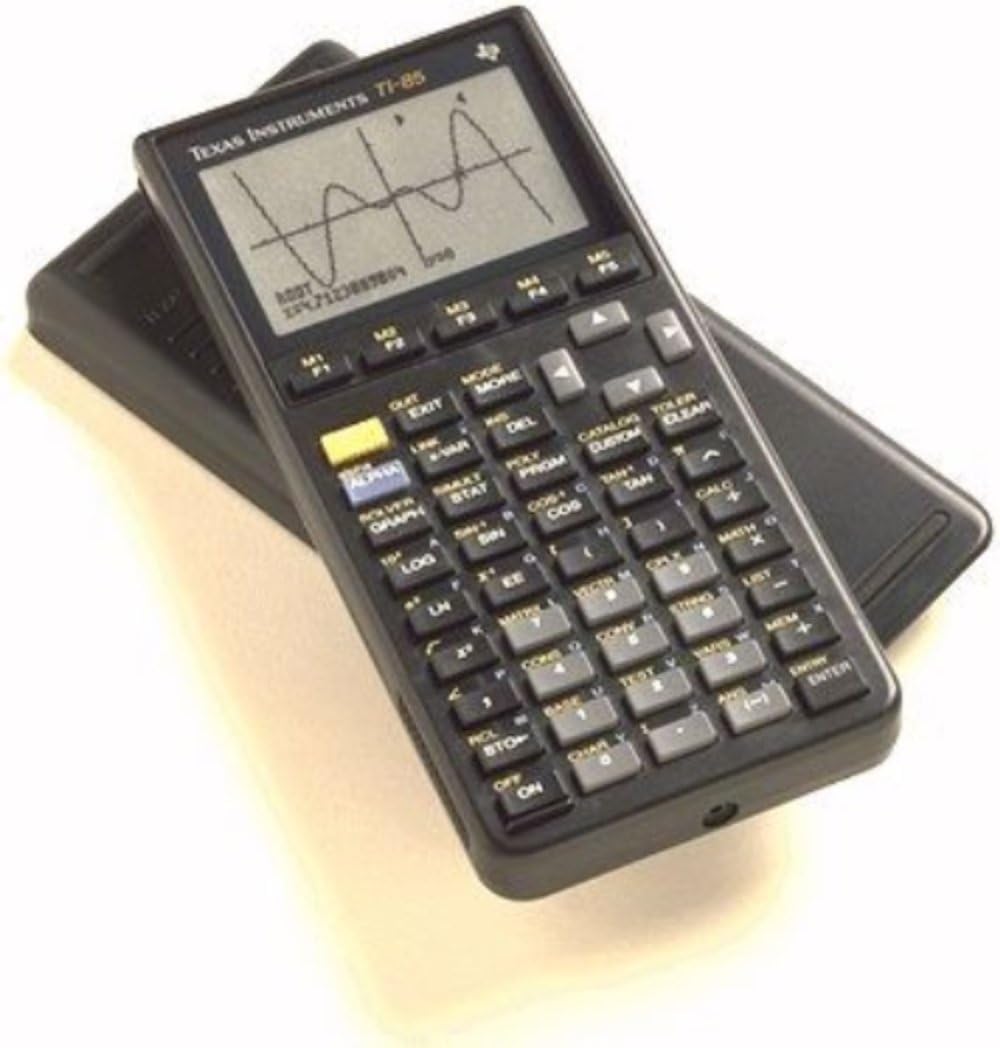
Image: The TI-85 calculator shown within its retail packaging, illustrating the product as it appears when new.
Setup
Battery Installation
The TI-85 calculator requires four (4) AAA batteries for primary power and one (1) lithium backup battery to retain memory settings when the main batteries are removed or depleted.
- Main AAA Batteries:
- Locate the battery compartment cover on the back of the calculator.
- Slide the cover off.
- Insert four new AAA batteries, ensuring correct polarity (+ and -) as indicated inside the compartment.
- Replace the battery compartment cover.
- Lithium Backup Battery:
- The lithium backup battery compartment is typically smaller and located separately from the AAA battery compartment.
- Carefully open the small cover.
- Insert the lithium battery, observing the correct polarity.
- Close the cover securely. This battery helps preserve data and settings when main batteries are changed.
Initial Power On
After installing the batteries, press the ON button located at the bottom left of the keypad to power on the calculator. The display should illuminate, and the home screen or a previous calculation should appear.
Operating Instructions
Keypad Layout and Display

Image: A detailed view of the TI-85 calculator's keypad, showing the arrangement of numerical, operational, and function keys, along with the display screen.
The TI-85 features an 8-line by 21-character display. The keypad is organized into several sections: numerical keys, basic arithmetic operations, advanced functions (accessed via 2nd and ALPHA keys), and dedicated graphing/programming buttons. Familiarize yourself with the key layout for efficient operation.
Basic Calculations
Enter numbers and operations in sequence, then press ENTER to compute the result. For example, to calculate 15 + 7, press 1 5 + 7 ENTER.
Graphing Functions
The TI-85 supports graphing of various equation types, including parametric, polar, and solutions to differential equations. Up to 99 graphing functions can be defined, saved, and analyzed simultaneously.
- Press the GRAPH key to access graphing menus.
- Select the desired graph type (e.g., y(x)= for rectangular functions).
- Enter your function(s).
- Adjust the window settings (Xmin, Xmax, Ymin, Ymax) as needed.
- Press GRAPH again to display the plot.
The calculator also features 15 interactive zoom features to analyze specific parts of your graphs in detail.

Image: The TI-85 calculator with a graphical representation, likely a sine wave, displayed on its screen, demonstrating its graphing capabilities.
Solving Equations
The TI-85 can solve systems of equations, find polynomial roots, and solve for any variable in an equation. Refer to the guidebook for detailed instructions on using the SOLVER and POLY functions.
Statistical Analysis
Perform various statistical analyses, including linear, logarithmic, exponential, power, quadratic polynomial, cubic polynomial, and quartic polynomial regressions. Data can be viewed as strings, pictures, or vectors.
- Press STAT to access statistical functions.
- Enter your data into lists.
- Select the desired regression type or statistical calculation.
- Execute the calculation to view results.
Data Transfer (Link Capabilities)
The TI-85 features a data I/O port and a unit-to-unit link cable (included) for transferring data, programs, and graphs between compatible TI-85 and TI-86 models. Consult the guidebook for detailed instructions on using the link cable and transfer protocols.
Customizable Menu Keys
The TI-85 allows for customizable menu keys, providing quick access to frequently used programming functions. You can reprogram these keys to adapt to different mathematical contexts or personal preferences.
Maintenance
Cleaning
To clean the calculator, use a soft, dry cloth. For stubborn smudges, slightly dampen the cloth with water. Avoid using harsh chemicals, abrasive cleaners, or solvents, as these can damage the display or casing.
Battery Replacement
Replace the AAA batteries when the display becomes dim or the calculator fails to power on. Replace the lithium backup battery periodically (e.g., every 3-5 years) or if you notice loss of memory settings after changing the main batteries. Always ensure the calculator is powered off before replacing batteries.
Storage
When storing the calculator for extended periods, especially several months or longer, it is recommended to remove all batteries to prevent leakage and potential damage. Store the calculator in its impact-resistant slide case in a cool, dry place away from direct sunlight and extreme temperatures.
Troubleshooting
- Calculator Does Not Turn On:
- Check if the AAA batteries are correctly installed and not depleted. Replace them if necessary.
- Ensure the battery compartment cover is securely closed.
- If the calculator still does not turn on, try a hard reset by removing all batteries (AAA and lithium backup) for a few minutes, then reinstalling them. Note that this will clear all memory.
- Display is Dim or Faint:
- The AAA batteries may be low. Replace them with fresh ones.
- Adjust the display contrast settings (refer to your guidebook for specific key combinations).
- Memory Loss After Battery Change:
- The lithium backup battery may be depleted or improperly installed. Replace or re-install it.
- Calculator Freezes or Behaves Erratically:
- Try pressing the ON key to interrupt current operations.
- If unresponsive, perform a soft reset by pressing the RESET button (often a small hole requiring a paperclip) or a hard reset by removing batteries.
- Dead Pixels or Display Issues:
- Minor display imperfections can occur over time. If dead pixels significantly impair readability, contact customer support.
Specifications
| Feature | Detail |
|---|---|
| Brand | Texas Instruments |
| Model Name | TI-85 |
| Calculator Type | Graphing, Engineering/Scientific |
| Power Source | Battery Powered (4x AAA, 1x Lithium Metal backup) |
| Display Type | LCD |
| Display Size | 8 lines x 21 characters |
| Item Weight | 12.8 ounces |
| Item Dimensions (L x W) | 9.45"L x 4.33"W |
| Enclosure Material | Plastic |
| Memory | 28K RAM |
Warranty and Support
Warranty Information
The Texas Instruments TI-85 calculator comes with a one-year limited warranty covering parts and service. Please refer to the warranty card included in your package for full terms and conditions. Retain your proof of purchase for warranty claims.
Customer Support
For technical assistance, troubleshooting beyond this manual, or warranty service, please contact Texas Instruments customer support. You can find contact information and additional resources on the official Texas Instruments website. The included guidebook also provides comprehensive information and support details.


