
Introduction
This user guide provides essential information for the proper use and care of your Memorex 64 MB SmartMedia Memory Card (Model 32502064). Please read this manual thoroughly before using the product to ensure optimal performance and longevity.
The Memorex 64MB SmartMedia Card is designed for compatibility with various devices that support the SmartMedia format. It features shock resistance and low power consumption, making it a reliable choice for portable electronic devices.
Product Overview
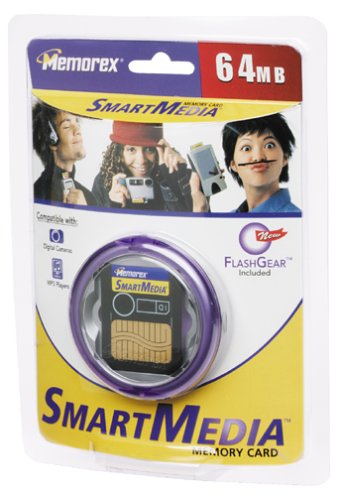
Figure 1: Memorex 64 MB SmartMedia Memory Card with its protective storage case.
This image displays the Memorex 64 MB SmartMedia Memory Card, a small, thin flash memory card, alongside its clear plastic storage case. The card itself is typically blue or black with the Memorex logo and capacity printed on it. The storage case protects the card from dust, scratches, and physical damage when not in use.
The Memorex 64 MB SmartMedia Memory Card is a type of solid-state flash memory card, primarily used in older digital cameras, PDAs, and other portable devices. It offers 64 megabytes of storage capacity for digital data such as photos, audio, or documents.
Setup and Installation
- Identify SmartMedia Slot: Locate the SmartMedia card slot on your compatible device. This slot is typically labeled "SmartMedia" or indicated by a memory card icon.
- Orient the Card: Hold the Memorex SmartMedia card with the metal contacts facing the insertion direction and the beveled corner aligned with the slot's shape. SmartMedia cards are designed to be inserted in only one orientation. Do not force the card.
- Insert the Card: Gently slide the SmartMedia card into the slot until it clicks into place or is fully seated. Ensure it is flush with the device's surface.
- Device Recognition: Power on your device. The device should automatically detect the new memory card. If prompted, format the card using the device's menu options. Note: Formatting will erase all data on the card.
For specific instructions on inserting and formatting memory cards, refer to your device's user manual.
Operating Instructions
Once installed, the Memorex SmartMedia card functions as your device's primary storage for data. The operation of the card is managed by the host device.
- Saving Data: When taking photos, recording audio, or saving files, your device will automatically store them on the SmartMedia card until its capacity is reached.
- Accessing Data: To view or transfer data, connect your device to a computer using a compatible cable or remove the SmartMedia card and insert it into a SmartMedia card reader connected to your computer.
- Deleting Data: Use your device's menu options or a computer to delete unwanted files from the card. Regularly deleting unnecessary files helps manage storage space.
- Removing the Card: Always ensure your device is powered off or the card is safely ejected through the device's menu before physically removing the SmartMedia card. This prevents data corruption.
Maintenance and Care
- Protection: Always store the SmartMedia card in its protective case when not in use to prevent physical damage, dust, and static electricity.
- Cleaning: If the metal contacts become dirty, gently wipe them with a clean, dry, lint-free cloth. Avoid using liquids or abrasive materials.
- Temperature: Avoid exposing the card to extreme temperatures, direct sunlight, or high humidity.
- Physical Stress: Do not bend, drop, or apply excessive force to the card. While shock-resistant, extreme impacts can cause damage.
- Data Backup: Regularly back up important data from the SmartMedia card to a computer or other storage device to prevent data loss.
Troubleshooting
| Problem | Possible Cause | Solution |
|---|---|---|
| Card not recognized by device. | Incorrect insertion, dirty contacts, incompatible device, or card damage. |
|
| Cannot save new data. | Card is full, write-protected, or corrupted. |
|
| Data corruption or errors. | Improper removal, power loss during write, or card degradation. |
|
Specifications
- Model Number: 32502064
- Capacity: 64 MB (Megabytes)
- Type: SmartMedia (SSFDC - Solid State Floppy Disk Card)
- Dimensions: Approximately 45.0 mm (L) x 37.0 mm (W) x 0.76 mm (T) (Standard SmartMedia dimensions)
- Features: Shock Resistant, Low Power Consumption
- Compatibility: Devices supporting SmartMedia cards (e.g., older digital cameras, PDAs, MP3 players). Note: Compatibility may vary by device model and firmware version.
Warranty and Support
Memorex products typically come with a limited warranty. For specific warranty terms and conditions, please refer to the documentation included with your purchase or visit the official Memorex website. Keep your proof of purchase for warranty claims.
For technical support or further assistance, please contact Memorex customer service. Contact information can usually be found on the product packaging or the official Memorex website.
Online Resources: For additional information, product updates, or frequently asked questions, visit the official Memorex support page: www.memorex.com/support


