
1. Introduction
This manual provides detailed instructions for the setup, operation, and maintenance of your Iomega Zip 250 MB USB External Drive. Designed for both PC and Mac systems, this drive offers a portable solution for high-capacity data storage. It is compatible with both 100 MB and 250 MB Zip disks.
Key Features:
- Ultrathin, mobile design for portability.
- Compatible with USB-enabled PC and Macintosh systems.
- Supports both 100 MB and 250 MB Zip disks.
- Data transfer rates up to 900 KBps.
- Includes IomegaWare 2.1 with Quik Sync for instant backup.
2. Package Contents
Verify that all items are present in your package:
- Iomega Zip 250 USB drive
- USB cable
- Power supply
- IomegaWare 2.1 with Quik Sync software (on CD, if requested)
3. Setup
3.1. Hardware Connection
- Connect the small end of the USB cable to the USB port on the back of the Zip 250 drive.
- Connect the larger end of the USB cable to an available USB port on your computer.
- Connect the power supply to the power input on the Zip 250 drive and then plug it into a standard electrical outlet.
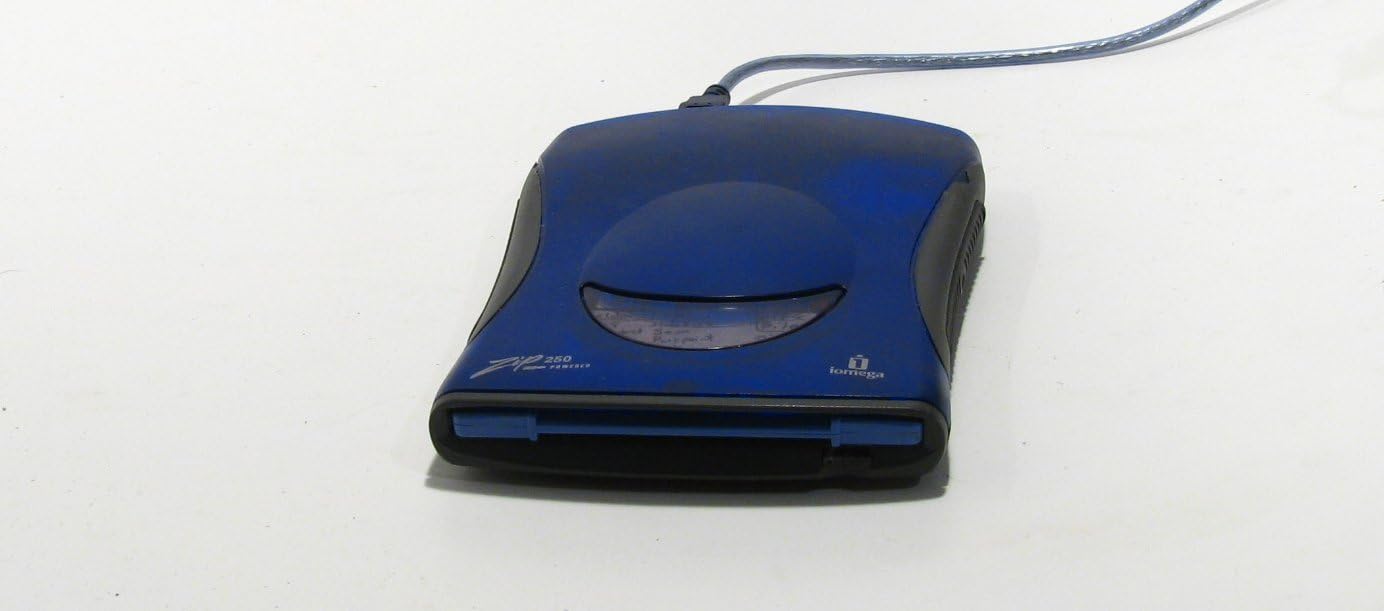
Figure 3.1: Iomega Zip 250 MB USB External Drive connected via USB.

Figure 3.2: Rear view of the drive, highlighting the USB and power ports.
3.2. Software Installation
For Windows 98 users, it is recommended to install the drivers and IomegaWare software before connecting the drive. For newer operating systems, the drive may be plug-and-play, but installing IomegaWare 2.1 is recommended for full functionality, including the Quik Sync backup utility.
- Insert the IomegaWare 2.1 installation CD into your computer's CD-ROM drive.
- Follow the on-screen prompts to install the software.
- Reboot your system if prompted after installation.
4. Operating the Zip Drive
4.1. Inserting a Zip Disk
Gently slide a 100 MB or 250 MB Zip disk into the drive's slot until it clicks into place. Ensure the disk is oriented correctly with the metal shutter facing inwards.

Figure 4.1: Zip 250 drive with a Zip disk properly inserted.
4.2. Accessing Data
Once a disk is inserted and the drive is connected, your computer's operating system should recognize the drive and the inserted disk. It will typically appear as a removable drive in 'My Computer' (Windows) or on the Desktop (Mac).

Figure 4.2: The Zip drive appearing in Windows Explorer.

Figure 4.3: Contents of a Zip disk displayed in Windows Explorer.
4.3. Transferring Data
You can drag and drop files to and from the Zip drive icon, or use the 'Send To' option (Windows) to copy files. The drive supports transfer rates of up to 900 KBps, though actual speeds may vary based on system configuration and disk type.
4.4. Ejecting a Zip Disk
Always safely eject the Zip disk before physically removing it to prevent data corruption. In Windows, right-click the drive icon and select 'Eject'. On Mac, drag the drive icon to the Trash or use the 'Eject' button in Finder. Once safely ejected, press the eject button on the front of the drive to release the disk.
5. Maintenance
To ensure the longevity and optimal performance of your Iomega Zip drive:
- Keep the drive and disks in a clean, dust-free environment.
- Avoid exposing the drive to extreme temperatures or direct sunlight.
- Do not force disks into the drive.
- Store Zip disks in their protective cases when not in use.
- Periodically clean the exterior of the drive with a soft, dry cloth. Do not use liquid cleaners.
6. Troubleshooting
6.1. Drive Not Recognized
- Ensure the USB cable and power supply are securely connected.
- Try connecting the drive to a different USB port on your computer.
- Restart your computer.
- Verify that the necessary drivers and IomegaWare software are installed, especially for older operating systems like Windows 98.
6.2. Disk Not Reading or Writing
- Ensure the disk is fully inserted and correctly oriented.
- Try a different Zip disk to determine if the issue is with the disk or the drive.
- Check for any error messages from the operating system.
- For Linux users, ensure you are accessing the volume label of the inserted media, not just the mounted drive reference, to avoid access errors. A disk that cannot be accessed via its volume label may be damaged.
6.3. Compatibility with Newer Operating Systems
While designed for older systems, the Iomega Zip 250 MB USB drive may have limited or no native support on modern operating systems like Windows 11. Driver availability and full functionality are not guaranteed for all contemporary systems. Consult Iomega's support resources for potential compatibility updates or community-driven solutions.
7. Specifications
| Model Number | 11172 |
| Manufacturer | Iomega |
| Product Dimensions | 11.6 x 10.4 x 4.4 inches |
| Item Weight | 2.36 pounds |
| Digital Storage Capacity | 0.25 GB (250 MB) |
| Hard Disk Interface | USB 1.1 |
| Connectivity Technology | USB |
| Compatible Devices | Desktop (PC/Mac) |
| Installation Type | External Hard Drive |
8. Warranty and Support
For information regarding product warranty, technical support, and driver updates, please visit the official Iomega website or contact their customer service. The serial number for your device, 6JLN4381CF, can be found on the bottom label of the drive and may be required for support inquiries.
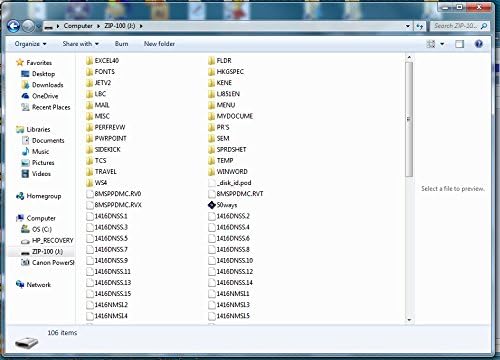
Figure 8.1: Bottom label of the Zip 250 drive with serial number.
You can typically find support resources at www.iomega.com.


