
Texas Instruments 1706SV/FBL/2L1
Contents
Texas Instruments TI-1706 SV Standard Function Calculator
User Manual
Introduction
The Texas Instruments TI-1706 SV is a standard function calculator designed for everyday use at home, work, or school. It features a large SuperView™ display for easy readability and dual power capabilities, operating on both solar energy and battery power for reliable performance in various lighting conditions.
Key features include:
- Color-coded keyboard with extra-large, easy-to-use keys for improved usability.
- Change sign (+/-) key to simplify the entry of negative numbers.
- Square root key for common mathematical operations.
- Dual power source (solar and battery) ensures functionality anywhere.
- Protective slide case that conveniently stores on the back of the calculator when in use.
Setup
Your TI-1706 SV calculator is designed for immediate use. It utilizes a dual power system, drawing power from solar cells in well-lit environments and switching to battery power when light is insufficient.
Battery Installation
While the calculator primarily uses solar power, a backup battery (1 A battery) is required for operation in low-light conditions. To install or replace the battery:
- Locate the battery compartment cover on the back of the calculator.
- Carefully remove the cover.
- Insert one 1 A battery, ensuring correct polarity (+ and -).
- Replace the battery compartment cover securely.
Note: Ensure the calculator is exposed to adequate light for solar operation. If the display is dim or unresponsive, check the battery or move to a brighter area.

Figure 1: Front view of the Texas Instruments TI-1706 SV calculator, showing the large display and color-coded keys.
Operating Instructions
The TI-1706 SV calculator features an intuitive layout for standard mathematical operations.
Basic Operations
- Power On/Clear: Press ON/C to turn on the calculator or clear the current entry. Pressing it twice clears all entries and memory.
- Addition (+): Enter the first number, press +, enter the second number, then press =.
- Subtraction (-): Enter the first number, press -, enter the second number, then press =.
- Multiplication (×): Enter the first number, press ×, enter the second number, then press =.
- Division (÷): Enter the first number, press ÷, enter the second number, then press =.
- Equals (=): Completes the calculation and displays the result.
- Clear Entry (CE): Press CE to clear the last entered number without affecting previous operations.
Special Functions
- Change Sign (+/-): Press +/- after entering a number to change its sign from positive to negative or vice versa.
- Square Root (√): Enter a number, then press √ to calculate its square root.
- Percentage (%): Used for percentage calculations. For example, to calculate 10% of 50: enter 50, press ×, enter 10, press %.
- Memory Functions (MRC, M-, M+):
- M+: Adds the displayed value to the memory.
- M-: Subtracts the displayed value from the memory.
- MRC: Press once to recall the value stored in memory. Press twice to clear the memory.
Maintenance
Proper care will ensure the longevity and optimal performance of your TI-1706 SV calculator.
Cleaning
To clean the calculator, use a soft, dry cloth. For stubborn marks, a slightly damp cloth with mild soap can be used, followed by a dry cloth. Avoid using abrasive cleaners, solvents, or harsh chemicals, as these can damage the display or casing.
Protective Case
The calculator comes with a protective slide case. This case is designed to protect the display and keys from scratches and impacts when not in use. When operating the calculator, the case can be conveniently slid and stored on the back of the unit, ensuring it is not misplaced.
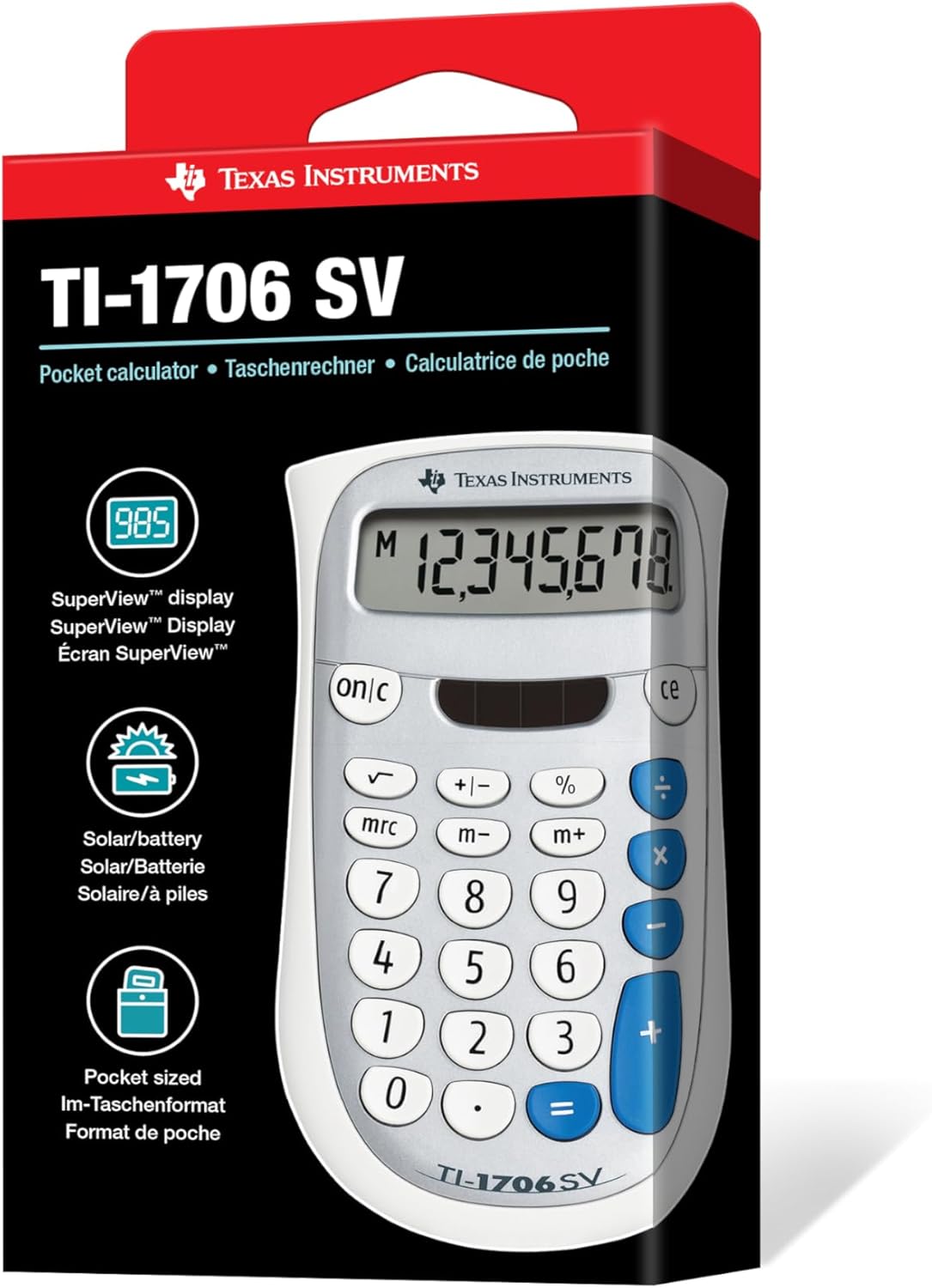
Figure 2: Side view of the TI-1706 SV calculator, illustrating the slim profile and how the protective case can be attached.
Storage
Store the calculator in a cool, dry place away from direct sunlight and extreme temperatures. Always use the protective case when storing or transporting the calculator to prevent damage.
Troubleshooting
If you encounter issues with your TI-1706 SV calculator, refer to the following common problems and solutions:
| Problem | Possible Cause | Solution |
|---|---|---|
| Display is blank or dim. | Insufficient light for solar power, or low/dead battery. | Move the calculator to a brighter area. If the problem persists, replace the 1 A battery. |
| Keys are unresponsive. | Calculator may be in an error state or internal issue. | Press ON/C twice to clear all entries and memory. If still unresponsive, remove and reinsert the battery. |
| Incorrect calculation results. | Incorrect input or operator sequence. | Double-check your input and the order of operations. Clear the calculator and re-enter the calculation. |
Specifications
Detailed specifications for the Texas Instruments TI-1706 SV calculator:
| Feature | Detail |
|---|---|
| Model Number | 1706SV/FBL/2L1 |
| Calculator Type | Standard Function |
| Power Source | Solar Powered with 1 A battery backup |
| Display Type | SuperView™ Display |
| Screen Size (Digits) | 3 (This likely refers to the number of digits displayed, or a general size indicator. The actual display shows more digits.) |
| Product Dimensions (L x W x H) | 5.72 x 3.16 x 0.1 inches |
| Item Weight | 4 ounces |
| Color | Gray |
| Manufacturer | Texas Instruments |

Figure 3: The TI-1706 SV calculator displaying its approximate dimensions.
Warranty and Support
Limited Warranty
This product is covered by a Two-year limited warranty. This warranty does not affect your statutory rights. For specific terms and conditions, please refer to the official Texas Instruments warranty documentation or contact customer support.

Figure 4: Packaging detail showing warranty and recycling information.
Customer Support
For additional support, product information, or to access educational resources, please visit the official Texas Instruments education website:
You may also find information regarding recycling and product disposal on the packaging or through local recycling guidelines.
Ask a question about this manual
Ask about setup, troubleshooting, compatibility, parts, safety, or missing instructions. Manuals+ will review the question and use this page’s manual context to help answer it.