Introduction
Welcome to the user manual for your new Samsung Galaxy S8 or S8+ smartphone. This guide is designed to help you understand and utilize all the features of your device, from basic setup to advanced functions. Whether you are a first-time smartphone user or new to the Galaxy series, these instructions will provide clear, step-by-step guidance.
The Samsung Galaxy S8 and S8+ offer a powerful and intuitive mobile experience. By following this manual, you will learn how to make calls, send messages, browse the internet, manage your accounts, personalize your device, and much more.
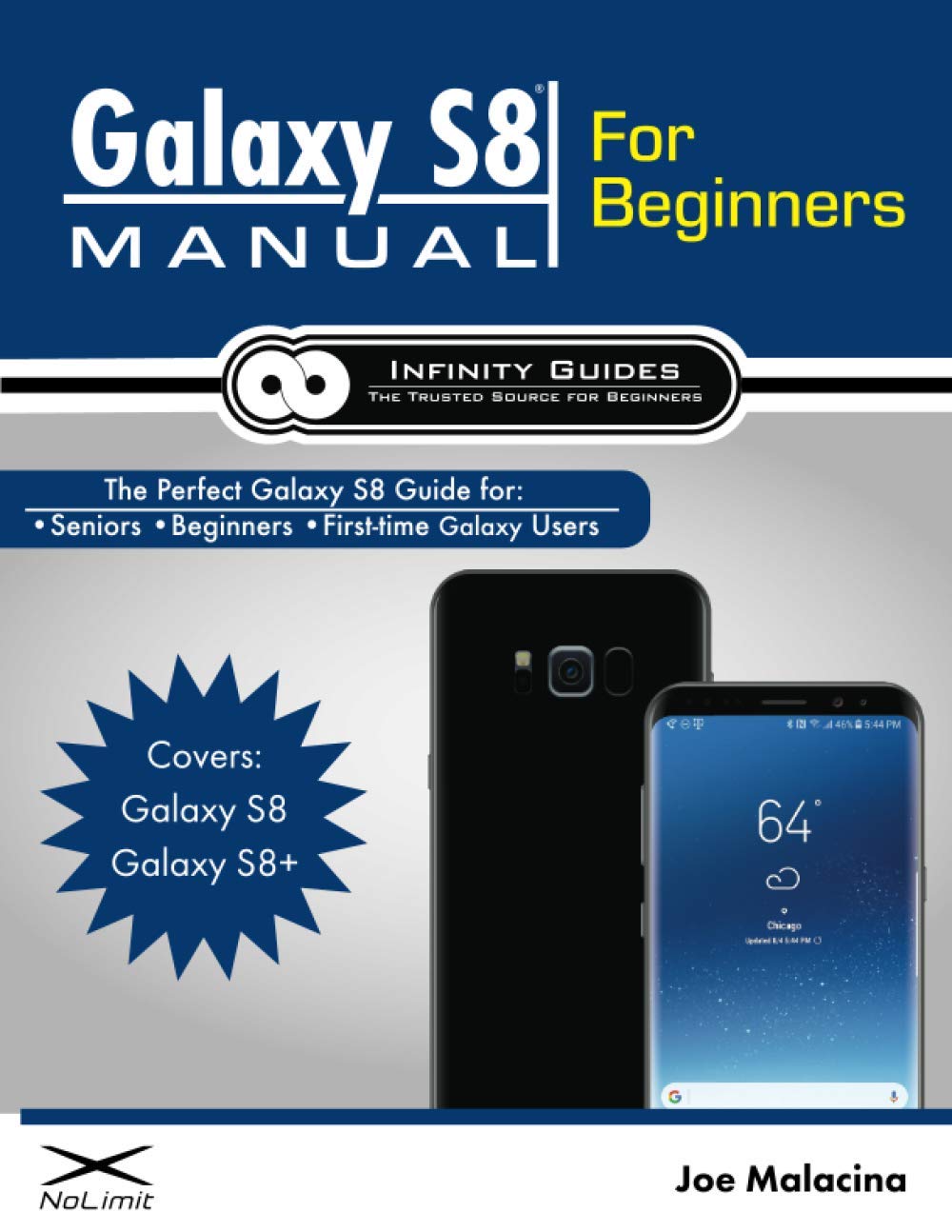
Image: Cover of the instructional guide for the Samsung Galaxy S8. This manual provides detailed instructions for new users.
Getting Started
1. Device Overview
Familiarize yourself with the physical components of your Galaxy S8/S8+.
- Power/Lock Button: Located on the right side, used to turn the device on/off or lock/unlock the screen.
- Volume Buttons: Located on the left side, used to adjust media and call volume.
- Bixby Button: Located below the volume buttons, used to launch the Bixby assistant.
- USB-C Port: At the bottom, for charging and data transfer.
- Headphone Jack: At the bottom, for connecting wired headphones.
- Speaker: At the bottom, for audio output.
- Front Camera: At the top of the screen, for selfies and video calls.
- Rear Camera: On the back, for high-quality photos and videos.
- Fingerprint Sensor: On the back, next to the rear camera, for secure unlocking.
- SIM/microSD Card Tray: At the top, for inserting your SIM card and an optional microSD card.
2. Initial Setup
- Insert SIM Card: Use the provided tool to open the SIM/microSD card tray. Insert your Nano-SIM card and/or microSD card into the tray, then reinsert the tray into the phone.
- Power On: Press and hold the Power/Lock button until the Samsung logo appears.
- Follow On-Screen Prompts: Select your language, connect to a Wi-Fi network, and accept the terms and conditions.
- Copy Data (Optional): If you're upgrading from another device, you can transfer your data using Samsung Smart Switch.
3. Creating and Utilizing Accounts
Accounts are essential for full functionality, app downloads, and data backup.
- Google Account:
- Go to Settings > Accounts and backup > Accounts > Add account > Google.
- Follow the prompts to sign in with an existing Google account or create a new one. This account is crucial for the Play Store, Gmail, and Google services.
- Samsung Account:
- Go to Settings > Accounts and backup > Accounts > Add account > Samsung account.
- Sign in or create an account to access Samsung services like Samsung Cloud, Find My Mobile, and Samsung Pay.
Basic Operations
1. Making and Receiving Phone Calls
- To Make a Call: Open the Phone app, enter the number using the keypad, and tap the green call icon. Alternatively, select a contact from your Contacts list.
- To Answer a Call: When your phone rings, swipe the green phone icon upwards.
- To Decline a Call: Swipe the red phone icon downwards.
2. Sending and Receiving Text Messages
- To Send a Message: Open the Messages app, tap the New message icon (usually a plus sign or a speech bubble), enter the recipient's number or select from contacts, type your message, and tap Send.
- To View Messages: Open the Messages app. Conversations are organized by contact.
3. Using Email
You can set up various email accounts on your Galaxy S8/S8+.
- Gmail: If you've set up a Google account, your Gmail is automatically configured in the Gmail app.
- Other Email Accounts: For other providers (Outlook, Yahoo, etc.), open the Email app, tap Add account, and follow the on-screen instructions to enter your email address and password.
4. Surfing the Web with the Chrome App
The Google Chrome browser is pre-installed for internet access.
- Open the Chrome app.
- Type a website address (URL) into the address bar at the top, or use the search bar to find information.
- Tap Go or the search icon to navigate.
Advanced Features
1. Taking and Sharing Photos and Videos
- Open Camera: Tap the Camera app icon.
- Take Photo: Tap the shutter button.
- Record Video: Tap the video icon, then tap the record button to start/stop.
- Switch Cameras: Tap the camera switch icon to toggle between front and rear cameras.
- Share: After taking a photo/video, tap the thumbnail in the corner, then tap the Share icon to send via message, email, or social media.
2. Personalizing Your Galaxy S8
Customize your device to reflect your style.
- Wallpapers: Go to Settings > Wallpaper and themes. Choose from pre-installed options or your own photos.
- Ringtones: Go to Settings > Sounds and vibration > Ringtone. Select a ringtone for calls and notifications.
- Widgets: Long-press an empty area on your home screen, then tap Widgets to add useful tools like clocks, weather, or calendar.
3. Securing Your Galaxy's Data
Protect your personal information with various security features.
- Screen Lock: Go to Settings > Lock screen and security > Screen lock type. Options include Pattern, PIN, Password, Fingerprints, Iris scanner, and Face recognition.
- Find My Mobile: Enable this feature in Settings > Lock screen and security > Find My Mobile. This allows you to locate, lock, or wipe your device remotely if it's lost or stolen.
4. Downloading and Using Apps from the Play Store
The Google Play Store offers millions of apps, games, movies, and books.
- Open Play Store: Tap the Play Store app icon.
- Search for Apps: Use the search bar at the top to find specific apps or browse categories.
- Install Apps: Tap on an app, then tap Install. The app will download and install automatically.
- Update Apps: Open Play Store, tap your profile icon (top right), then Manage apps & device > Updates available.
Tips and Tricks
- Quick Settings Panel: Swipe down from the top of the screen to access quick toggles for Wi-Fi, Bluetooth, flashlight, and more.
- Split Screen Multitasking: Open a recent apps view (square button), tap the app icon at the top of a card, then select Open in split screen view.
- Edge Screen: Swipe from the edge of the screen (if enabled) to access Edge Panels for quick access to contacts, apps, and tools.
- Battery Optimization: Go to Settings > Device care > Battery to manage power usage and extend battery life.
- Screenshot: Press the Volume Down button and Power button simultaneously.
Specifications (General for Galaxy S8/S8+)
| Feature | Description |
|---|---|
| Display | Infinity Display (S8: 5.8-inch, S8+: 6.2-inch), Super AMOLED, Quad HD+ resolution |
| Processor | Octa-core (Exynos or Snapdragon, region dependent) |
| RAM | 4GB |
| Storage | 64GB internal, expandable via microSD (up to 256GB) |
| Rear Camera | 12MP Dual Pixel OIS (Optical Image Stabilization) |
| Front Camera | 8MP AF (Autofocus) |
| Battery | S8: 3000 mAh, S8+: 3500 mAh (Non-removable) |
| Operating System | Android (version at launch: 7.0 Nougat, upgradable) |
| Water/Dust Resistance | IP68 rating |
| Security | Fingerprint sensor, Iris scanner, Face recognition |
Note: Specifications may vary slightly by region and carrier.
Troubleshooting
Here are solutions to common issues you might encounter:
- Phone not turning on: Ensure the battery is charged. Connect to a charger and wait a few minutes before attempting to power on again. If unresponsive, try a force restart by holding the Volume Down and Power buttons for 7-10 seconds.
- Apps crashing or freezing: Close the app from the recent apps screen. Clear the app's cache and data via Settings > Apps > [App Name] > Storage. If the issue persists, uninstall and reinstall the app.
- Poor battery life: Check battery usage in Settings > Device care > Battery to identify power-hungry apps. Reduce screen brightness, disable unnecessary features like GPS or Bluetooth when not in use, and enable power-saving modes.
- Cannot connect to Wi-Fi: Ensure Wi-Fi is enabled on your phone and the router is working. Try forgetting the network (Settings > Connections > Wi-Fi, tap the gear icon next to the network, then Forget) and reconnecting. Restart your phone and router.
- Fingerprint sensor not working: Ensure your finger is clean and dry. Re-register your fingerprints in Settings > Biometrics and security > Fingerprints.
Warranty and Support
For detailed warranty information, please refer to the documentation included with your Samsung Galaxy S8/S8+ at the time of purchase or visit the official Samsung website for your region. Samsung provides customer support through various channels, including online FAQs, live chat, phone support, and authorized service centers.
For further assistance, please visit: Samsung Support


